

These controls require a native build that includes Task Maps. Publishing this guide or updating the website does not update an installed app.
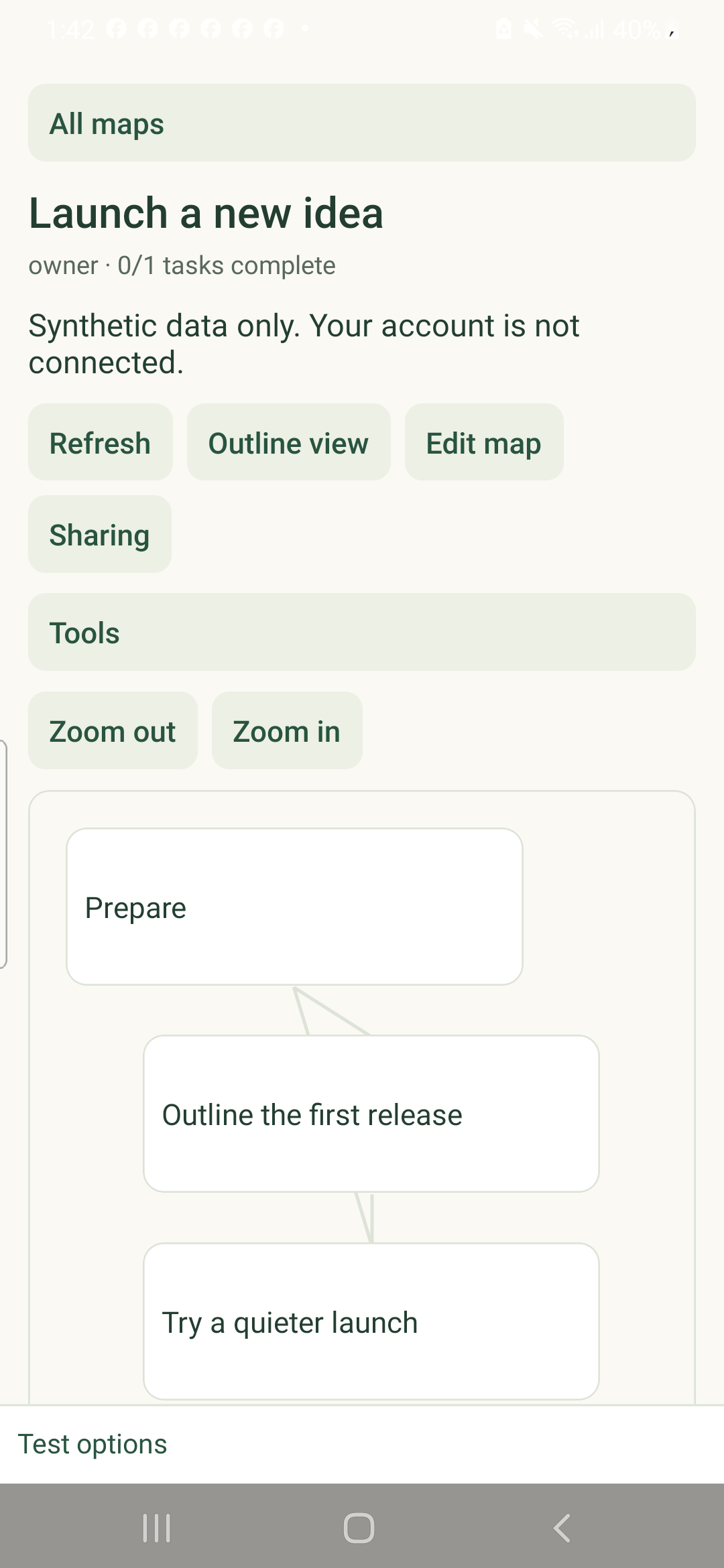
Create and find a map
Create new tasks through Tasks first. Wait for a pending task to sync before linking it. Open task takes you to the existing native task details; removing a placement leaves the underlying task intact.
- Open More → Organization → Task Maps. Search existing maps or choose Create map.
- Enter a title and optional description, then choose Save.
- Open Tools to add a group, idea, existing task or map link. Select a card to open its placement controls.
Arrange the plan
Map targets, groups and blockers do not change task due dates, hierarchy or status. Native maps do not provide the web folder, bulk-task, presence or drag controls.
- Use Outline view for a list or Map view for the diagram. Use Zoom in and Zoom out to adjust the diagram.
- Choose Edit placement to change an idea, group, target date or containing group. Target dates use YYYY-MM-DD; a child cannot finish after an ancestor group target.
- Use Tools → Add connection, select Related or Dependency, then choose Source and Target. For a dependency, Source must finish before Target. Cycles are rejected.
- Choose Free layout under Tools, select a card or group, and use the movement buttons. Use Move earlier or Move later for card order, or Undo for a supported recent map edit.
Recover an unconfirmed save
Task Maps require a live connection. Unlike offline task edits, map documents and unconfirmed saves are kept only in memory while the app stays open. Closing the process loses that recovery copy.
After a connection failure, use Retry save. If the server revision changed, copy any draft text you need, choose Discard change and confirm, then reapply your edit to the reloaded version. Do not assume reconnecting silently merges conflicting edits.
Sign-out is blocked while map changes are unconfirmed. Retry or explicitly discard them first. Refresh reloads the map when you are not editing; foreground and periodic refresh do not overwrite an open draft.
Delete a map
The owner can choose Delete map and confirm. This deletes the map, not its tasks or linked maps. Map deletion cannot be undone.