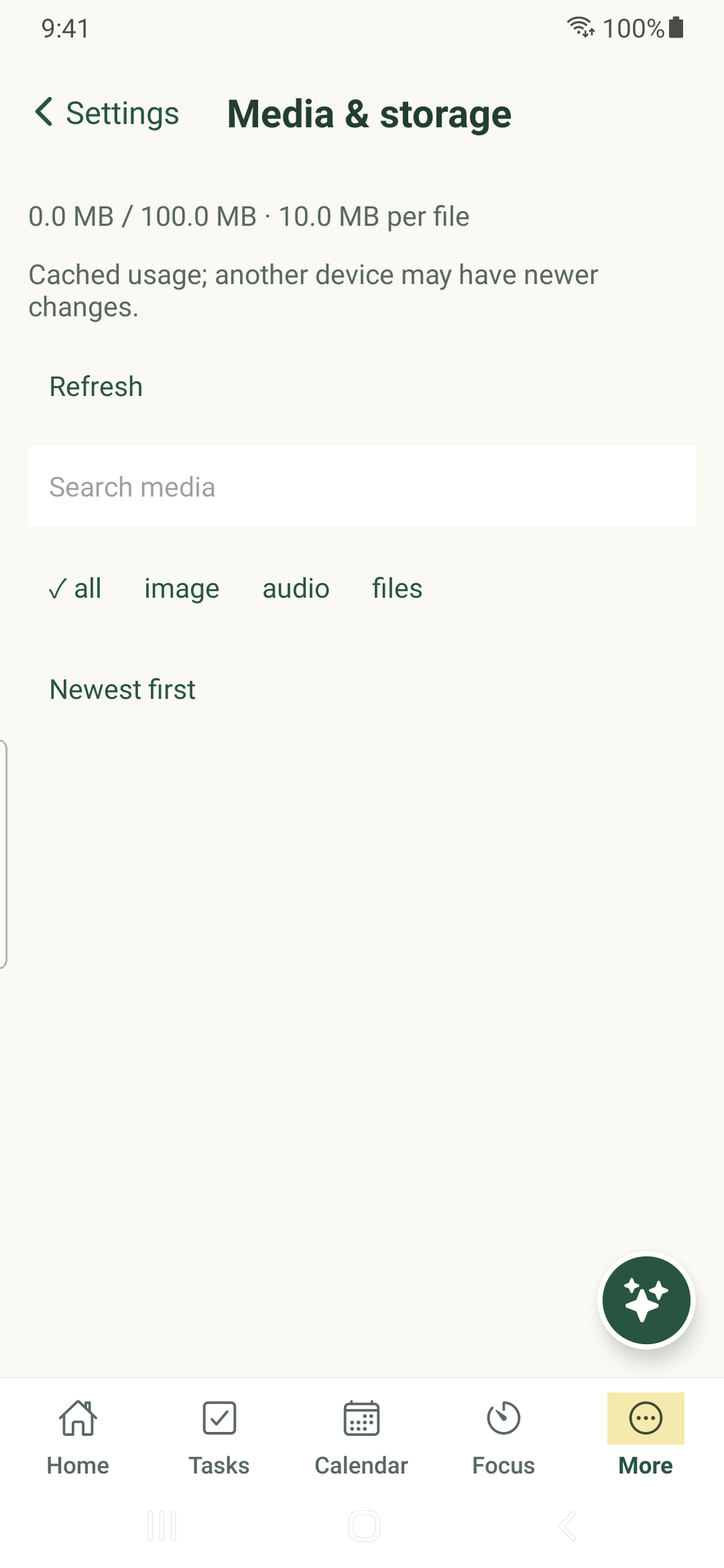
Find task attachments, inspect where they are used and understand the effect of deleting media everywhere.
Find a file
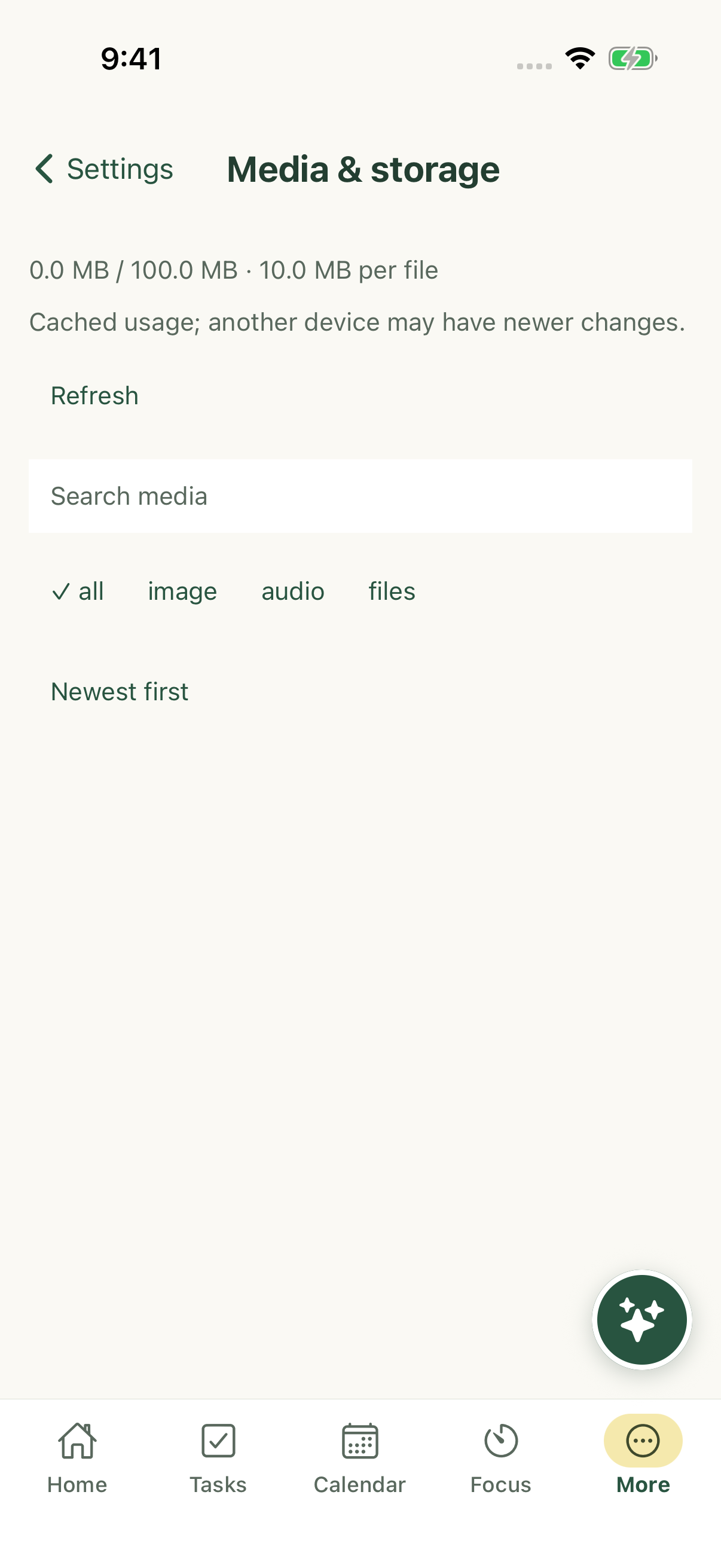
- Open More → Settings → Media & storage.
- Search by name or filter images, audio and other files.
- Choose newest or largest-first ordering as needed.
- Open an item’s preview, task or Used in tasks references.
Read storage usage
The library shows account storage and per-file limits supplied by the service. Pending local bytes and cached results may not yet match the server. Refresh when connected before making a cleanup decision.
A file visible on one device may still be waiting to upload or may need to download before opening offline.
Delete deliberately
- Open Used in tasks and check the current references.
- Choose Delete everywhere only when you want to remove that media from all affected uses.
- Read the confirmation and affected tasks. If references changed, refresh them before trying again.
Keep a copy when needed
Deleting everywhere is not a way to free only this phone’s cache. Save any copy you need before confirming. Permission and connection requirements can prevent deletion; do not repeat it blindly after an uncertain result.
iPhone example
Android example