

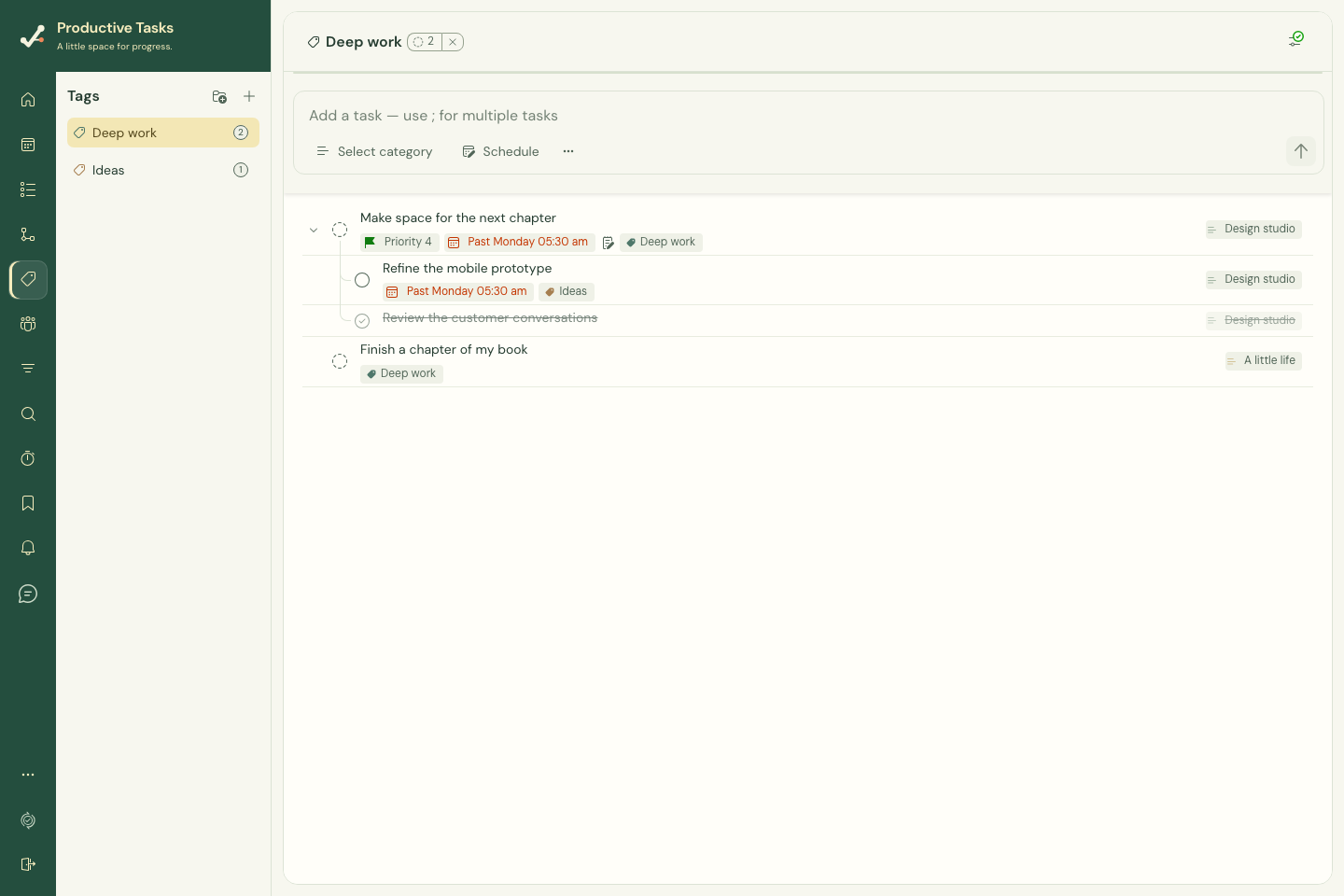
Create and apply a tag
- Open Tags and create a tag with a short, reusable name, such as “Deep work.”
- Choose a color that helps you recognize it.
- Open a task’s Tags control and select the tag.
- Open the tag view to see matching work across categories.
Create a tag while editing a task
Search for a tag in the task’s Tags picker. If no existing tag matches and you have editing access, choose Create “name” to create and apply it. Check the spelling first to avoid near-duplicate tags.
This explicit Create control is different from typing @name into quick entry: quick entry recognizes existing tags only.
On mobile
More → Tags manages your tags. The Tasks view can filter by a tag, and the task editor can change its assigned tags.