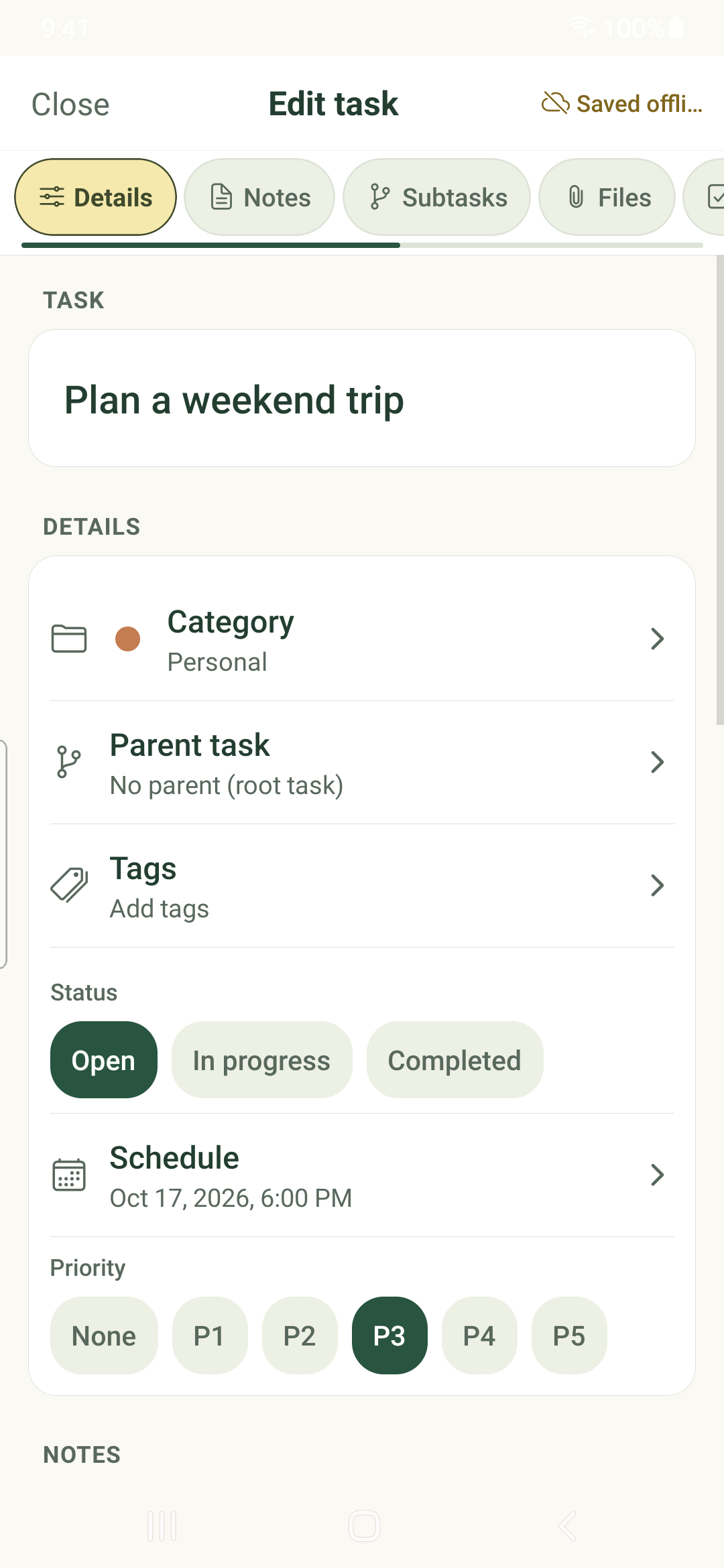
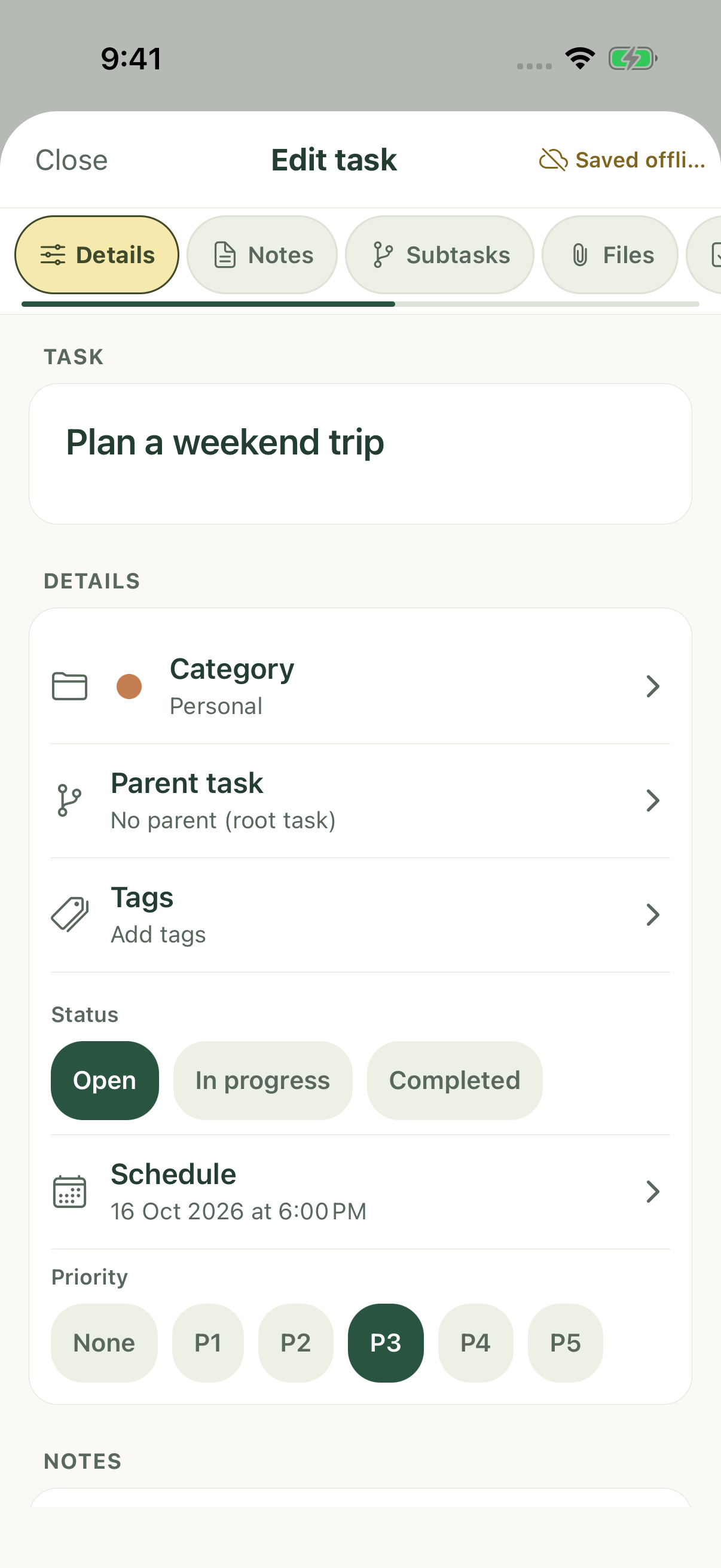
Mark work as open, in progress or completed, and use priority to identify what deserves attention.
Change status
- In Tasks, tap the status control beside a task, or open its title and find Status in Details.
- Choose the status you intend, such as Open, In progress or Completed.
- Check the view again: a completed task can disappear from an active-only view. Use Completed or All tasks to find it.
Set priority
- Open the task and stay in Details.
- Scroll to Priority and choose None or P1–P5. P1 is the highest priority.
- Close after the local save indicator updates.
Keep priority separate from order
Priority is task data. Sorting by Priority arranges the current list; Custom uses your manual arrangement. A task’s priority is retained when you switch sort modes.
Each subtask has its own status and priority. Review any branch or recurring-occurrence confirmation before changing several items.
iPhone example
Android example