

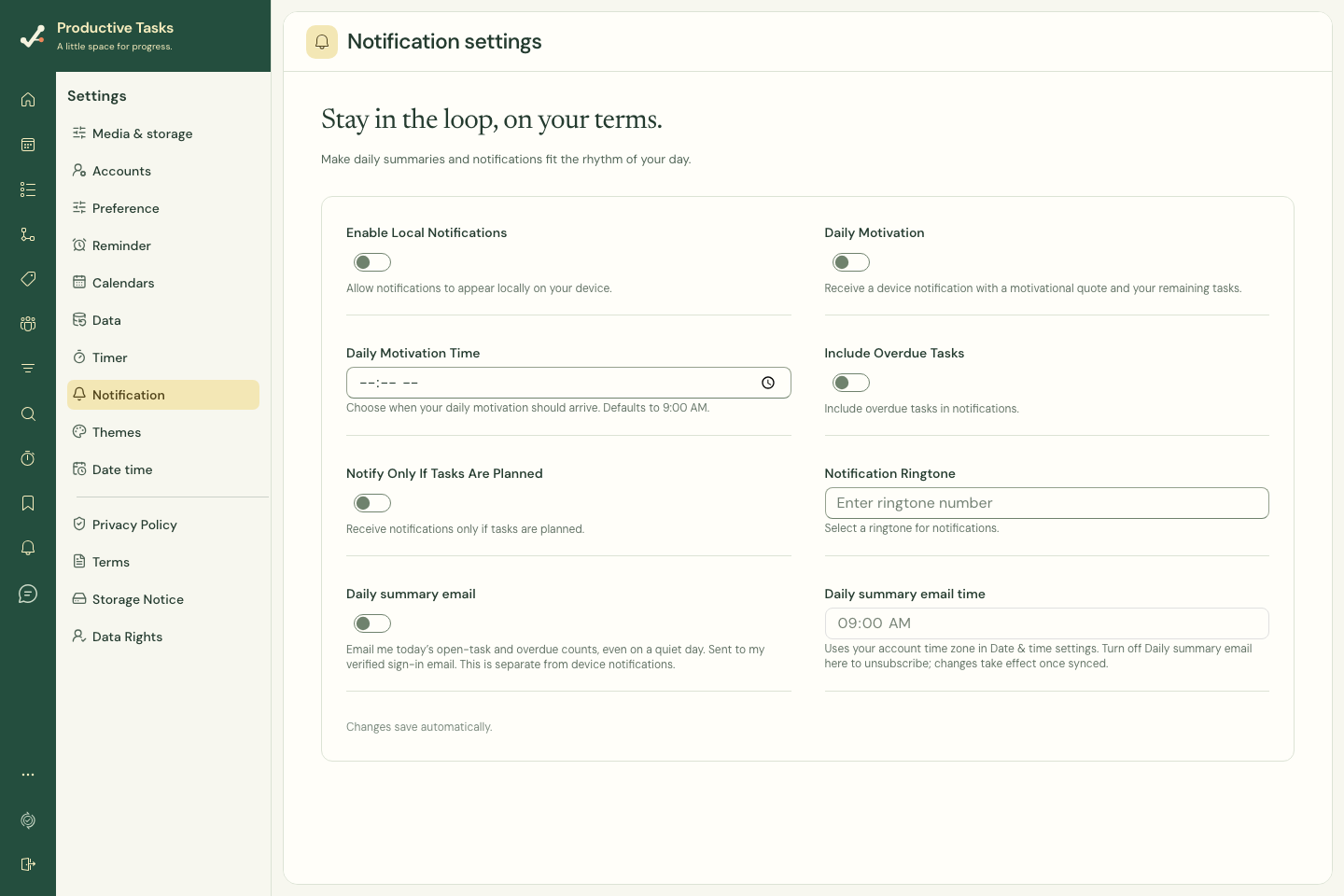
Set device notification preferences
Open Settings → Notification to review local notifications, daily motivation, its time, overdue inclusion, the planned-tasks condition, and ringtone preferences. Device/browser permission must also allow notifications.
Daily summary email preferences
- Find Daily summary email in Notification settings.
- Enable it and choose the preferred time.
- Check your account time zone in Date time settings.
- Use a verified sign-in email for delivery.
Understand the summary
When delivery is enabled, the email summarizes today’s owned open-task and overdue counts and can be sent on a quiet day. It is separate from device notifications and task reminder settings.
Turn off Daily summary email in the same settings to unsubscribe. Wait for the change to sync before expecting it to take effect.
Review received messages
The notifications drawer on web and More → Notification messages on native mobile show received messages. Review or manage those entries without changing the underlying task simply to clear a message.