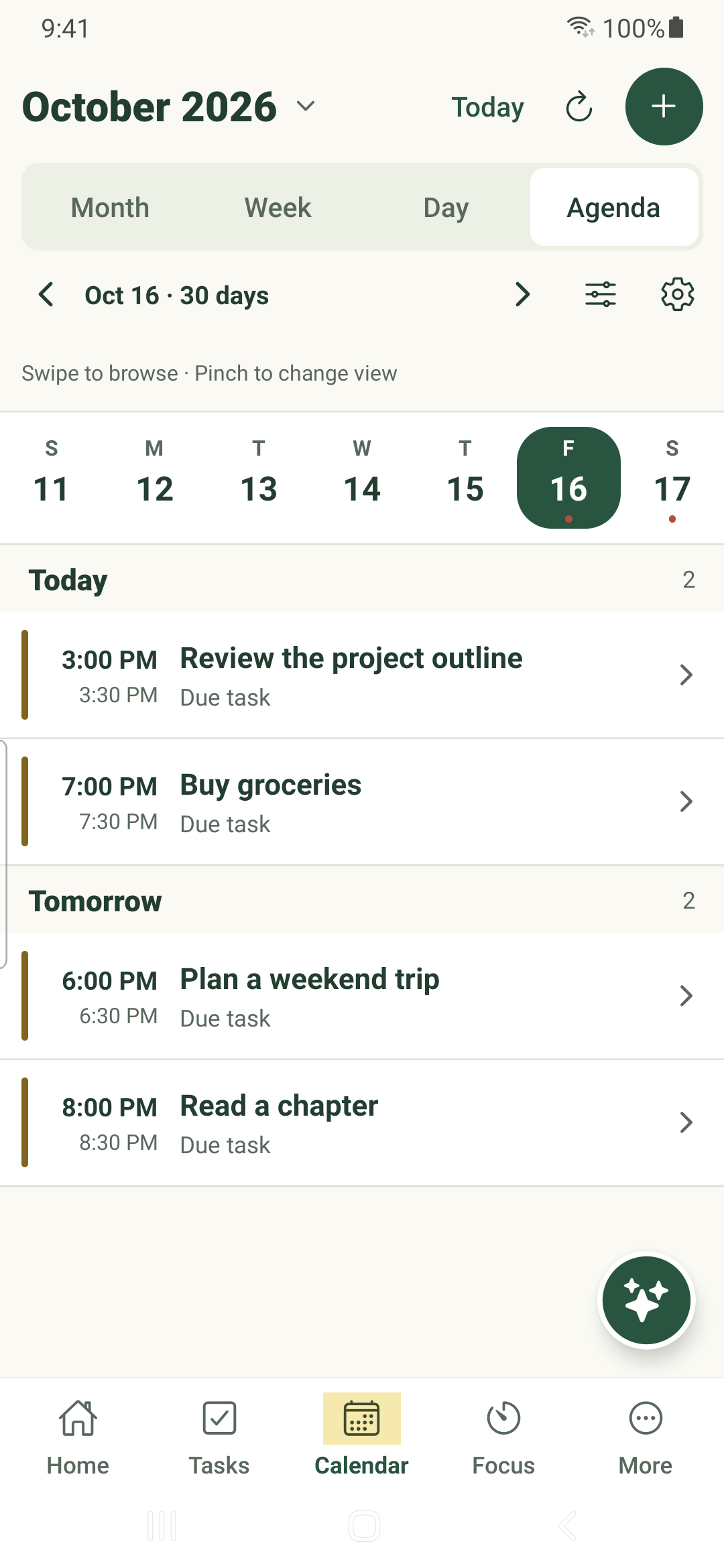
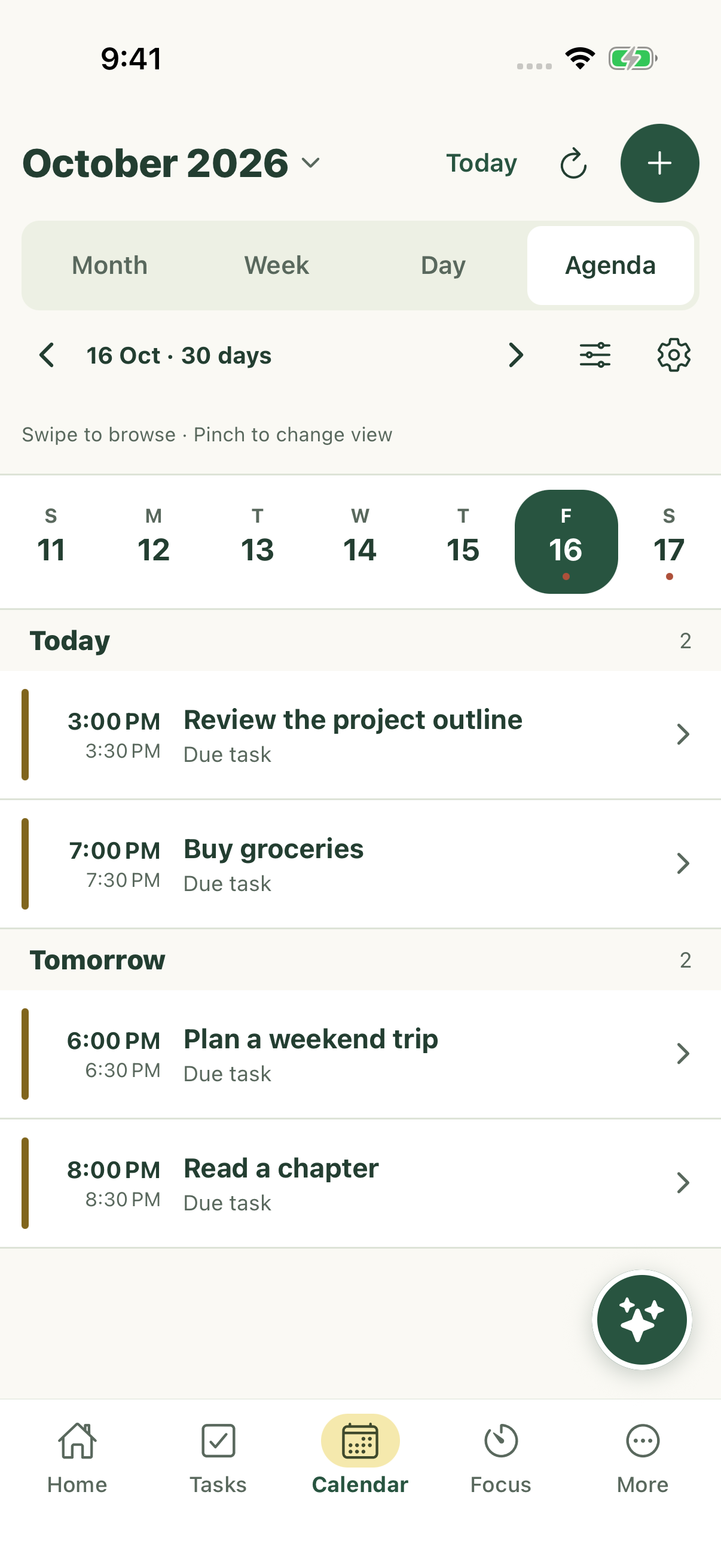
Browse scheduled work in Month, Week, Day or Agenda and keep task dates distinct from connected calendar events.
Explore your schedule
- Tap Calendar in the bottom navigation.
- Choose Month, Week, Day or Agenda. Use the date controls to move through time or return to today.
- Tap a task or event to inspect its details. Open the task when you want to edit it.
- Use calendar filters to control task dates, external events, completed tasks and all-day items.
Work at the right level
Month is useful for choosing a day, Week and Day show time placement, and Agenda lists items in order. Day and Week offer time-slot density controls.
Task quick-add starts from the selected date. Check the date and category in the task editor before finishing.
Connected events
Connected calendar events retain their provider and calendar context. Opening a provider link leaves the app for that service. Creating a task from an event creates task work; it does not turn the provider event into a native task.
Cached events can be read without a connection, but connecting, refreshing provider data and sending task changes need the appropriate service access.
When something is missing
- Check the selected date, view and filters.
- Open More → Calendar settings and check the account, selected source calendars and last synchronization.
- Check the account time zone and allow a refresh before assuming an event was deleted.
iPhone example
Android example