

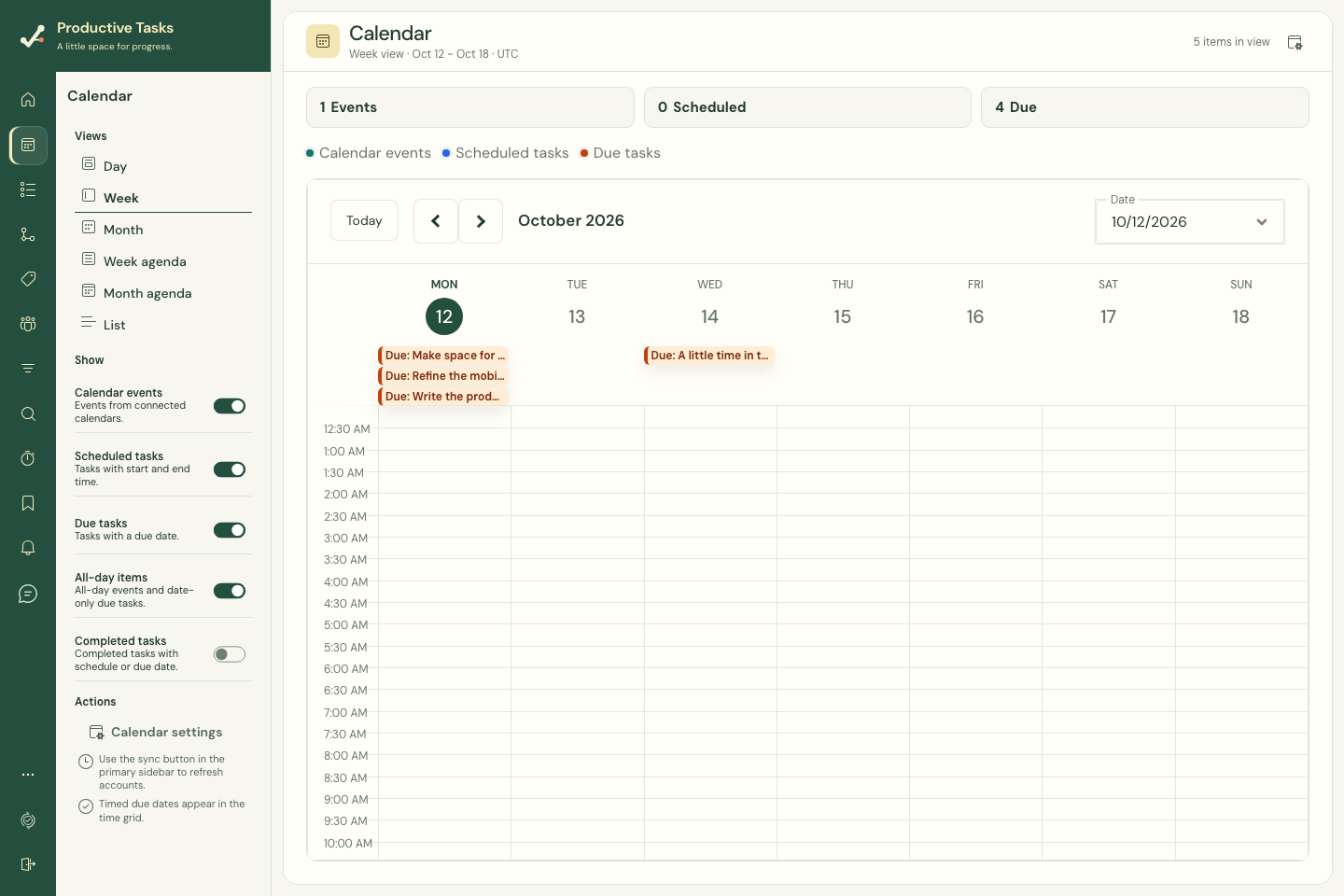
Browse your plan
- Open Calendar and choose a view: Day, Week, Month, an agenda view, or List on the web.
- Use the date navigation to reach the period you want. Check the timezone displayed beside the view name.
- Use the source and visibility controls to decide which tasks or external events to show.
- Select an entry to inspect its time, source and available actions.
Tell tasks and external events apart
Task entries represent work managed in Productive Tasks. External calendar entries represent events from a connected provider. The legend distinguishes Events, Scheduled tasks and Due tasks.
On the web, Open task takes you to the task editor. An external event offers Open in calendar when a provider link is available. Private event details may be hidden by your calendar settings.
Recurring work on the calendar
The calendar projects recurring tasks into the period you are viewing. An edited occurrence can differ from the normal series pattern. Open the occurrence or series controls to check its scope.
On native mobile
Current native source includes Month, Week, Day and Agenda views. Use More → Calendar settings for accounts and sources. Available controls depend on the installed app version.
In a native event’s details, choose a category under Create task in, then Create task from event. This creates a Productive Tasks task; it does not edit the original provider event. The web event popover currently offers the provider link, not this conversion action.
Cached events can remain visible offline. Refreshing events or connecting an account requires a network connection.