

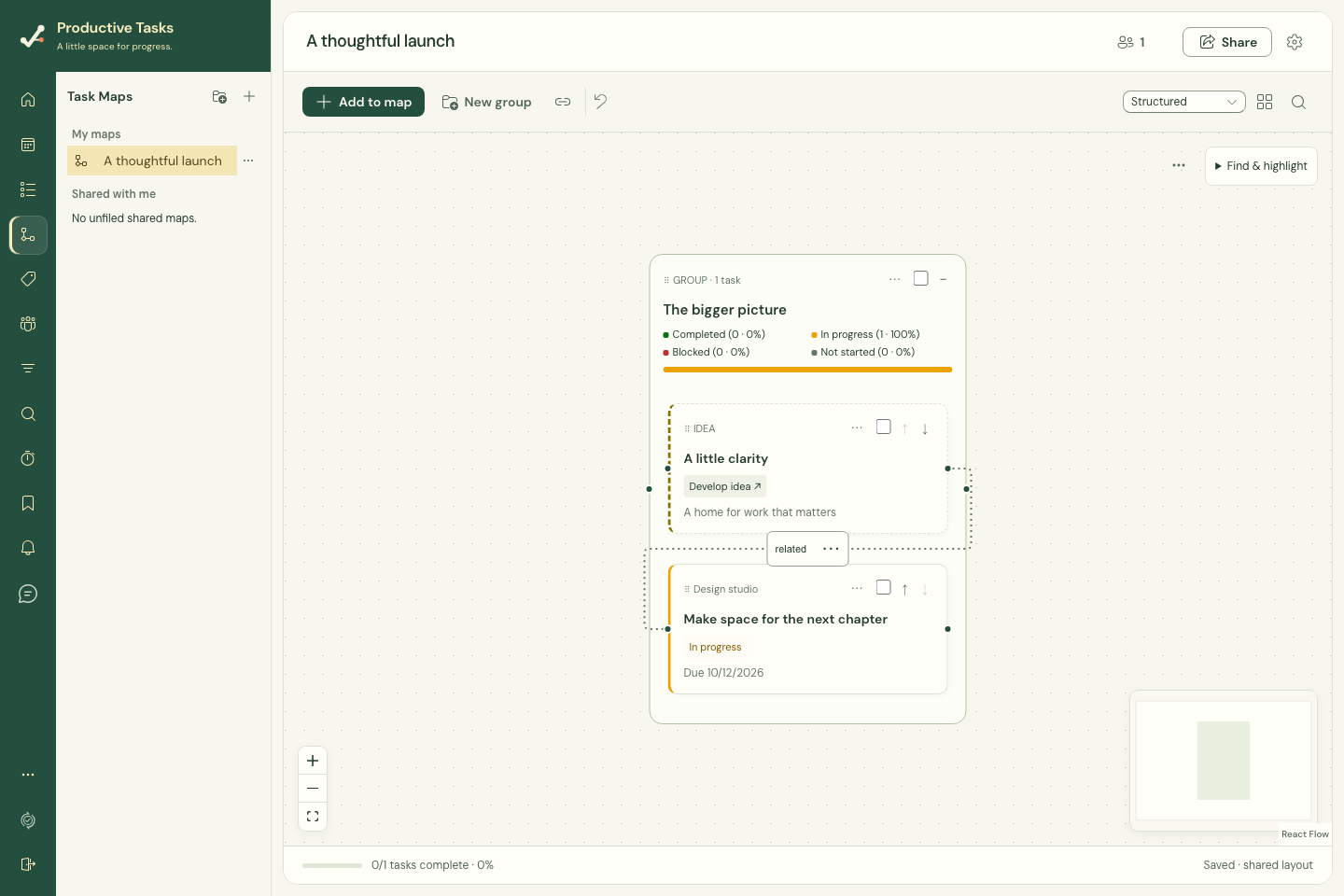
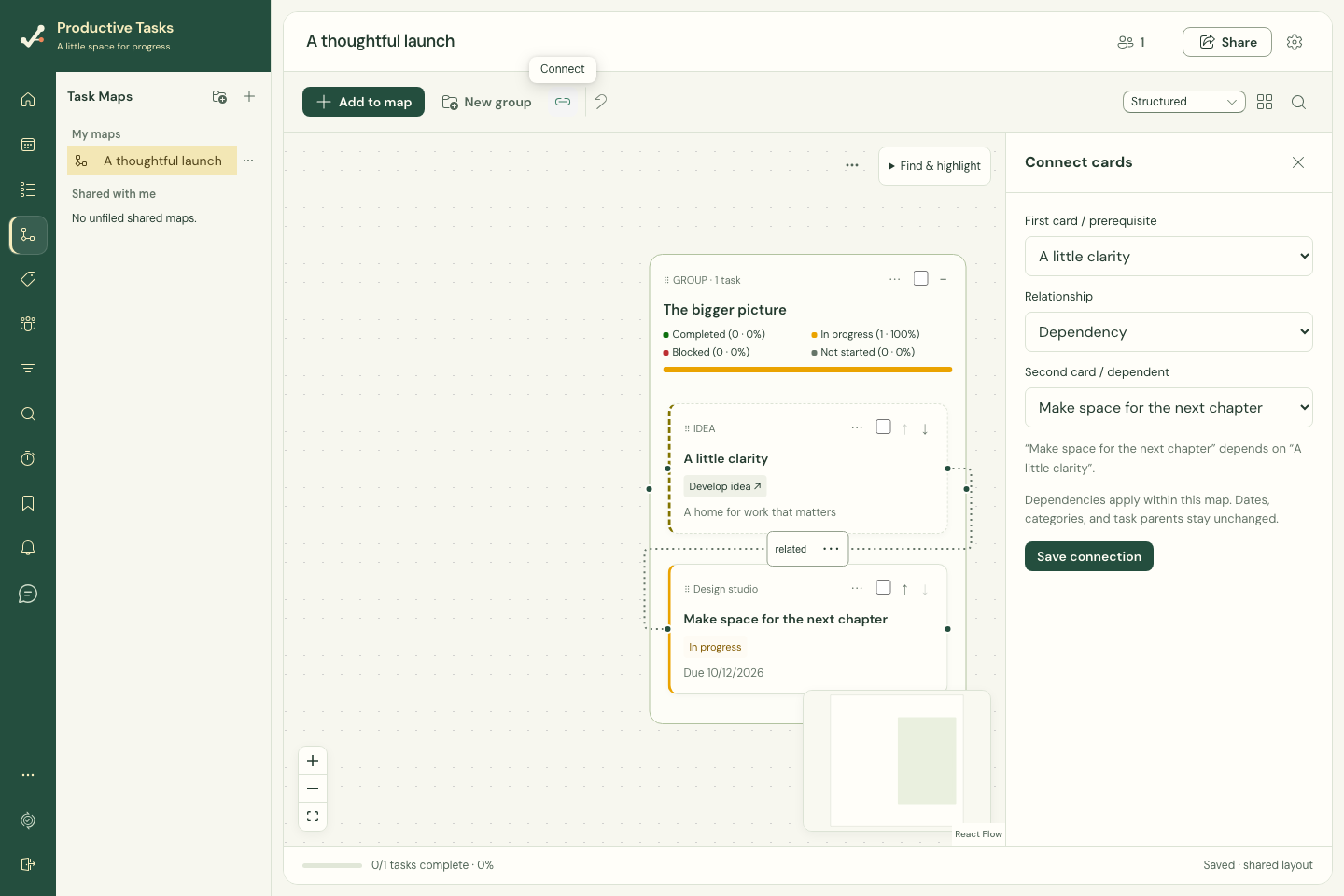
Connect a prerequisite to its dependent
Choose Related to for an association without a prerequisite. Parent → child group changes group hierarchy; it does not create a task subtask relationship.
Highlight endpoints helps locate both ends. Remove relationship leaves the cards in place. Dependencies are local to the map and do not reschedule task dates.
- Choose Connect in the toolbar, Connect cards from a map menu, or Connect from here on a card.
- Set First card / prerequisite to the work that must happen first.
- Choose Dependency as the Relationship.
- Set Second card / dependent to the work that relies on it. Read the sentence showing which card depends on which.
- Choose Save connection.
Choose a readable layout
Use Layout to choose Structured or Free canvas. Auto arrange helps restore a readable arrangement. Card order and Group order controls let you refine the sequence.
Collapsing a group changes what you see on the canvas; its tasks still belong to the map.
Show a blocker
Use Mark blocked on a card to flag a manual blocker in this map. Clear manual blocker removes that flag; unresolved dependency blockers still apply. The underlying task’s status is separate.
Set a completion target
Targets are map-only; task due dates stay unchanged. Green means more than seven days away, amber means within seven days including today, and red means overdue. Completed tasks remain green.
A child target cannot fall after an ancestor group’s target. Move the parent target later, choose an earlier child target, or make the group independent before saving.
If a target changed elsewhere while you were editing, choose Use latest target or Keep my target draft before saving again.
- Select a card or group and find Completion target (optional).
- Choose a date and review any validation message.
- Choose Save target. To remove the date, choose Clear target and then Save target.