

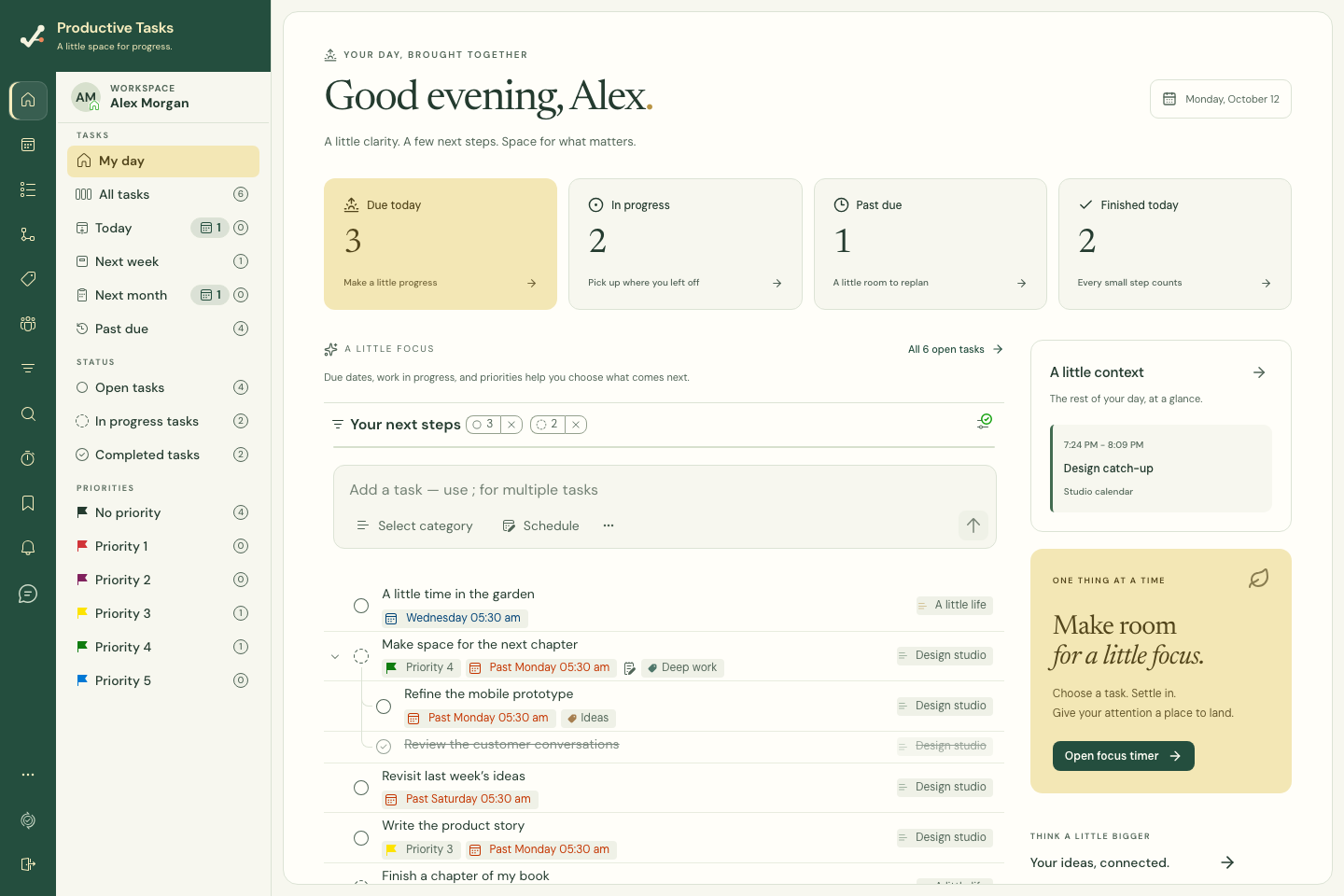
Start with something real
- Open All tasks or a category from the sidebar.
- Type something you want to do, such as “Plan a weekend getaway,” in the task entry field.
- Check the category and any schedule before adding the task.
- Open the task when you want to add more detail.
Give your work a little structure
Categories give each task a primary home. Tags connect related work across categories. Subtasks break a larger task into actions you can finish individually.
- Start with a small number of categories, such as Personal and Work.
- Add a date when it helps you plan; a task does not need a deadline to be useful.
- Try one subtask before creating a large hierarchy.
Use the optional starter setups
Preview an available Personal, Work or Study starter setup, then choose Use this setup if it is useful. Back closes the preview without adding it. Examples have no dates or reminders, and an already-added setup cannot be added again from that preview.
Choose Remove untouched setups when you want to clean up examples. The confirmation removes example tasks only from completely untouched setups. Categories and setups with synced edits, sharing, attachments or map links are kept. Finish active timers and sync pending changes on all devices before cleanup.
Follow or dismiss the first-steps checklist
The optional checklist tracks adding a real task, adding a subtask and completing a task. Select a step to open the place where you can do it.
You can dismiss the guidance when you no longer need it and return to Getting started from the menu. Dismissing a suggestion does not delete your tasks.
Come back when you need guidance
Getting started in the web menu opens the guided introduction. Documentation is the reference library you can return to whenever you need a specific answer.