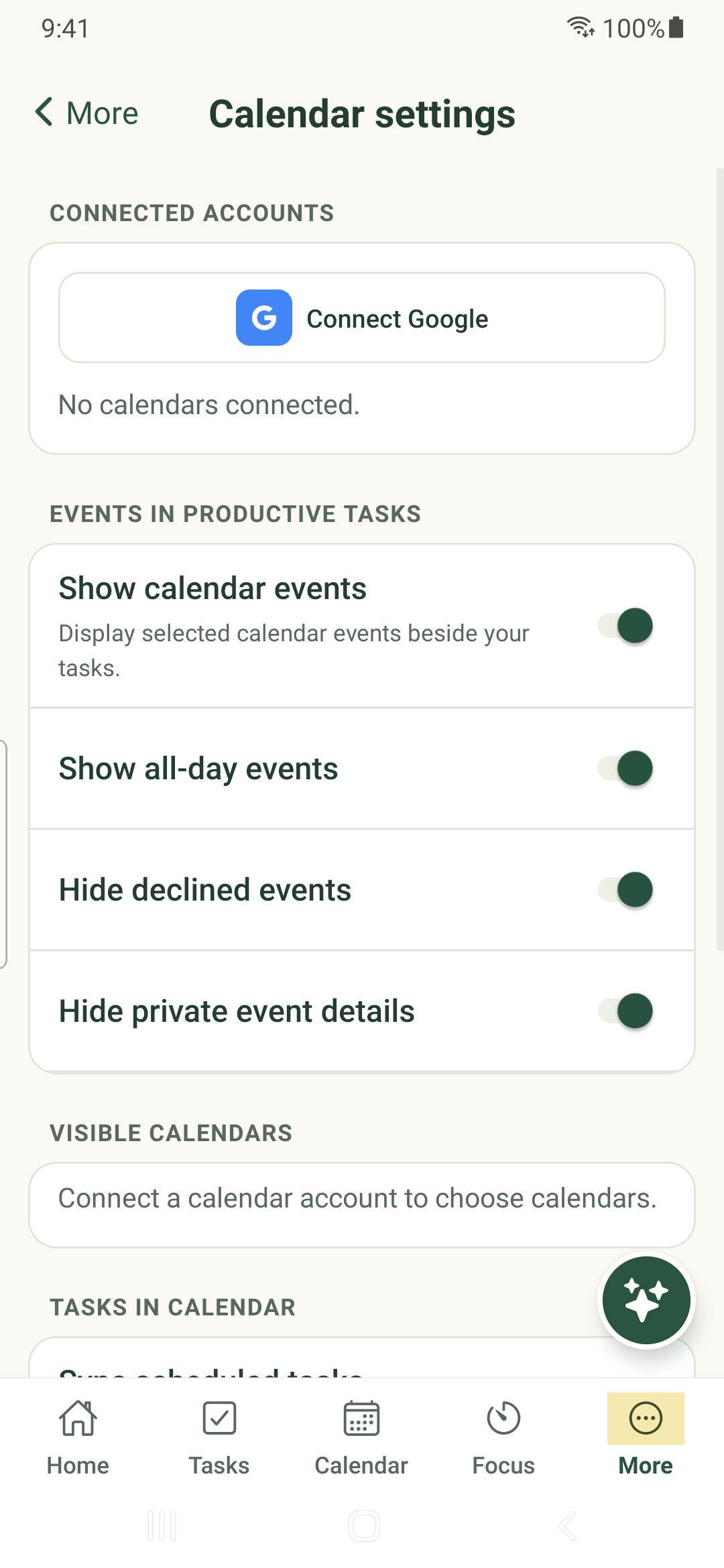
Connect an available provider, choose calendars to display and control optional task synchronization.
Open calendar settings
- Open More → Calendar settings.
- Choose an available provider and follow its browser consent flow. Use the account whose calendars you intend to connect.
- Return to the app and check the connection status.
- Select the source calendars you want shown, then return to Calendar and refresh.
Control what appears
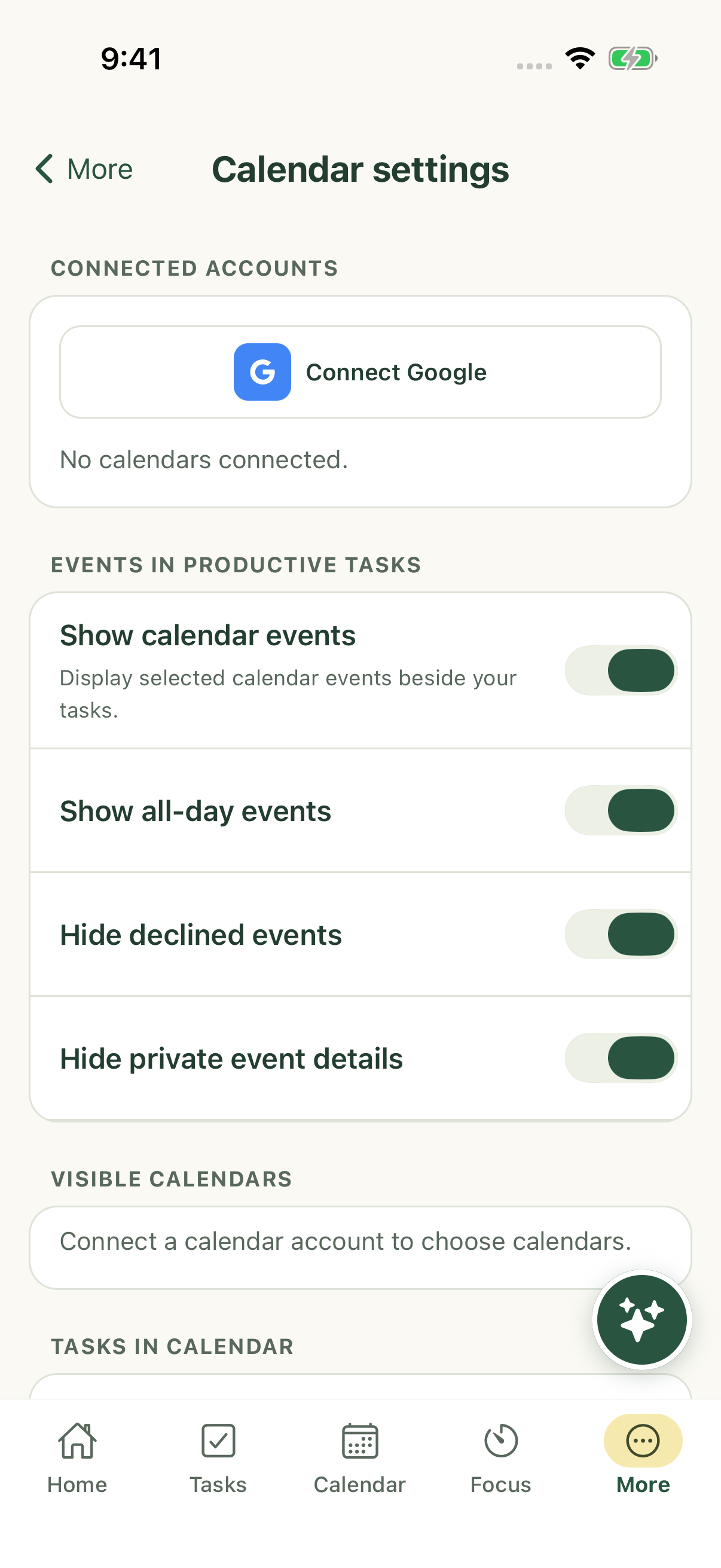
Calendar settings distinguish external event display from optional task synchronization. Review all-day events, declined events and private details separately.
When enabling task synchronization, review the destination calendar, default event duration, all-day tasks and behavior when a task is completed. Do not assume the app writes to every calendar you selected for reading.
Repair or disconnect
Use resync when the account is connected but data appears old. A needs-attention state may require reconnecting through the provider.
Disconnect removes the app connection. Provider-side permission revocation is managed by the provider. Read the confirmation before changing either.
Provider availability
Google Calendar may show an unverified-app warning while sensitive-scope verification remains pending. Microsoft/Outlook access depends on the provider configuration and tenant policy.
The native controls are documented from current source. A local screen capture does not establish provider verification, successful OAuth return on your device or a store release.
iPhone example
Android example