Adjust new-task defaults, list behavior, date/time formatting and notification preferences from More → Settings.
Change account preferences
- Open More → Settings.
- Choose New task defaults, List behavior, Date and time, Notifications or Task reminders.
- Adjust the values, then use Save. Check the confirmation or pending-sync message.
Defaults for new work
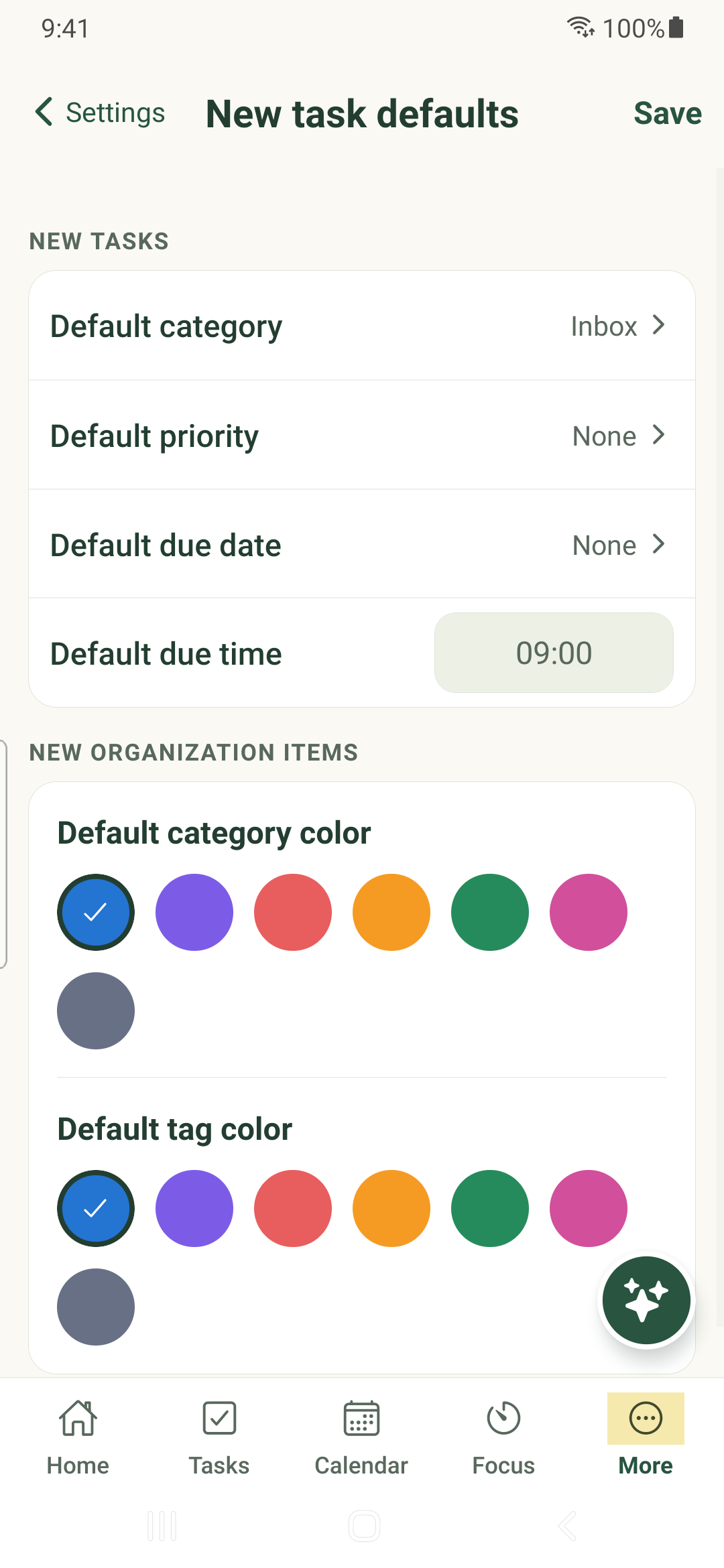
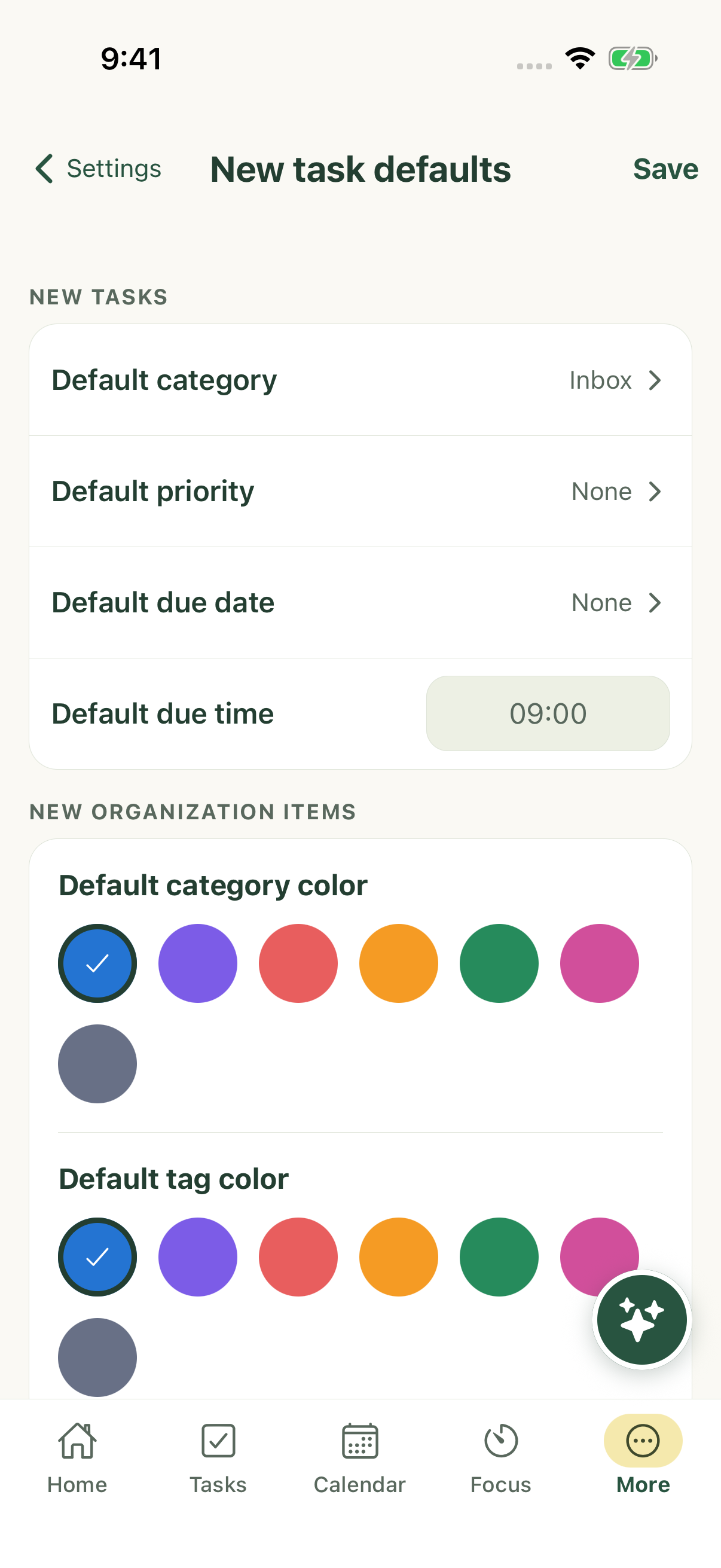
New task defaults include category, priority, due date and due time, plus default category and tag colors. These are defaults for new work; they do not rewrite existing tasks.
List behavior includes sort field and direction, in-progress or overdue placement, completed-task placement, category/tag order and the task split character. Category and tag overrides can affect an individual view.
Date and time
Choose the first day of the week and 12- or 24-hour time. The time-zone field expects an IANA name such as Asia/Kolkata. Review the saved value before relying on reminder timing.
These account preferences are separate from changing the phone’s system clock or locale.
Appearance and saving
Theme, color palette and color coverage apply through the native appearance controls. They are separate from category, tag and priority colors.
Account settings can save locally and synchronize later. A saved local preference does not establish that another device has received it. Daily email options additionally depend on the mail service being activated.
iPhone example
Android example