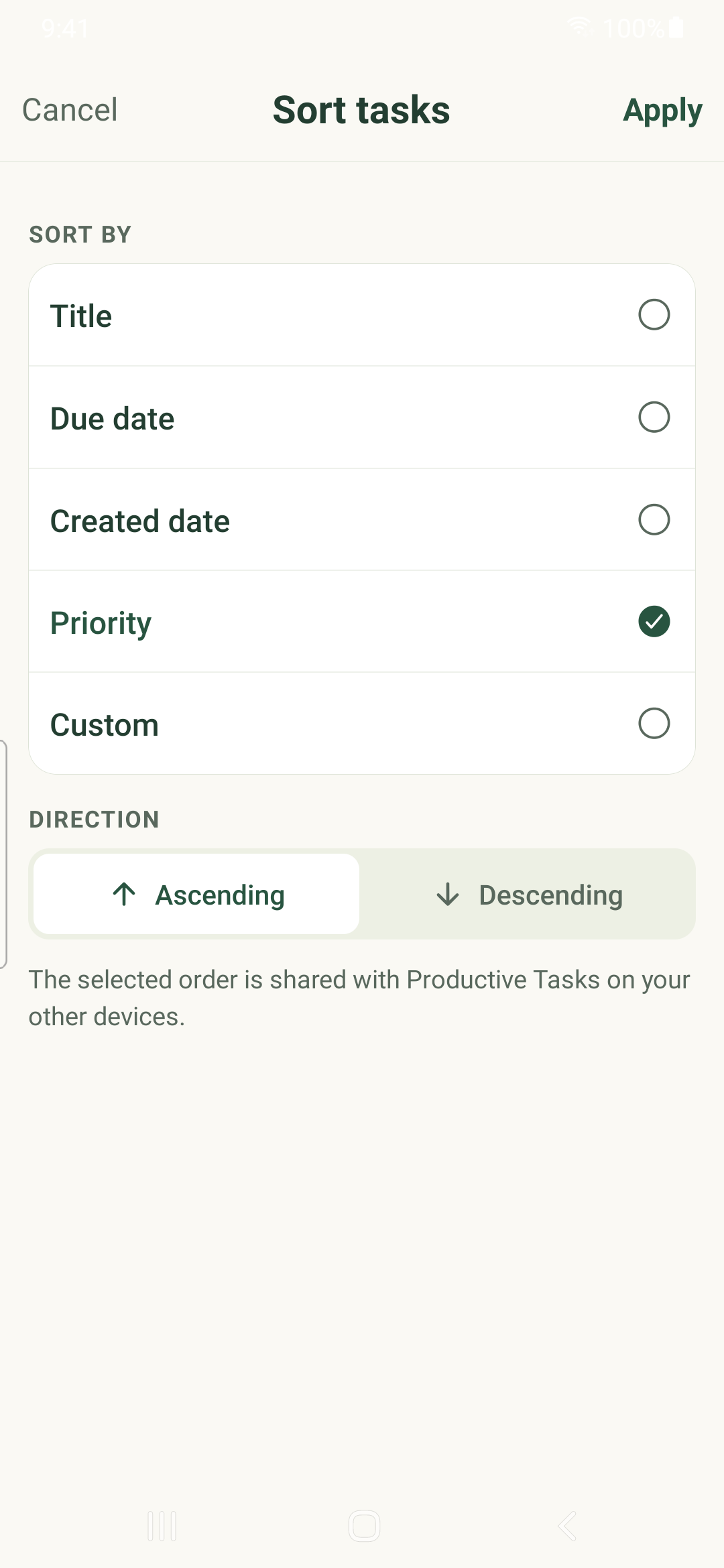
Use Custom sorting to arrange siblings, nest tasks and move branches without losing their category context.
Arrange a list
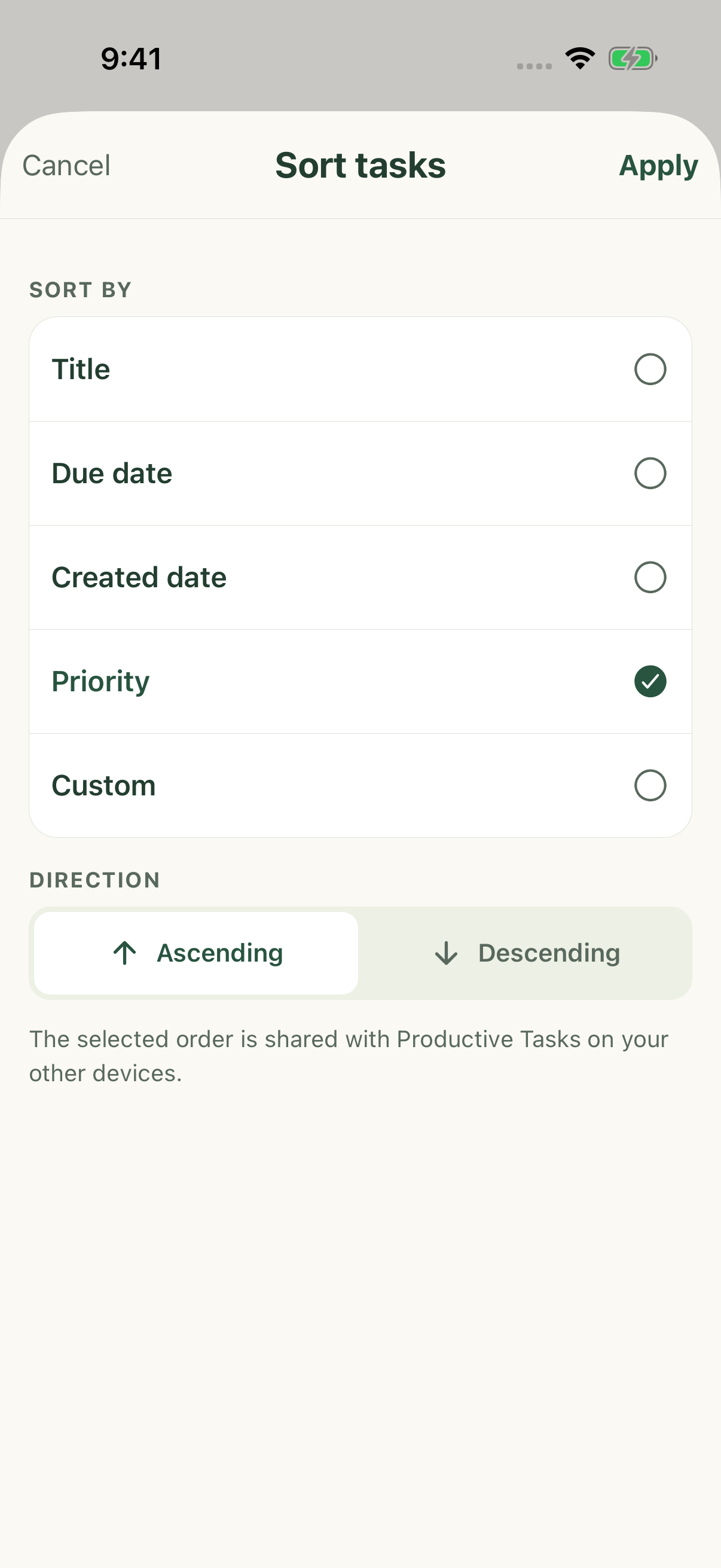
- Open Tasks and tap the sort summary.
- Select Custom and Apply. Drag handles appear beside tasks.
- Long-press a handle and drag vertically to reorder siblings.
- Drag right onto another task to nest the branch, or left to outdent one level. Check the resulting indentation before continuing.
Move through the editor
Open a task and choose Parent task to attach it to another eligible task or return it to the root level. The app rejects self-parenting and cycles.
Cross-category placement moves the whole branch into the new parent’s category. Read the confirmation; unrelated siblings stay where they were.
Select several tasks
Long-press a task row to enter selection mode. Select the intended tasks, then use the available bulk actions for status, organization or structure. The action applies to the selection, not automatically to every result in the view.
Review any affected-branch and permission confirmation. Close selection mode when finished.
Undo a structural change
When an Undo message is offered after a supported move, use it immediately to restore that move. It is short-lived and is not a general history of every edit or deletion.
Switching to a preset sort keeps the manual arrangement for later. Cross-device Custom order depends on the compatible server and client rollout; do not assume an older installed version supports every drag operation.
iPhone example
Android example