Export a copy
- Open Settings → Data.
- On Export, choose whether to include completed tasks, hidden tasks, and account preferences where offered.
- Choose JSON backup or Task CSV.
- Download the file and keep it somewhere you control.
Export just the view you are using
Open the list options menu and choose Export current view when you want the visible view’s task export. A task’s own menu also offers Export.
Use Settings → Data for the broader account export and its completed-task, hidden-task, and preference options.
Choose the appropriate format
| Format | Purpose |
|---|---|
| JSON backup | A structured export including the selected supported entities and settings. |
| Task CSV | A spreadsheet-friendly list of tasks. |
Import tasks from CSV
- Open the Import tab and choose Download CSV template. Keep its column headings when editing the file.
- Fill in a title for each task. You can use categoryId or match an existing category by its name in a category column.
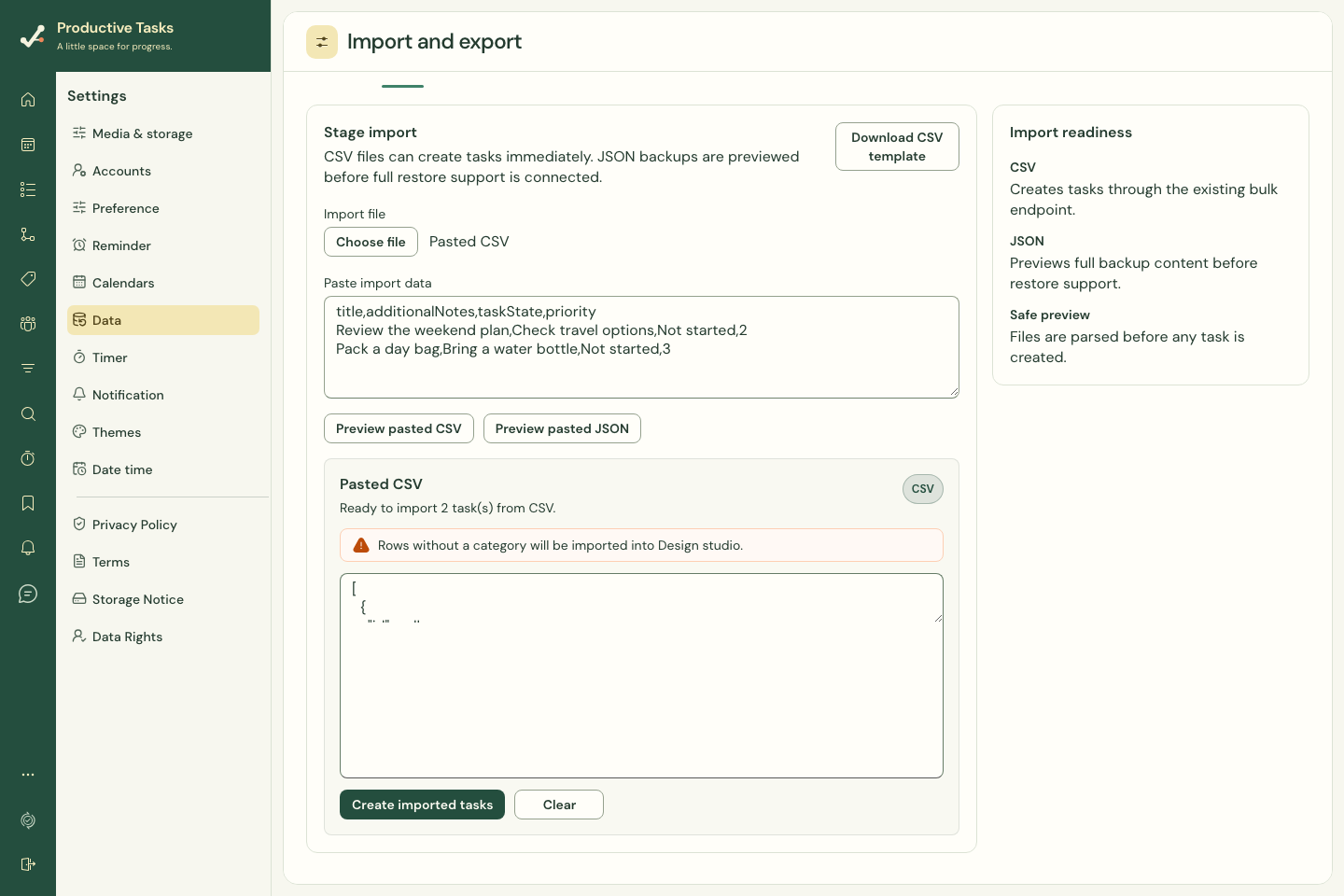
- Choose file to select the CSV, or use Paste import data and Preview pasted CSV.
- Inspect the task count and warnings. Rows without a title are skipped. Rows with no matching category use the account’s default category or the first available category; if none exists they are skipped.
- Choose Create imported tasks only when the preview is correct, then wait for Import complete.
What CSV import does and does not restore
CSV import creates new tasks. It does not update existing tasks by matching their titles, so importing the same rows again can create duplicates.
The template supports notes, status, priority, category and tag IDs, dates, recurrence rules, and an existing parent task ID. These identifiers refer to existing items; CSV import is not a complete recreation of another account’s category, tag or parent hierarchy.
Attachment files are not embedded in a task CSV. Keep the original export and any separately downloaded files you need.
JSON restore is currently a preview
The JSON import path reads the backup and summarizes its tasks, but does not perform a complete restore. The interface directs you to CSV import for immediate task creation.
Review the import workspace
Use the format picker and preview to check the incoming data before importing. A preview does not itself create tasks.