

Create an account or sign in
On the public website, choose Create account and use your email and password, or the Google sign-in option. If you already have an account, choose Sign in and use the same account method.
Read any validation message instead of repeating the submission. If Google sign-in does not finish, retry the sign-in flow or use the email option for your existing account.
Update your profile
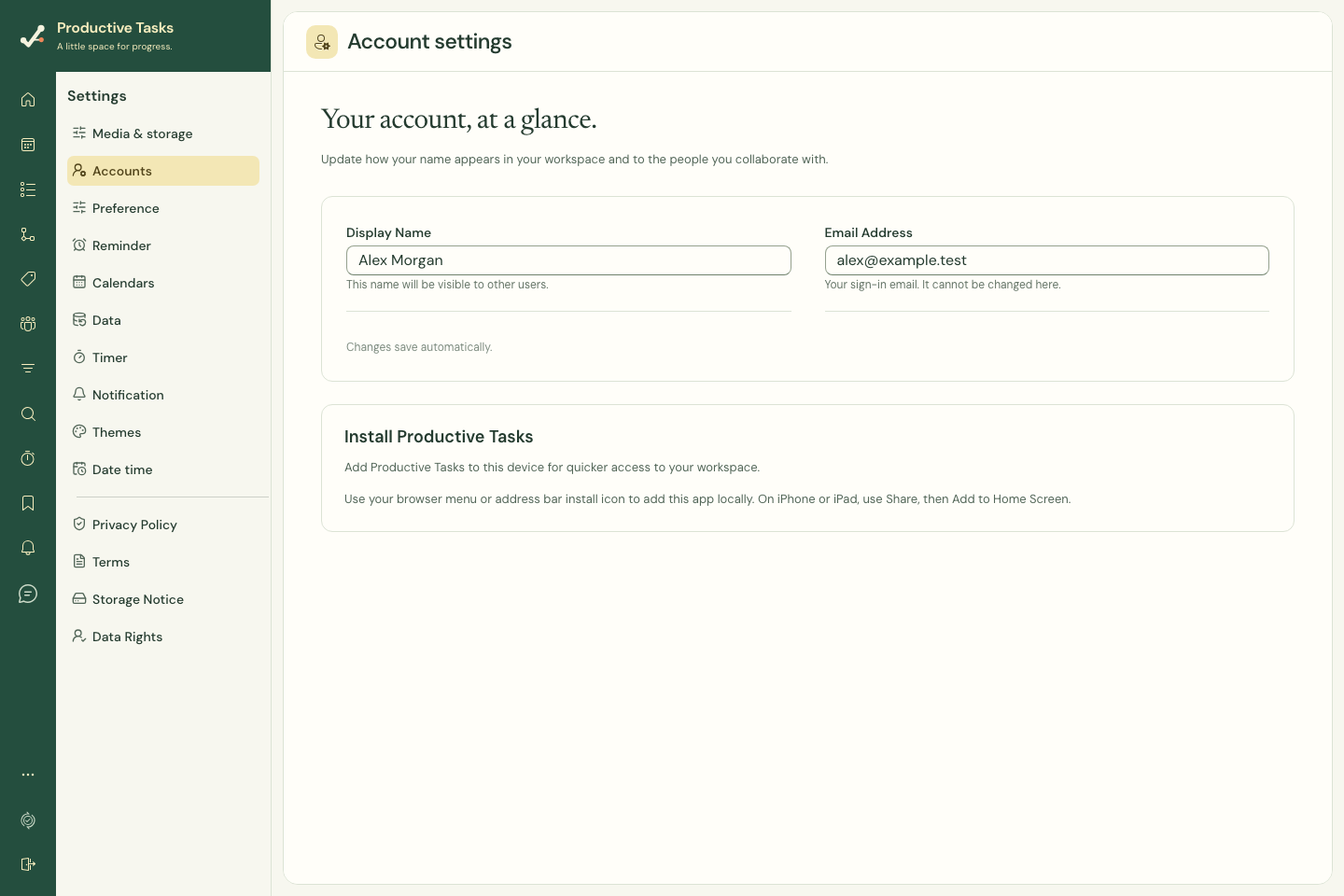
Open Settings → Accounts to review your display name and email address. Your display name can appear in the workspace and collaboration attribution.
Display-name changes save automatically. The email field is read-only here; editing your display name does not change your sign-in email.
Recover a forgotten password
- Open the sign-in page and choose password recovery.
- Enter the account email and submit the request.
- Open the recovery email and follow its link.
- Set the new password, then return to sign in.
Follow account-action links
Email verification, password reset, and recovery of an email change have different action links. Check the action being requested before confirming it. Expired or invalid links need a fresh request.
Signing in after opening a protected task link can return you to that destination. A normal sign-in takes you to Home.
Sign out safely
Check for pending changes before signing out. Explicit web sign-out ends on the public landing page. In the native app, pending local changes can block sign-out to protect unfinished synchronization.
Request an account-data change or deletion
The website’s Data & deletion page describes requests for a copy, a correction, or deletion of account data. Follow its current contact instructions from the email used for your account.
Signing out, uninstalling an app, or deleting one task does not itself request account deletion. Save an export you need before requesting removal.