

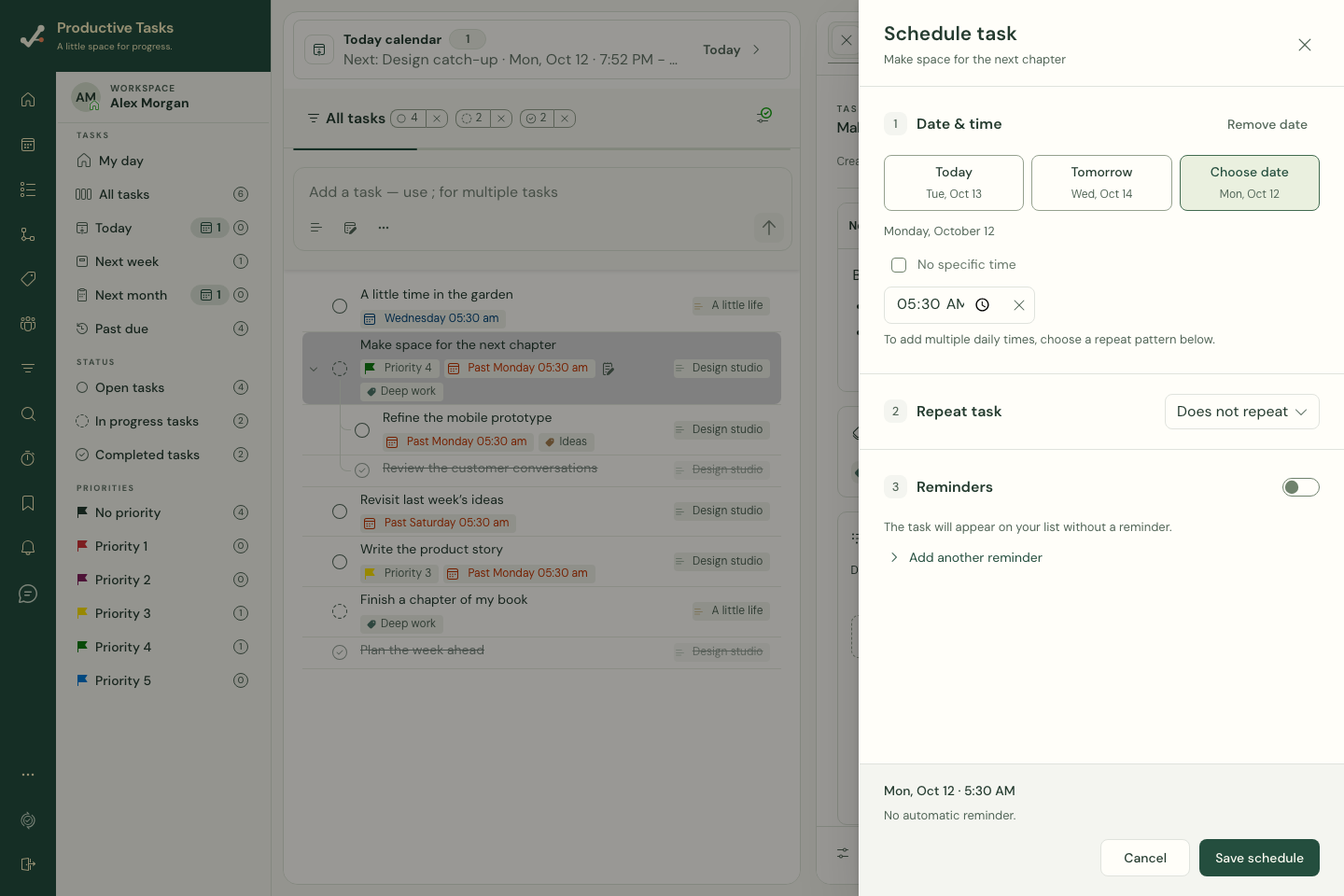
Choose a day
- Open Schedule while creating a task, or open an existing task and choose Edit schedule.
- In Date & time, choose Today, Tomorrow, or Choose date.
- Leave No specific time selected for a task you want to do sometime that day, or turn it off and enter a time.
- Review the Repeat task and Reminders sections.
- Choose Save schedule. Check the summary beside the task.
What does the date mean?
The current web Schedule control sets the task’s date and optional due time. Use it for the day you intend to complete the work. A task can also have no date.
You may encounter scheduled and due information in imported data or other calendar views. The current web dialog presents one Date & time section; it does not ask you to fill in two separate dates.
Remove or change the plan
Choose Remove date when the task no longer needs a day, then inspect any repeating pattern and additional reminders before saving. Changing a date does not complete the task.
Cancel closes the dialog without applying the draft. If saving fails, keep the draft open and use the offered retry. A recurring occurrence may ask whether the change is for Only This One or This And Future.
Check the time zone
Read the displayed summary before saving, especially when traveling or changing your time zone. Settings → Date & time controls the starting day of the week, 12/24-hour display and time zone.