

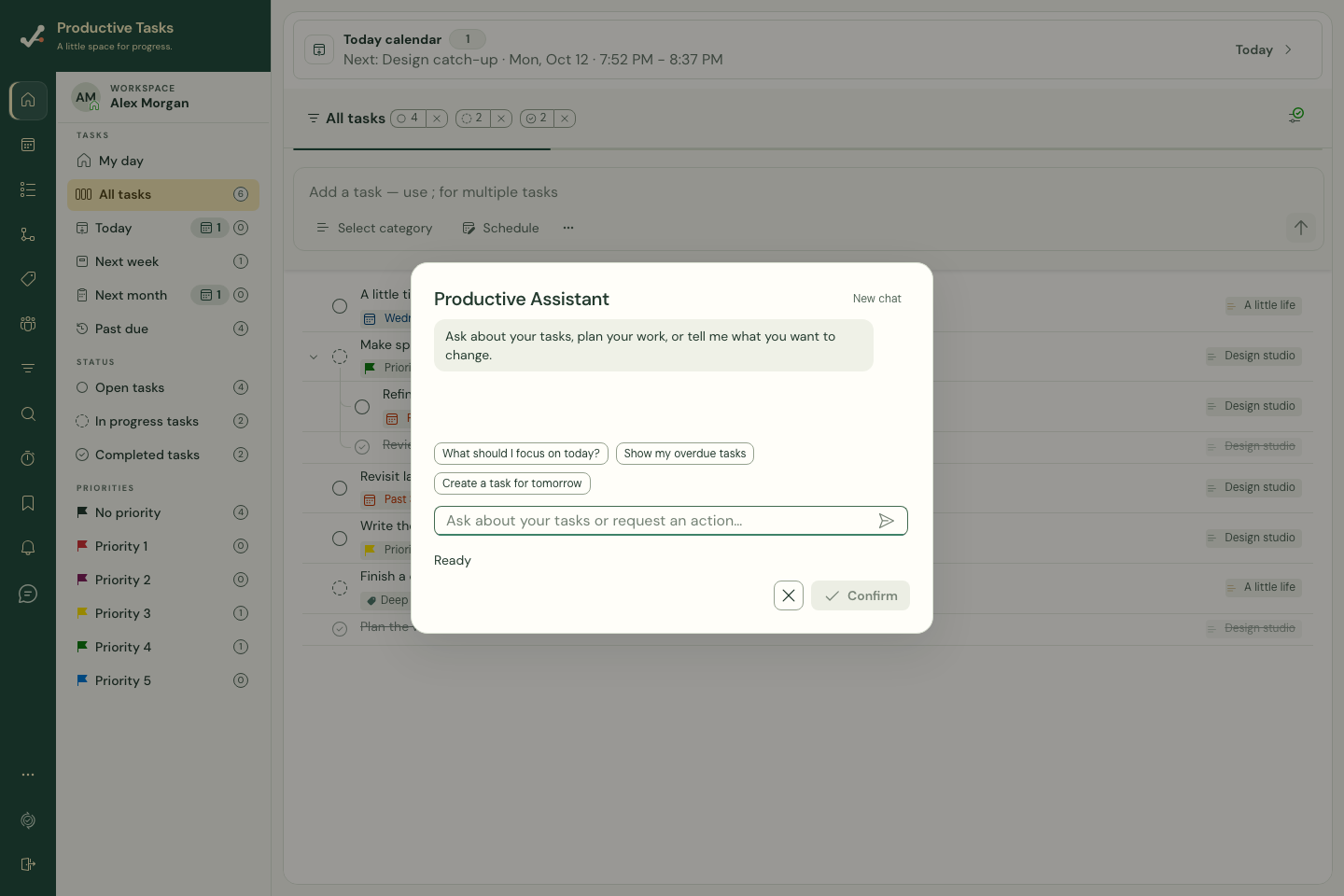
Ask for a clear action
- Open Productive Assistant from its launcher.
- Type a clear request in the command field, then choose Send command or press Enter on the web.
- Include the task, destination or timing that matters. Read the response and any proposed actions.
- For a proposed change, check the tasks, dates and scope before choosing Confirm or Run all.
Try a focused request
Examples include finding a task, creating a task with a specific title, navigating to a destination, or requesting a supported change to your task schedule. Simple requests are easier to review than several unrelated changes at once.
Review before applying
Some web navigation, search or other supported local actions can run immediately. Data-changing requests that show a preview wait for you to confirm. Read the result after any action.
An interpretation does not mean a change has been saved. Correct or cancel a proposed change that is wrong; inspect the resulting tasks after confirmation.
Continue or start a new conversation
Use a follow-up message to clarify the request. New chat clears the current conversation so you can start a different topic.
The current global assistant uses typed requests. Interpretation needs a connection even while cached tasks are readable offline. Use normal task controls when the assistant is unavailable.