Choose reminder timing on the task, then check that the phone has permission and a configured delivery channel.
Set timing on a task
- Open the task’s Schedule.
- Scroll to Reminder and enable Default due-date reminder for a dated task. Choose a lead time.
- If offered, use Keep reminding until done and choose the interval. For a repeating task, review Stop when the next occurrence starts.
- Add a Custom reminder when you need an independent date and time. Tap Done.
Check phone delivery settings
- Open More → Settings → Notifications and check System permission.
- Allow notifications through the phone’s permission flow if you want alerts. If blocked, open system settings.
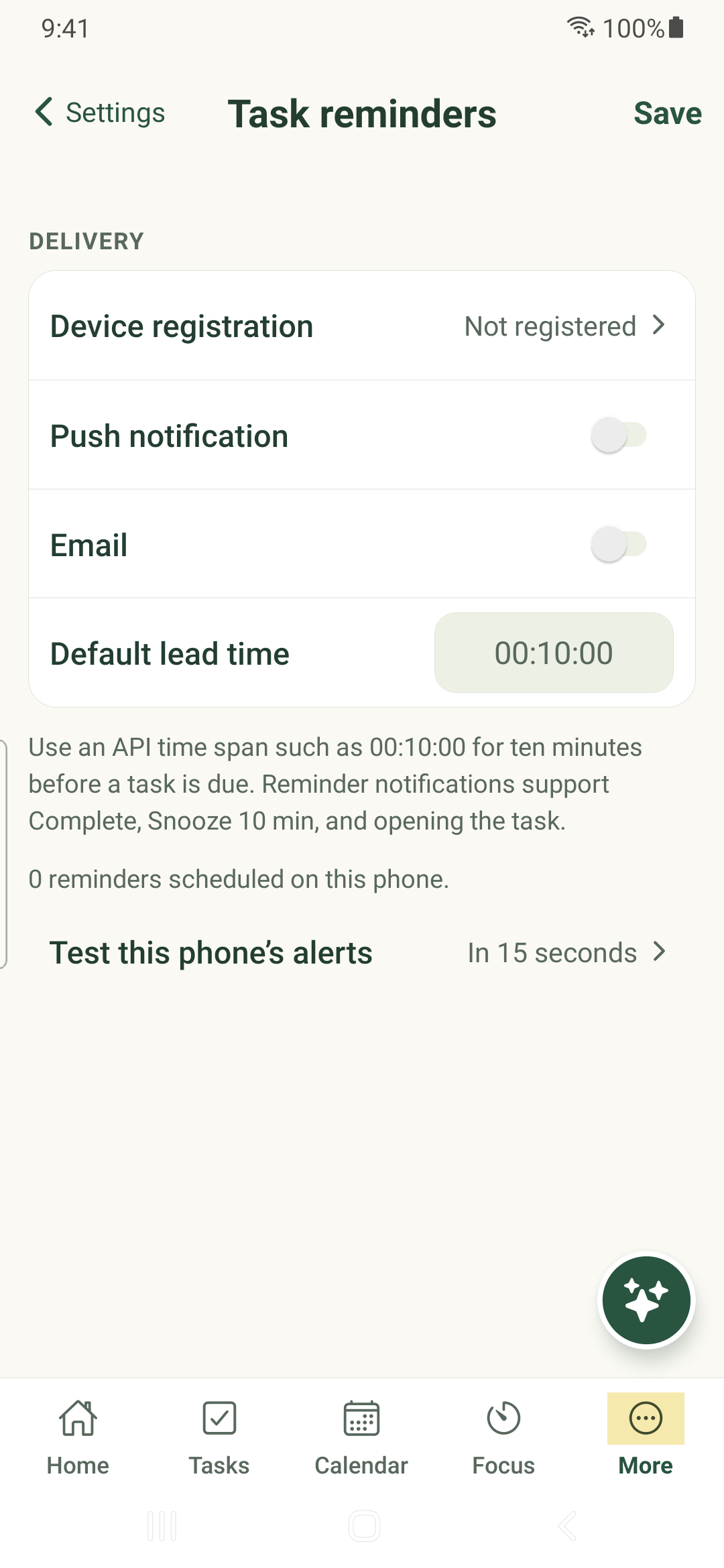
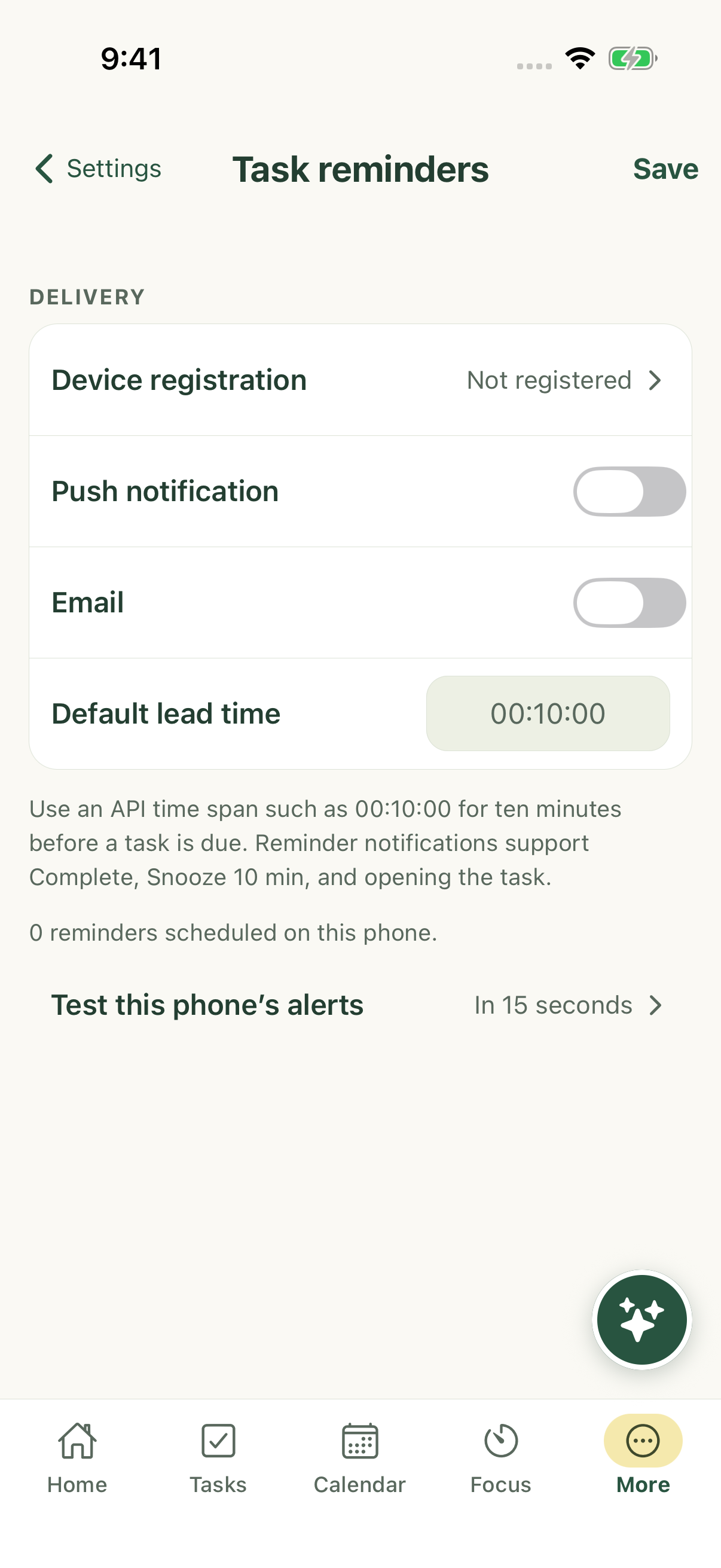
- Open Task reminders and check Push notification, Device registration and Default lead time. Save the settings.
Understand delivery limits
A saved reminder rule is not confirmation that an alert was delivered. The app uses a bounded queue of phone-local reminders with server delivery as an online fallback. Reopening the app helps it reconcile changes made elsewhere.
Android exact-alarm access, battery restrictions, iOS notification settings, Focus/Do Not Disturb and network availability can affect alerts. Physical-device delivery, background propagation and duplicate presentation still require release-specific validation.
Email controls depend on the mail service being activated. This documentation does not establish daily-summary or reminder-email delivery.
Respond to an alert
Where supported by the delivered notification, use Complete, Snooze 10 min or open the task. Confirm the task state when you return to the app. For shared work, reminder recipients and editing choices depend on your access.
iPhone example
Android example