

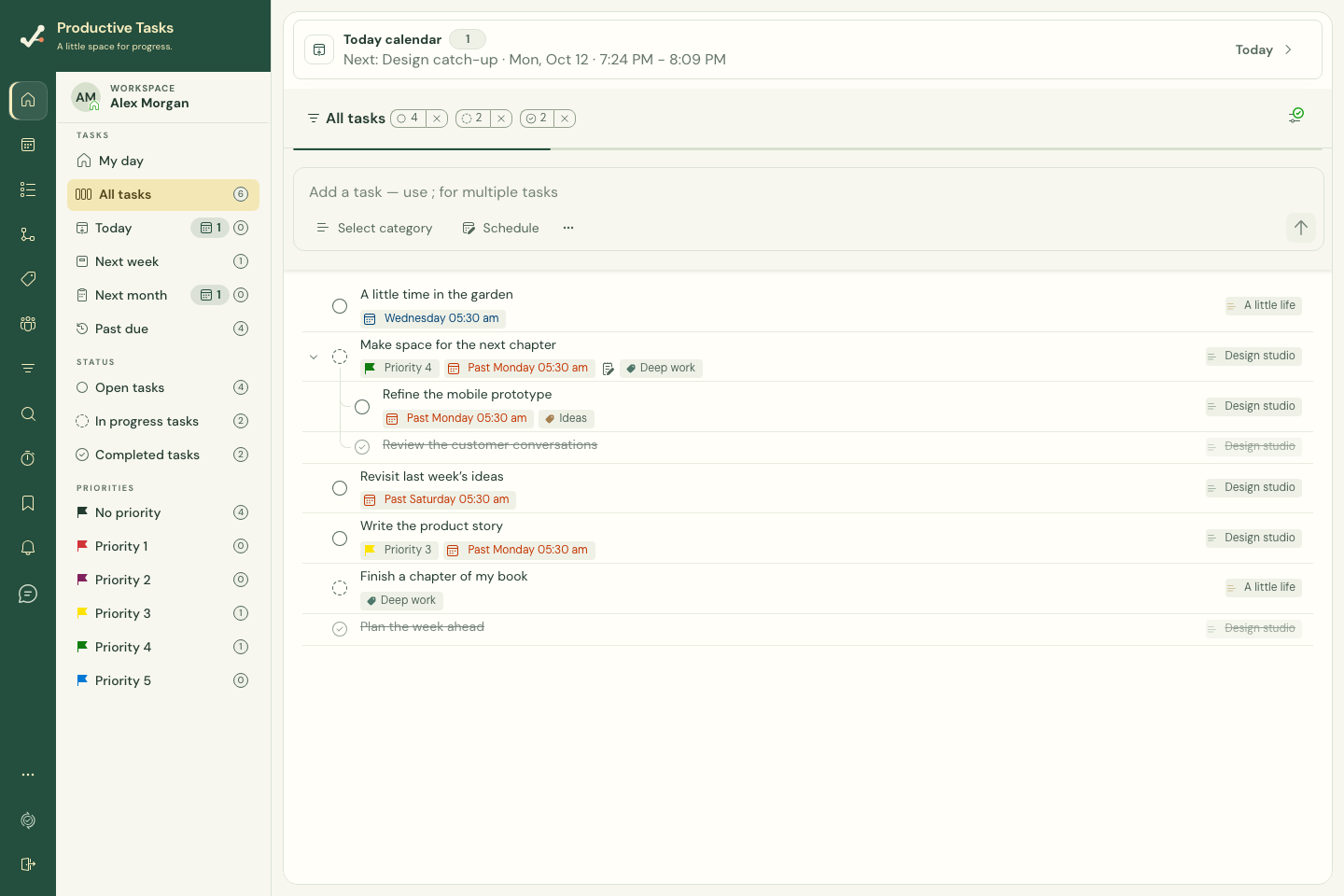
Start with a built-in view
| View | What it helps you find |
|---|---|
| All tasks | Your complete task collection. |
| Today / Next week / Next month | Work in the corresponding date window. |
| Past due | Work with a deadline that has passed. |
| Not started / In progress / Completed | Task trees selected by the root task’s state. |
| Priority, category, or tag | Work organized by that attribute. |
Choose a sort order
Use the list sort control for title, due date, created date, priority, or a supported Custom arrangement. Set the direction where offered.
Category and tag preferences can override account defaults. Settings that put overdue or in-progress tasks on top, or completed tasks at the bottom, also affect the visible sequence.
In preset sorting, a parent with unfinished loaded descendants can remain in an open segment even if the parent itself is marked Completed. This keeps remaining work visible; it does not change the root-state rule used to select a status view.
Why do I see a task that does not match?
Productive Tasks keeps connected task trees together. A matching task can bring its ancestors and descendants into the result so you can understand where it belongs. Counters and matching indicators may describe direct matches rather than every displayed row.
Narrow a list temporarily
Use the available quick filters or search within the list. Clear them when you want the complete view again. Save frequently used combinations as a saved view.
Group a list into sections
Open the list options menu and choose Group by. Options include due date, created date, priority, tags, and status. Default removes grouping.
Task trees stay together under their root. When grouping by tags, a tree with more than one matching tag can appear in more than one group; these are views of the same tasks, not duplicate copies.
Custom drag ordering is available in supported lists without grouping. Return Group by to Default when you want to arrange the sequence manually.