

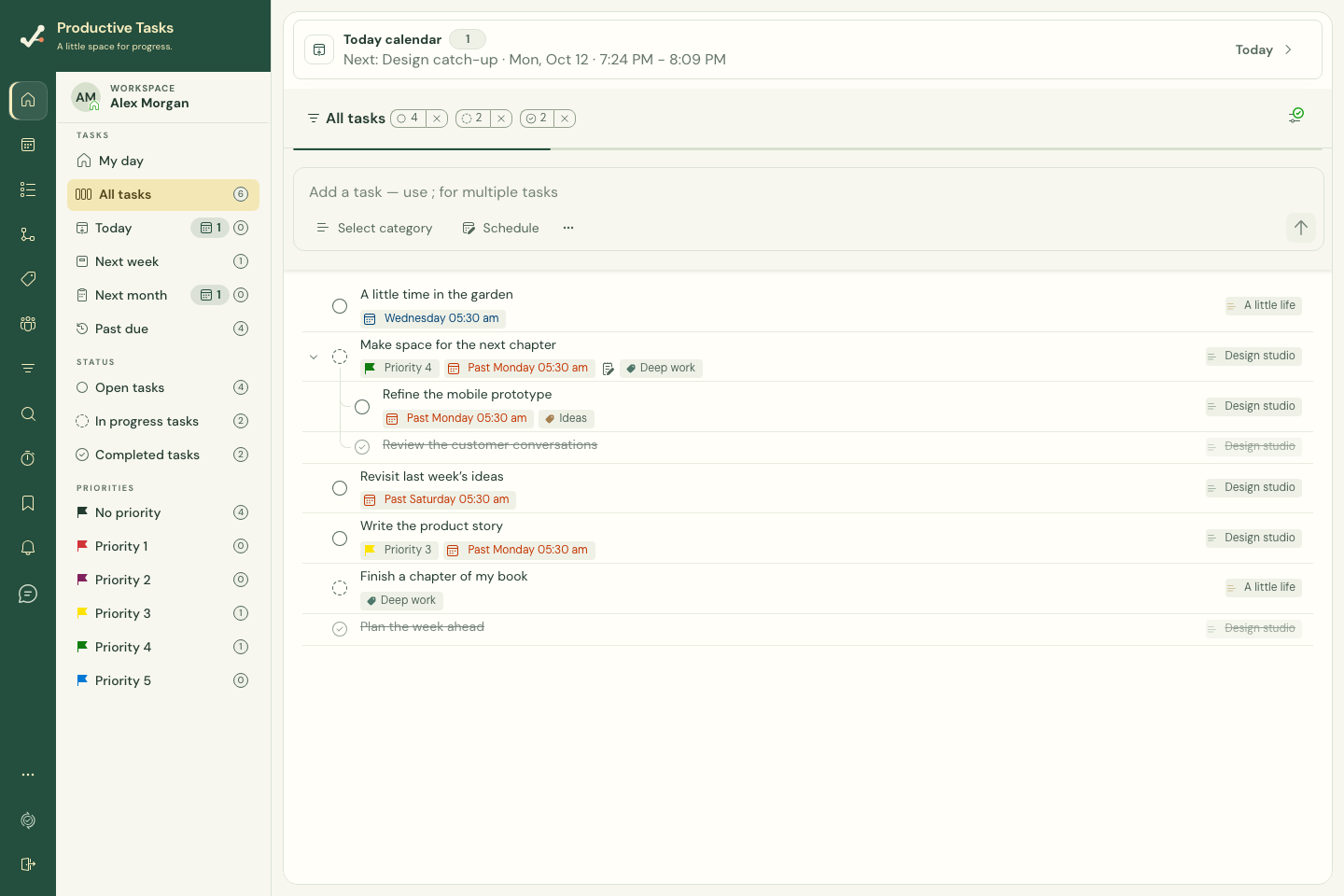
Add one task
- Open the list where the task belongs.
- Enter a clear title in the task entry field.
- Check the category and use Schedule if you already know when you want to work on it.
- Choose Add task or press Enter. Shift+Enter adds a line break in the entry field.
Let quick entry recognize task details
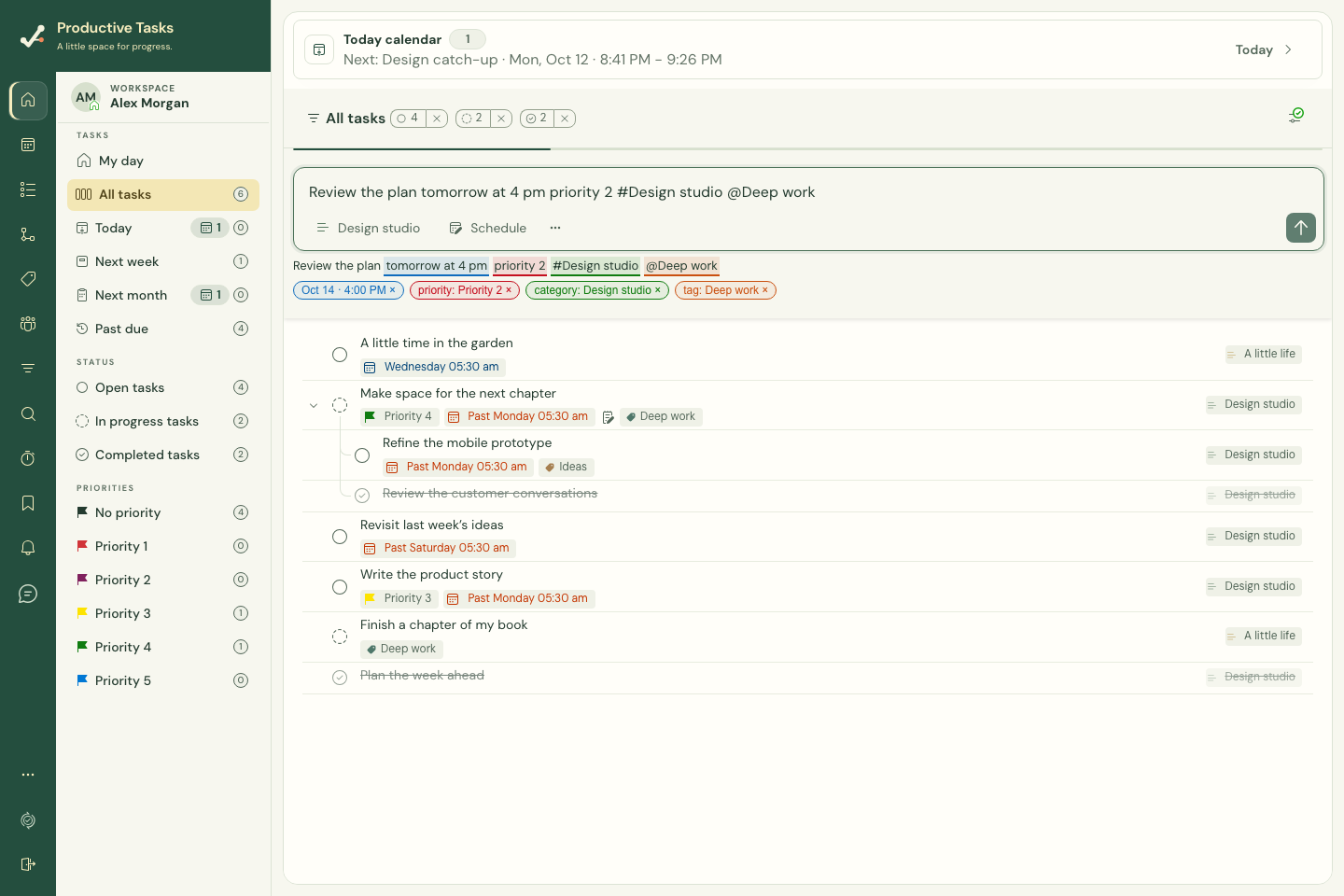
Try “Review the plan tomorrow at 4 pm priority 2”. The entry field shows recognized attributes beneath your words. Check the suggested date, time and priority before adding the task. Recognized phrases stay in the title.
Use the dismiss control on a suggestion to ignore that kind of attribute without deleting your words. Editing the title recalculates the suggestions, so check them again.
| Type this | What to check |
|---|---|
| tomorrow at 4 pm | The suggested date and time. A date without a time uses the end of that day. |
| priority 1 through priority 5 | The numbered priority; “urgent” also means Priority 1. |
| #Work or in category Work | An existing category named Work. |
| @Calls | An existing tag named Calls. Multiple known tags can be recognized. |
| daily, weekdays, weekly, monthly or annually | The suggested repeat rule. Use Schedule for more detailed rules. |
| remind me 30 minutes before | A reminder relative to the task’s due time; a usable due date is needed. |
| tomorrow at 4 pm for 90 minutes | A duration beginning at the recognized date and time. |
Capture several tasks together
Separate titles with a semicolon: “Choose a destination; Book accommodation; Pack a bag” creates three tasks. The current web entry field uses semicolons even if you change the split-character preference in Settings.
Edit the details
Select a task to open its editor. Change its title, add notes, organize it with category and tags, set dates, or attach supporting material. On larger screens details appear beside the list; on narrow screens they use a drawer.
A save or sync error means the change has not been confirmed. Keep the draft and use the offered retry instead of creating the task again.