

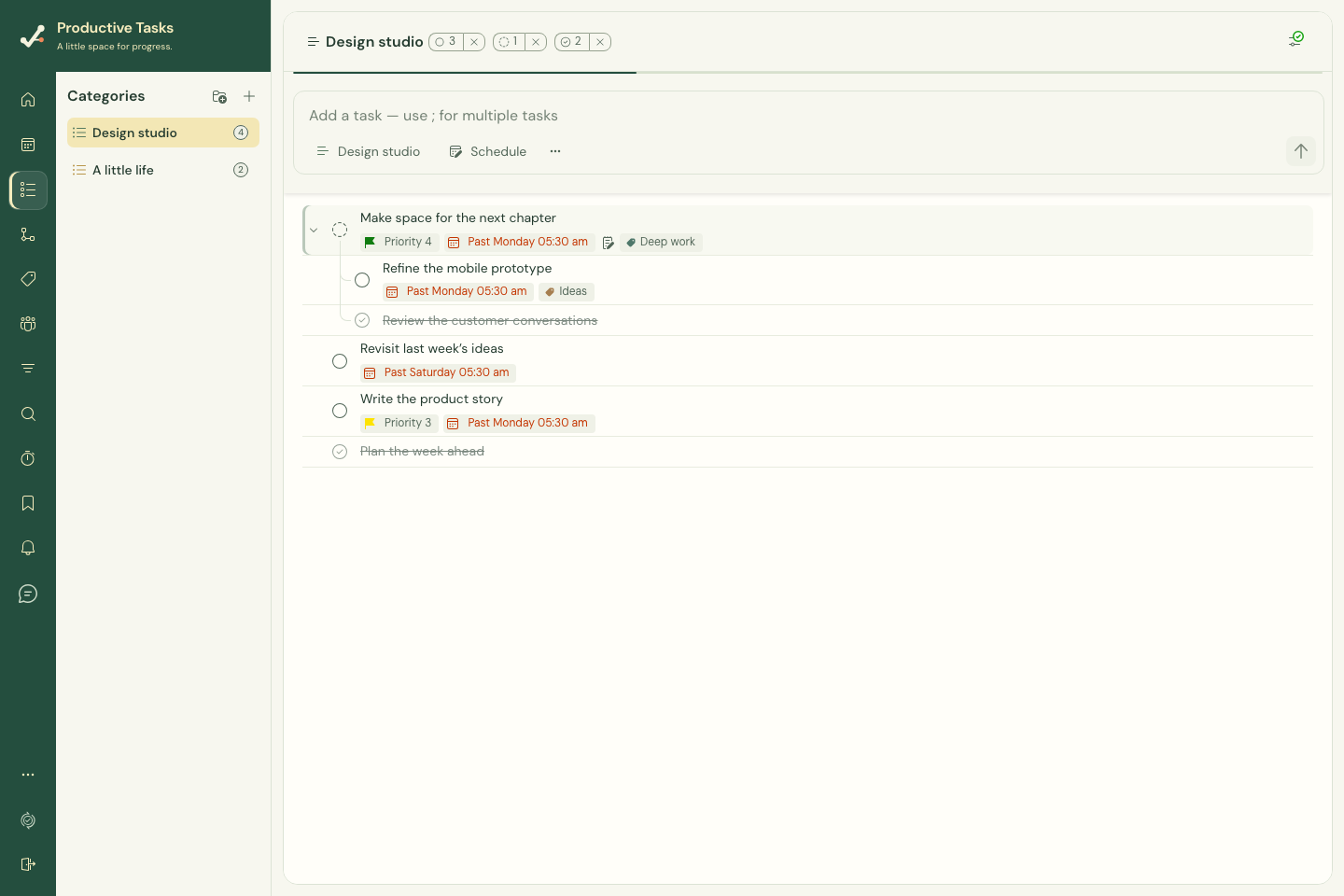
Create a category
- Open Categories in the web sidebar.
- Use the add control and enter a meaningful name.
- Choose a color and folder when appropriate, then save.
- Open the category and create tasks inside it.
Rename, organize or delete
Open a category’s menu and choose Edit to change its name, color or folder. Use a folder’s menu to edit that folder. Editing a name does not create a second category.
Deleting a category also deletes the tasks under it; the confirmation describes this as irreversible. Move any tasks you need to keep before deleting their category. Folder deletion also presents an irreversible-action confirmation. Review its scope before proceeding.
Move a task tree thoughtfully
Changing a root task’s category moves the connected tree. Changing the category of a non-root branch moves its descendants with it and detaches that branch from the old parent.
Nesting a task under a parent in another category uses the destination parent’s category for the moved subtree. Review the destination and affected task count when a confirmation appears.
On mobile
Open More → Categories to manage categories and folders. Open a category to view its tasks. Use the category control in a task editor to change where a task belongs.