Start with a task you can edit. This walkthrough uses a fictional weekend trip.
Create the child task
- In Tasks, tap the title of the task that should become the parent.
- Open the Subtasks tab.
- Tap Add. A new subtask editor opens with the parent already selected.
- Enter a title, such as “Choose a place to stay.” Pause briefly while the app saves the title locally.
- Close the editor and return to the task list. If the parent is collapsed, expand it to see the new subtask.
What gets saved
Subtask details save automatically while you work. You do not need a separate Save button. An empty title does not create a task.
The subtask belongs to its parent’s category and can have its own dates, priority, notes and subtasks. Local saving and server synchronization are separate: pending offline changes synchronize when a connection is available.
If you cannot add a subtask
Check that you have editing access to the parent. Read-only shared tasks cannot be changed.
If the editor reports a save problem, keep the draft open and retry. Confirm the child appears before creating it again.
Find this guide again
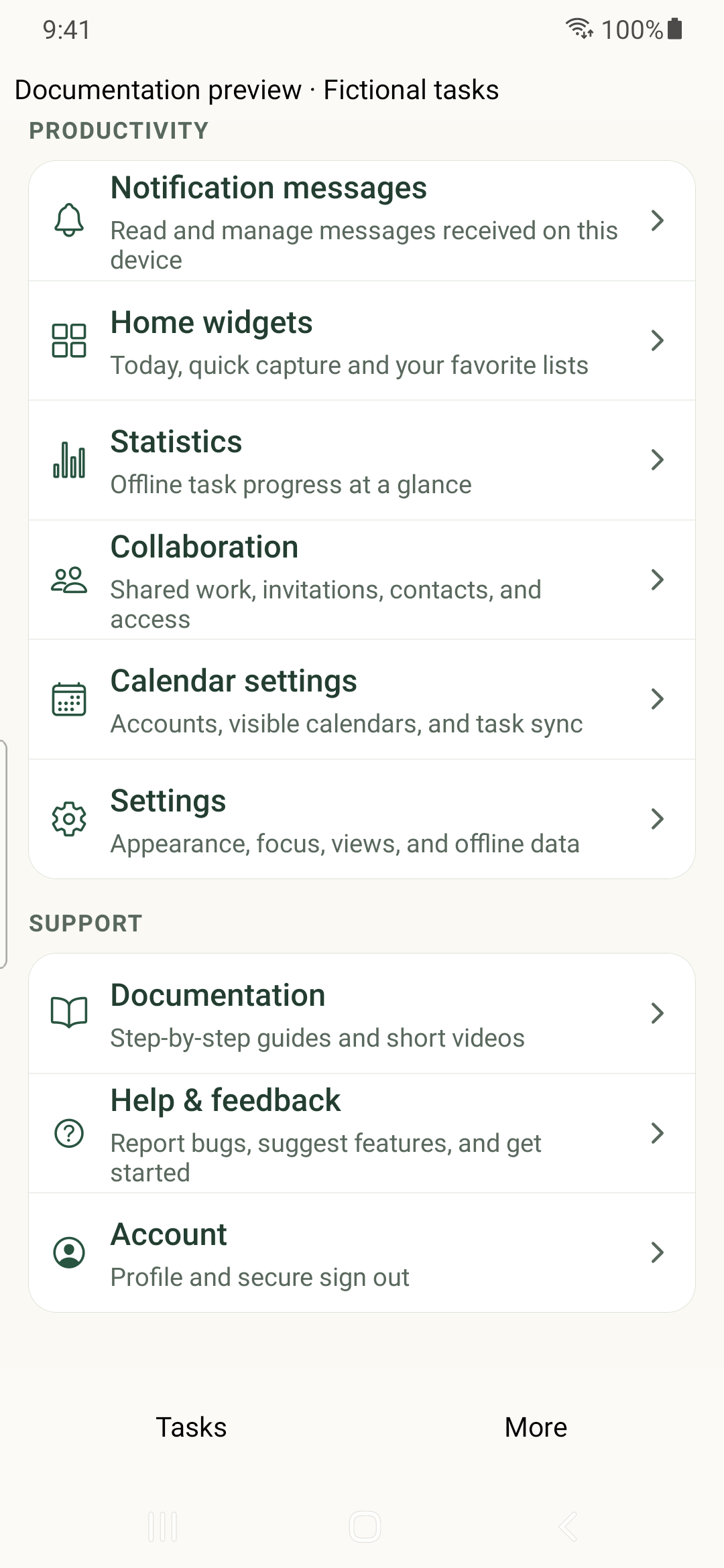
Open More → Documentation, then follow the subtask guide from your platform’s starting page. Use Back to return through articles, or Done to return to More. Documentation needs an internet connection.