

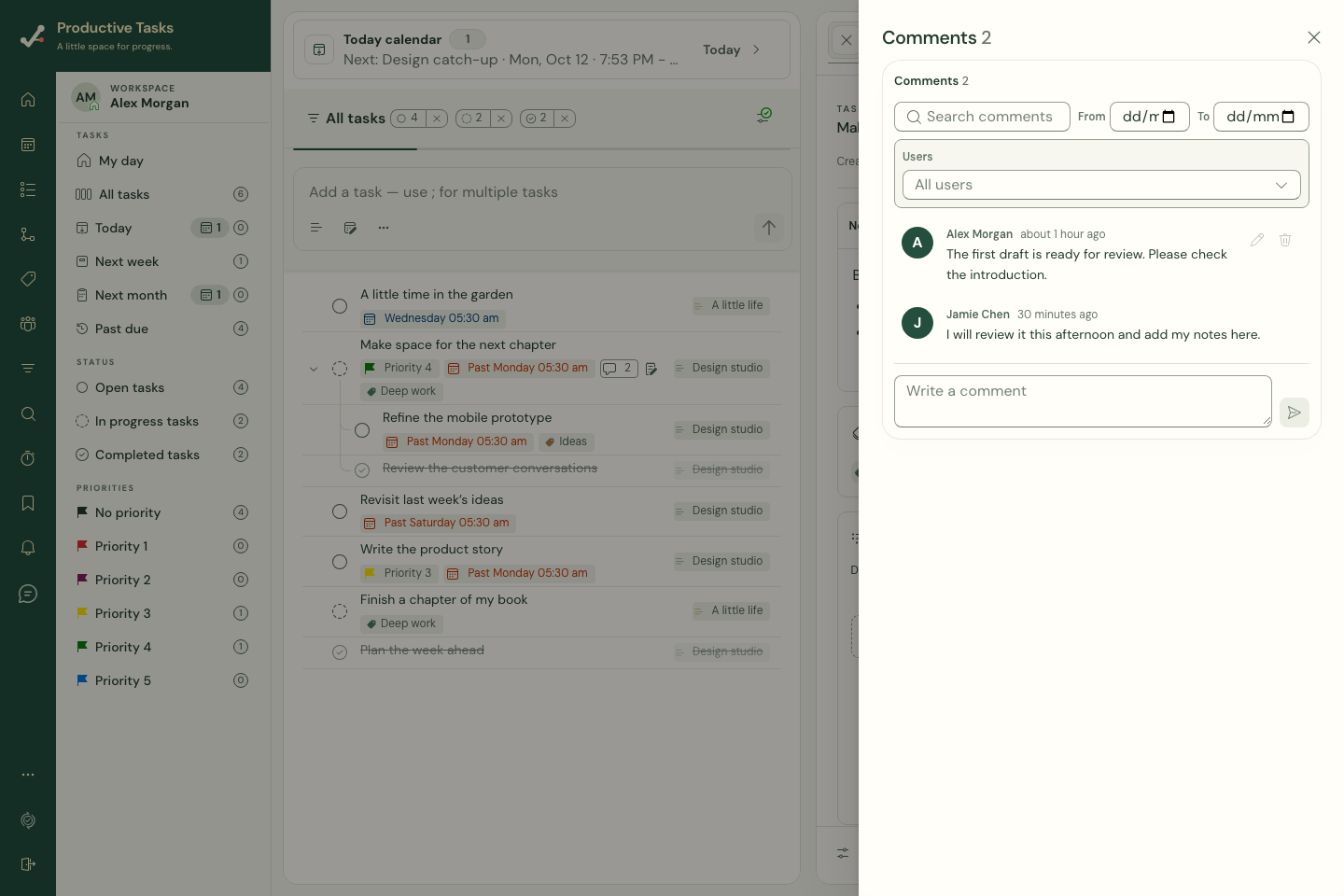
Start the conversation
- Open the task’s details.
- Choose Open comments near the task’s lower controls.
- Type in Write a comment.
- Choose Send comment or press Enter. Use Shift+Enter for a new line.
- Wait for the pending state to finish and check that the comment appears.
Find an earlier update
Search comments matches the comment text. Use From and To to narrow the date range, and the user selector to choose whose messages to see.
Clear the filters if a comment seems to be missing. The total comment count and a filtered list can describe different sets of messages.
Edit or delete a comment
Edit comment and Delete comment appear only where your permissions allow those actions. While editing, use Save or Enter to apply the change, or Cancel to leave the original text.
Deleting a comment removes that message; it does not delete the task. Check the selected message before removing it.
Choose notes or comments
Use Notes for the task’s current explanation and checklist. Use Comments for updates and discussion over time. Share the task with the intended collaborators so they can reach the discussion.