Search the workspace
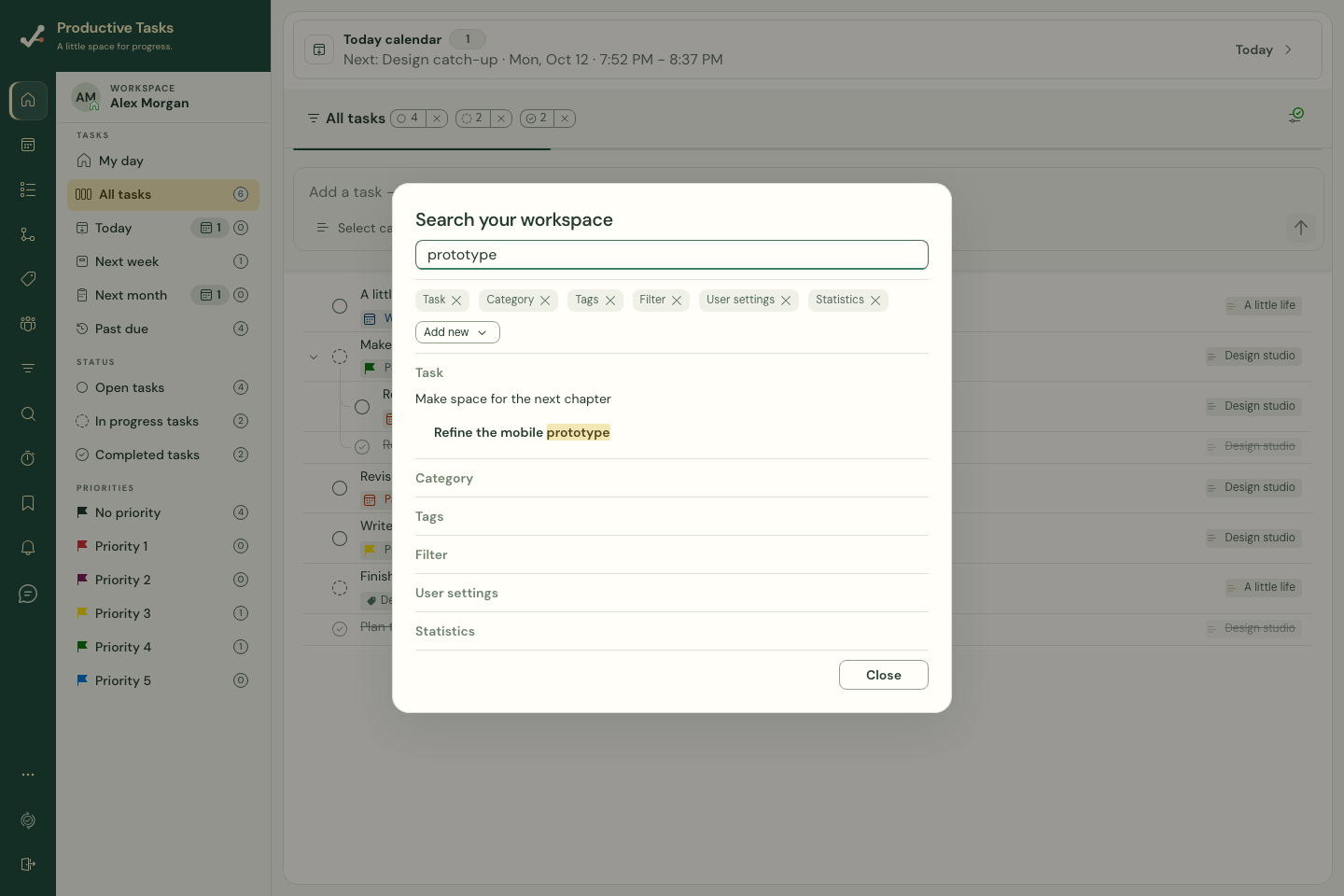
Matching task trees include related rows for context. Highlighted text identifies direct matches; an unhighlighted parent or child can still appear. A shared category can appear because it contains a matching task.
On a web keyboard, the default / shortcut opens task search when you are not typing and no menu or dialog is open. You can change this binding in Settings → Keyboard shortcuts.
- Open Search from the sidebar.
- Enter part of a task title or notes, a category name, or a tag name.
- Use the result type controls to narrow the results when needed.
- Select a result to open its destination.
Find settings and saved views
User settings results match stored setting values and link to their settings section. This is not a general search of every settings label. Open More → Settings when you know the section you want.
The current search menu includes Filter and Statistics choices, but they do not currently produce result lists. Open Filters in the sidebar for saved views, or More → Statistics for dashboards.
Open bookmarks
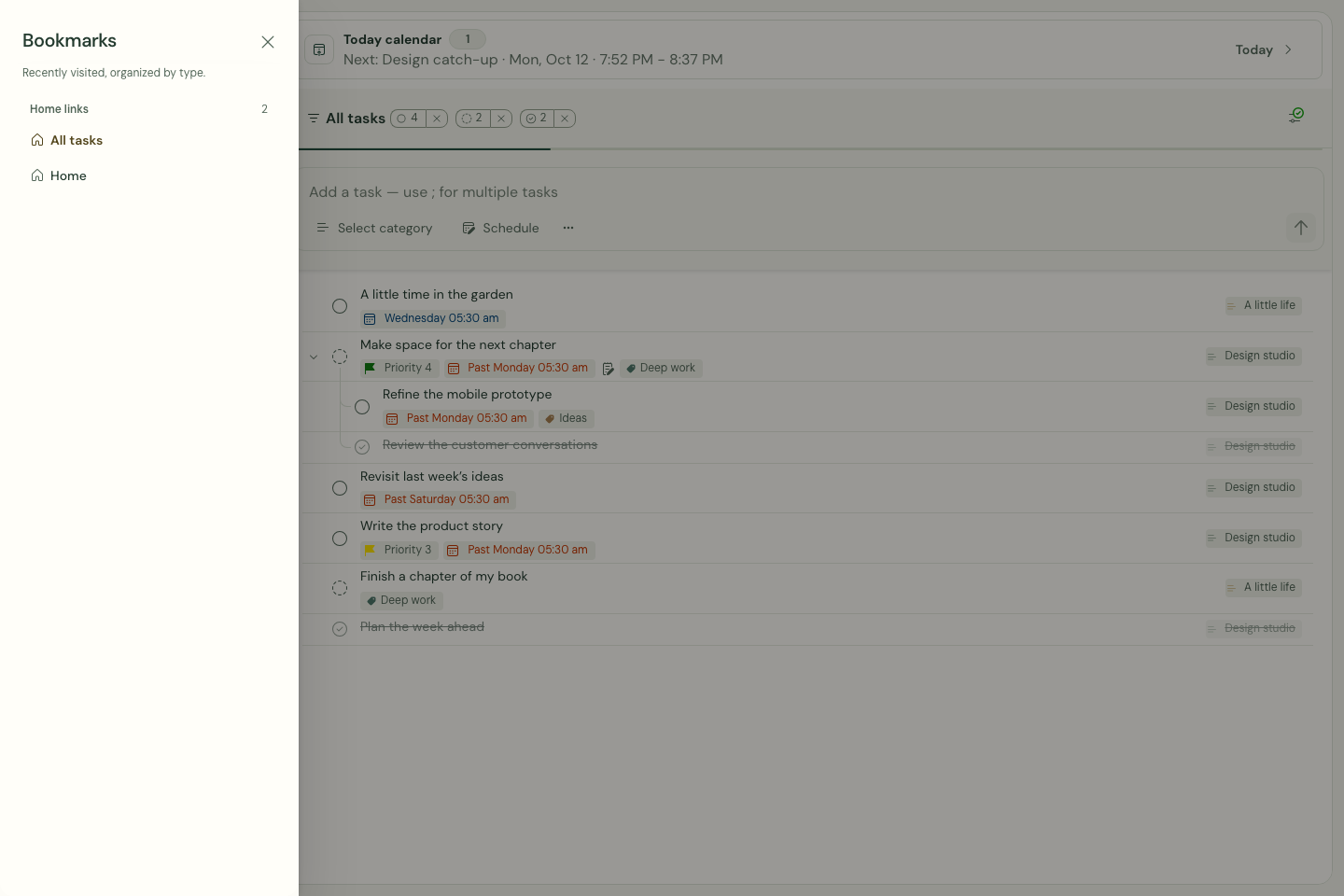
Open Bookmarks from the sidebar to see recently visited destinations, organized by type. The list is built from your navigation history in this browser; you do not need to manually star a page.
A recent link points to an item; it does not copy the item or grant access. A shared item may stop opening if its owner removes your access.