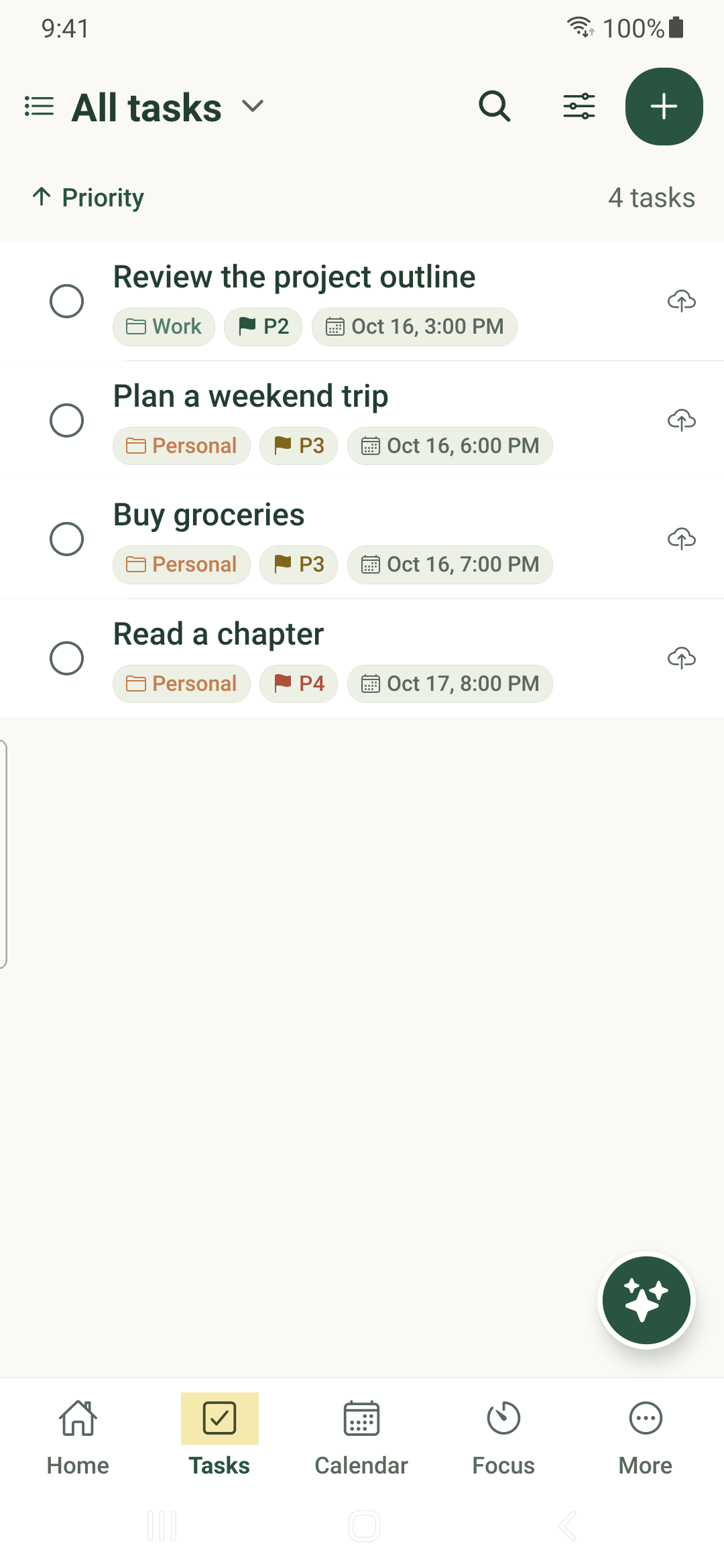
Capture a task, set its details and understand when your changes have saved.
Add a task
- Open Tasks and tap the plus button.
- Enter a clear title in What needs to be done? An empty title does not create a task.
- Choose a category, tags, status and priority in Details as needed.
- Pause briefly for the save indicator, then tap Close. Check that the task appears in the expected view.
Edit existing work
Tap a task’s title to open its editor. Use the tabs for Details, Notes, Subtasks, Files, Steps and Comments; swipe the tab strip if a tab is outside the screen.
Details save automatically. Saved offline confirms local storage, while synchronization to your other devices needs a connection. Keep the editor open if it reports a save error.
Enter several tasks
The task split character defaults to a semicolon and can be changed in More → Settings → List behavior. Use it for separate titles, then inspect the created tasks.
Date suggestions can appear as you type. Review the suggestion before accepting it; dismiss a suggestion when the words should remain part of the title.
Find a missing task
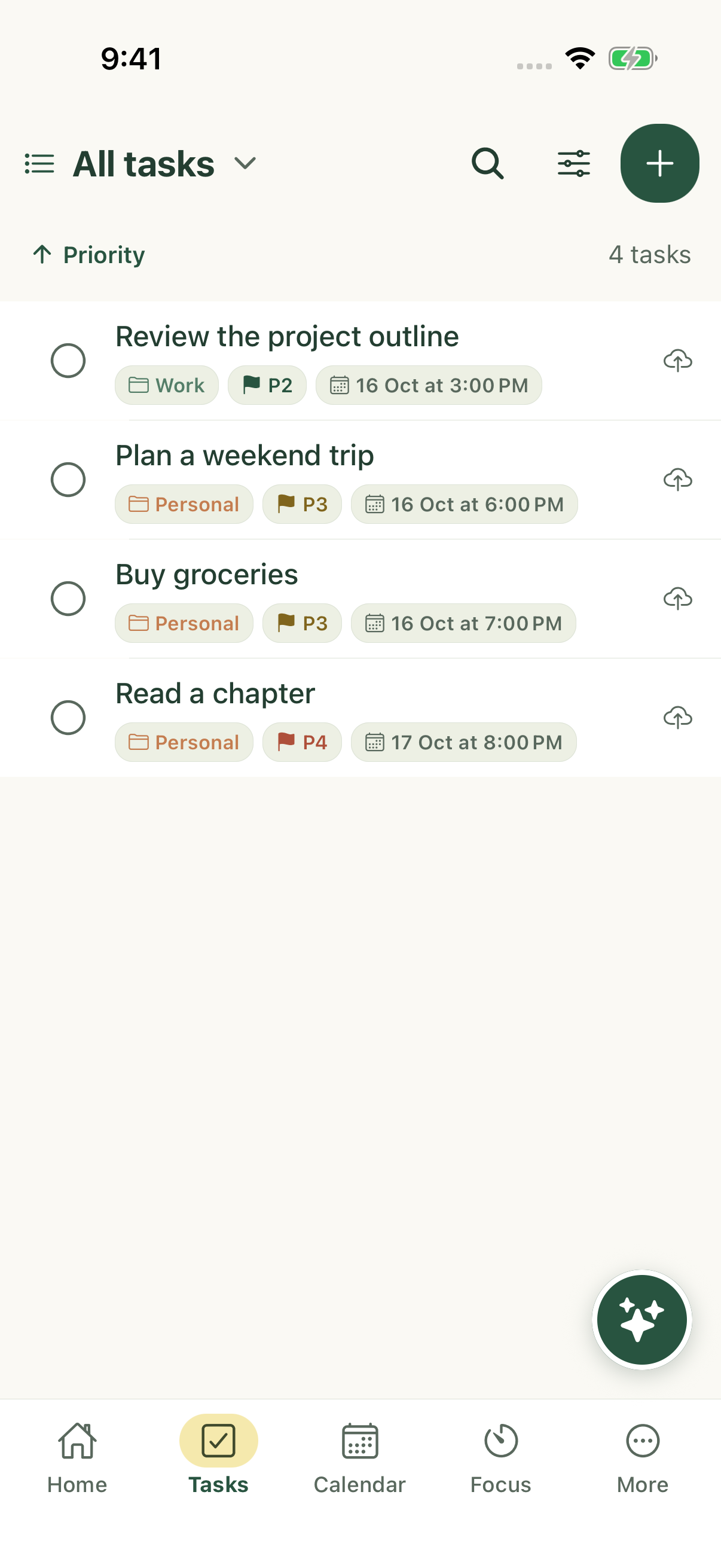
- Switch to All tasks and clear search and filters.
- Check its category, date and status. A saved task may not match the current view.
- For shared work, confirm editing access. A read-only task does not become editable by reopening it.
iPhone example
Android example