Home Screen widgets require a native build with widget support. If Home widgets says to install an enabled build, the controls alone do not mean widgets are available on your device.
Open widget settings
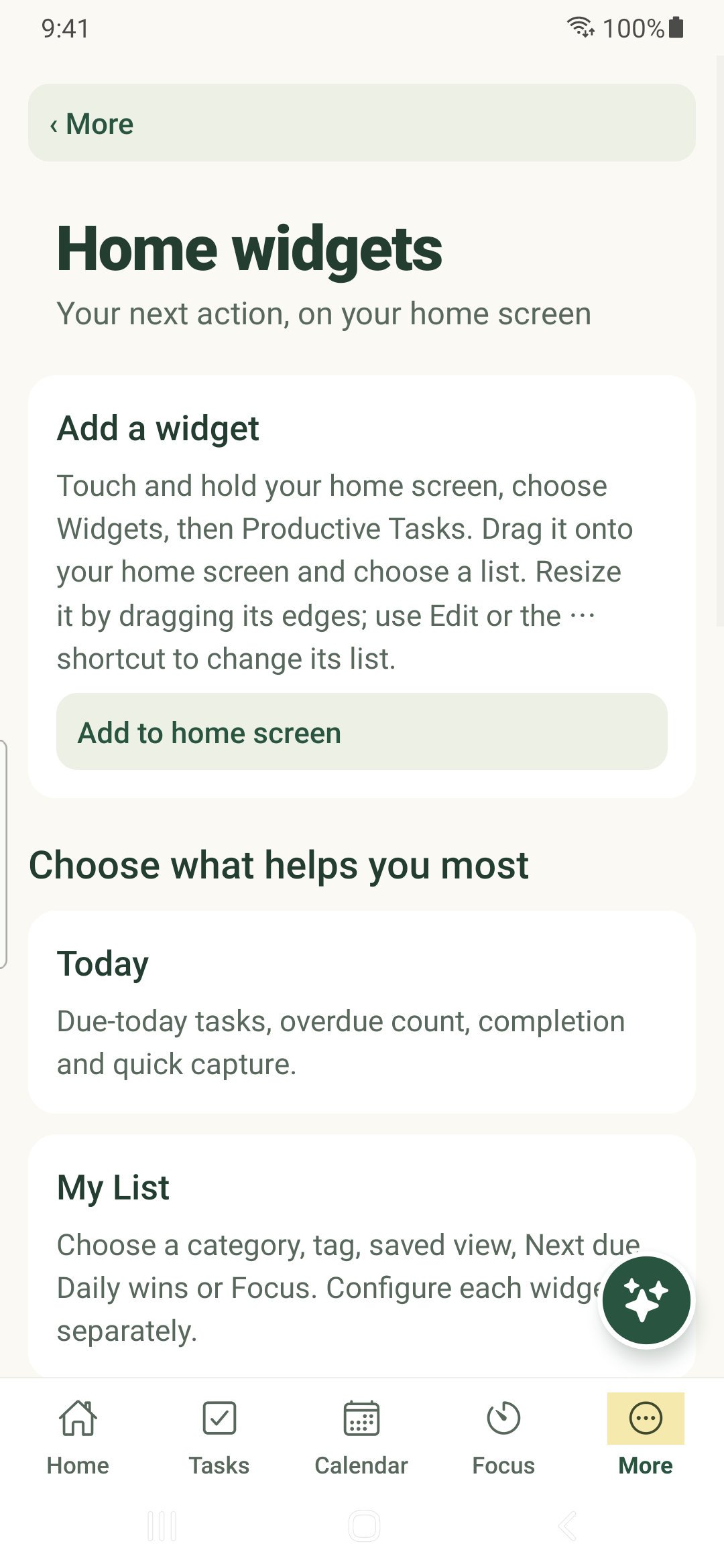
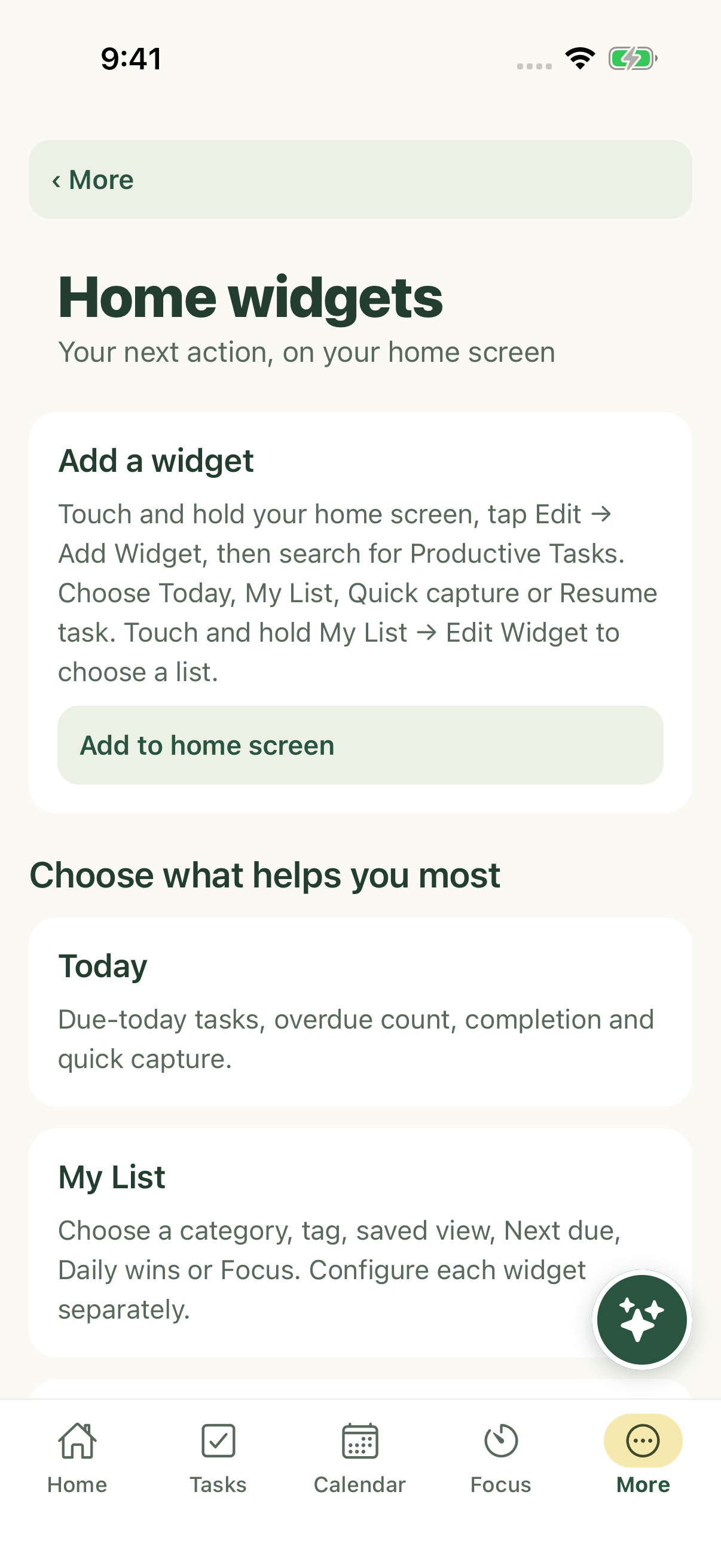
Open More → Home widgets. Review Today, My List, Quick capture and Resume task, then follow Add to home screen or the platform instructions.
Add an iPhone Home Screen widget
- Touch and hold the Home Screen.
- Choose Edit → Add Widget and search for Productive Tasks.
- Choose Today, My List, Quick capture, or Resume task from the widgets available in your installed version.
- For My List, touch and hold the widget and choose Edit Widget to select its list.
Add an Android Home Screen widget
- Touch and hold the Home Screen and choose Widgets.
- Find Productive Tasks and drag a widget onto the Home Screen.
- Choose the list, then resize the widget using its edges if you wish.
- Use Edit or the ⋯ shortcut to change its list.
Choose widget privacy and shortcuts
Hide task titles conceals titles in supported widgets. Show Assistant shortcut and Show Focus shortcut control those entry points. These preferences apply to the current account on this device; individual widgets can also hide titles.
My List can show a category, tag, saved view, Next due, Daily wins or Focus. Configure each widget separately using the controls available in your installed build.
Review saved widget actions
A widget checkmark saves a completion request on the device. Open the app to apply pending actions, update reminders and synchronize. Recurring, shared and grouped tasks open in the app for review.
Under Saved widget actions, use Review task to inspect the work or Check saved actions to retry processing. Dismiss removes a pending widget request; it does not undo a completion already applied to a task.
Pin an in-app statistics summary
- Open More → Statistics.
- Find the dashboard in the dashboards list.
- Tap its Pin … on Home control. Use the same control to unpin it later.
- Return to Home to review the summary.
Distinguish the two homes
A summary inside Productive Tasks Home is different from an operating-system Home Screen widget. Adding one does not necessarily add the other. Follow the appropriate device instructions for a system widget.
Check fresh data
Widgets and summaries depend on the data available to the app. Reopen the app and allow pending changes to sync when a summary is behind your latest work.
The phone controls background refresh. Open the app after midnight, a time-zone change or edits on another device if a widget still shows the previous view.
iPhone example
Android example