

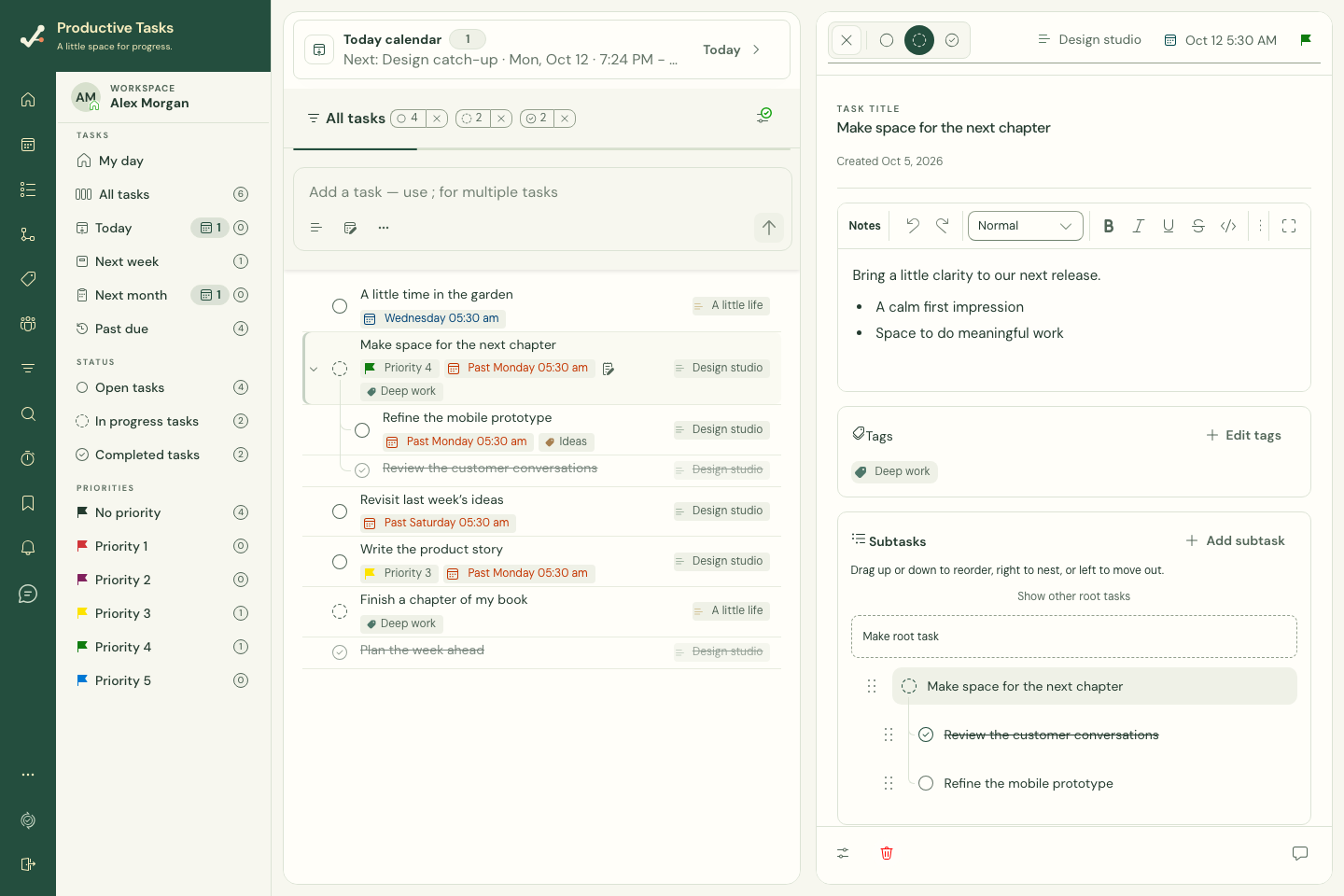
Write useful notes
Title and notes edits save automatically. A locally retained draft or pending save is not confirmation that another device has received the edit. Check the save or sync state before switching devices.
- Open the task editor.
- Find the notes area and add the context you would otherwise keep in a separate message.
- Use the editor’s formatting controls to make longer notes easier to scan.
- Check that the edit is saved or synchronized before moving to another device.
Build a checklist of steps
Steps stay inside this task. They are useful for a packing list or a small checklist that does not need separate task dates or sharing.
- In the task editor, find Steps and choose Add the first step.
- Type into Describe the next step.
- Choose Add step or press Enter. Shift+Enter adds a line break while typing.
- Tick the checkbox when a step is finished. The count shows completed steps against the total.
- Edit a step’s text directly, drag its handle to reorder it, or use its Delete control to remove it.
Choose between a checklist and subtasks
Use checklist-style steps for small items inside a task’s detail. Use subtasks when each action needs its own status, dates, notes, or children.
A useful note explains the outcome and includes links or decisions. A useful subtask describes one action someone can complete.
Keep attachments close
Attach a relevant file, photo, or audio recording when words alone are not enough. Open the attachment to inspect it; use Media & storage when you need an overview across tasks.
When edits conflict
If the app asks you to review conflicting text, compare the versions before choosing what to keep. Repeatedly reopening and saving is not a substitute for resolving the conflict.