

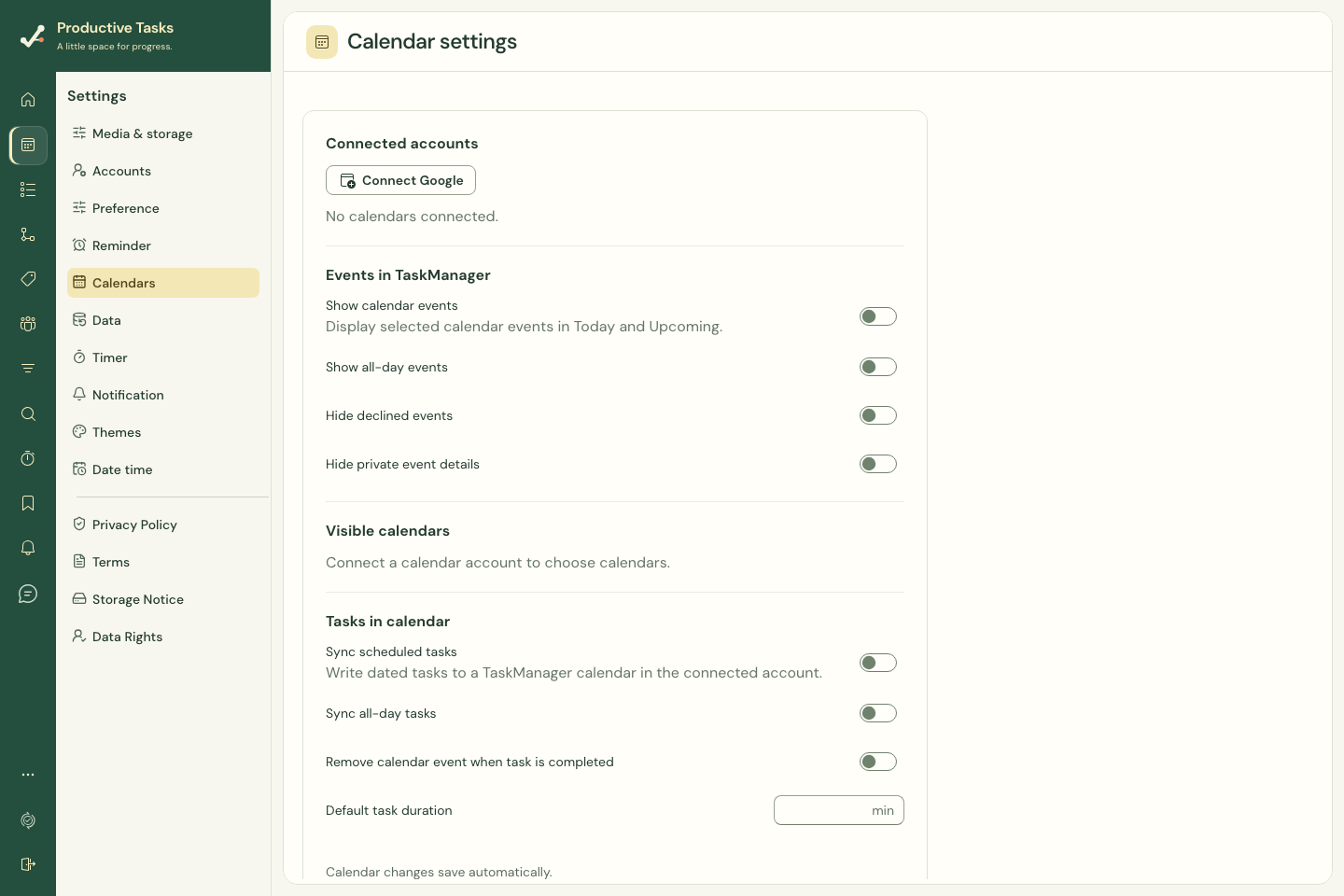
Connect an account
- Open Settings → Calendars on the web, or More → Calendar settings on mobile.
- Choose Connect Google.
- Review the account and requested access in Google’s consent flow.
- Return to Productive Tasks and wait for the connection to finish.
- Select the calendars you want to display.
Choose what appears
You can control calendar event visibility, all-day events, declined events, and private-event details. The visible-calendar selection lets you choose useful sources rather than displaying every calendar.
Hiding private-event details changes what Productive Tasks displays. It does not change the original event’s privacy or sharing permissions in Google Calendar.
Choose whether tasks appear in Google Calendar
Task sync uses a secondary calendar created for Productive Tasks. Settings include scheduled tasks, all-day tasks, default duration, and removing a synced event when its task is completed.
Reading selected calendars does not mean the app can freely edit all of your existing Google calendars.
Refresh or disconnect
Use Resync calendar to request another refresh. Check the account status and last-sync information when events appear stale. Disconnect calendar removes the account connection from Productive Tasks; provider-side access can also be reviewed in your Google account.
Other providers
The current web connection control offers Google. Do not assume another provider is available simply because an older event or screenshot mentions it.