

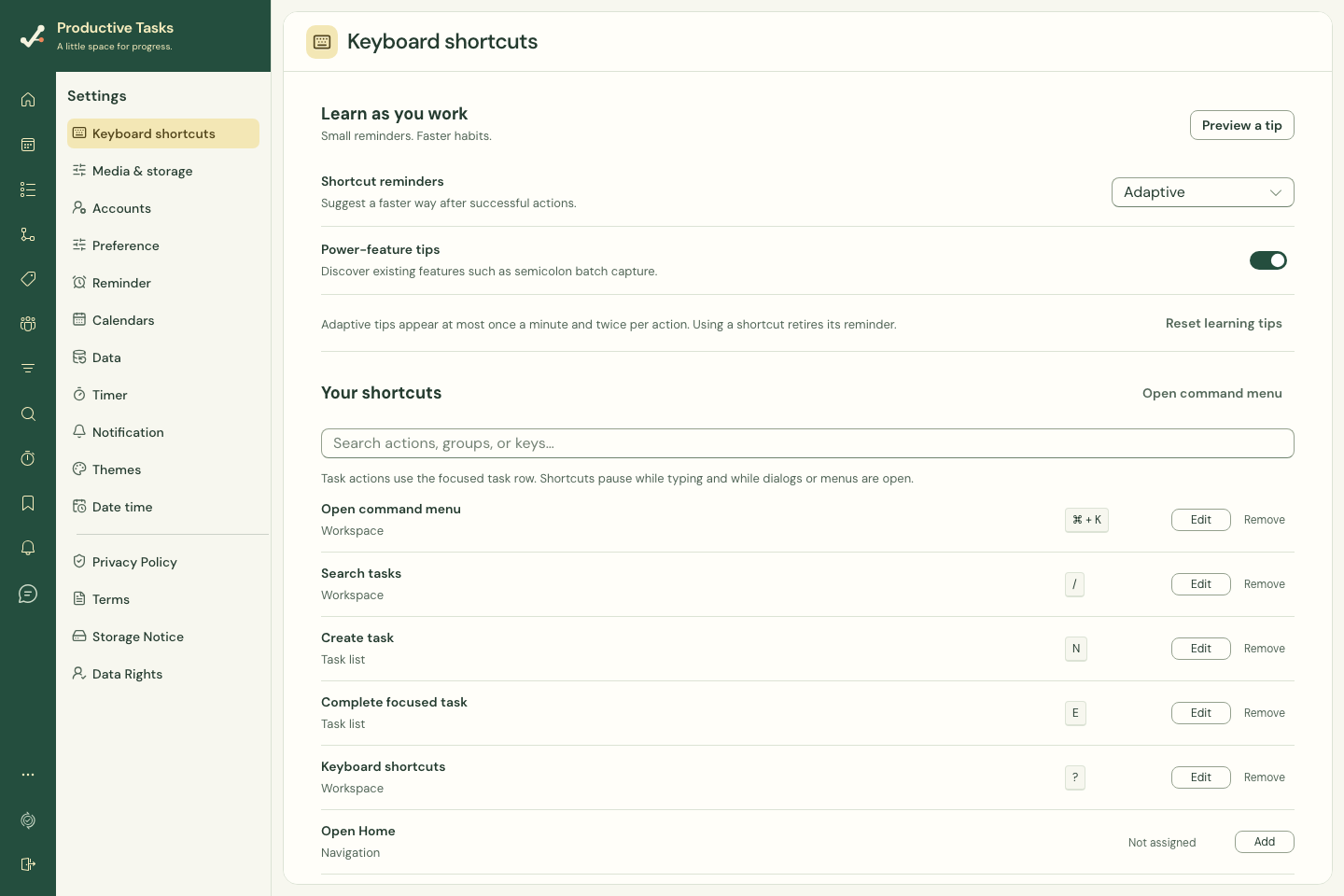
Keyboard shortcuts help you move around the web app and work with tasks. The defaults below can be changed in Settings → Keyboard shortcuts.
Start with the default shortcuts
| Key | Action |
|---|---|
| Command+K on Mac / Ctrl+K elsewhere | Open the command menu. |
| / | Search tasks. |
| N | Start creating a task in a task view that supports quick entry. |
| E | Complete the focused task when that action is available. |
| ? | Open Keyboard shortcuts settings. |
Find an action in the command menu
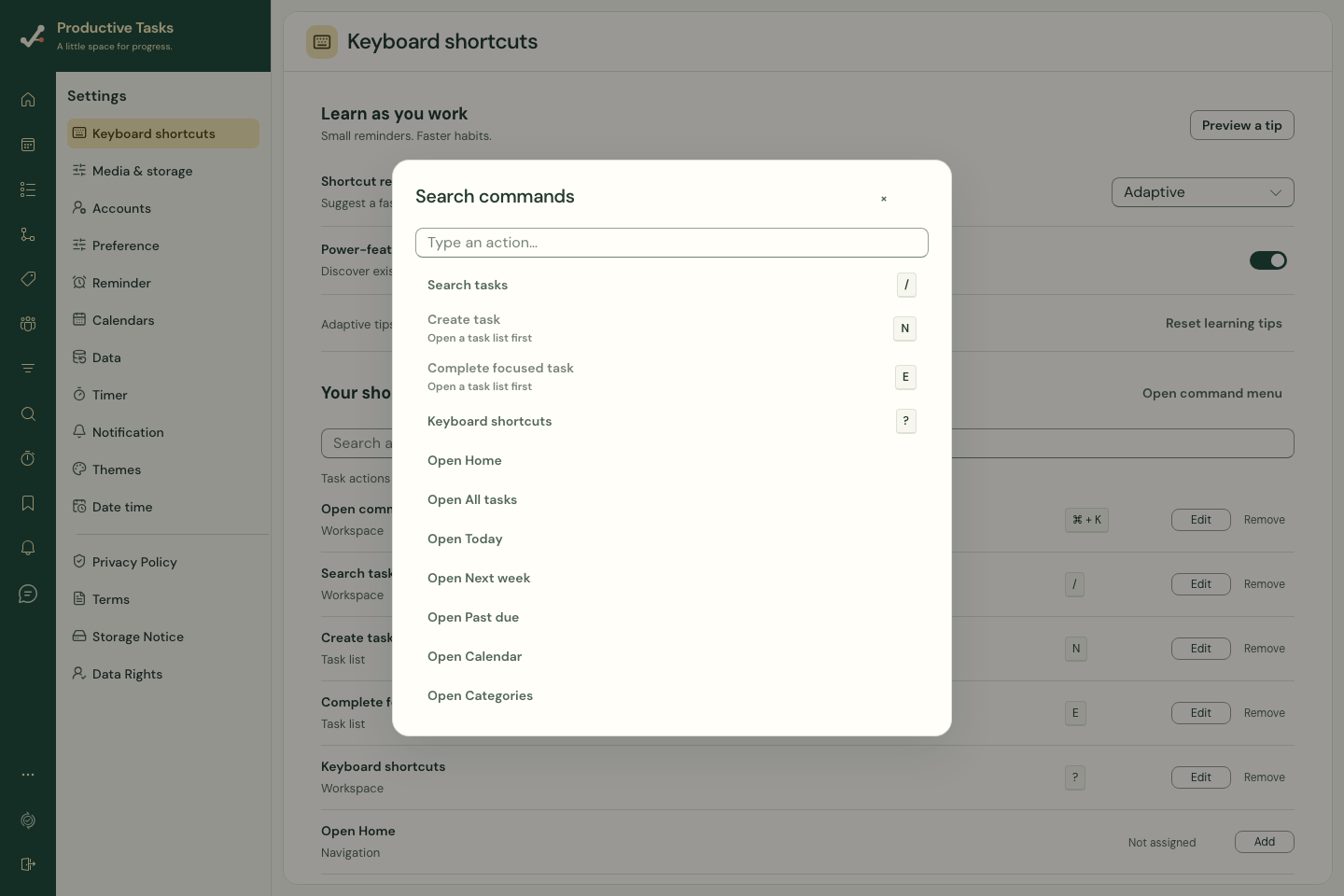
- Press Command+K on Mac or Ctrl+K elsewhere, or choose Open command menu in Keyboard shortcuts settings.
- Type in Search commands to narrow the list.
- Choose an available action, such as opening Home, Calendar or a task view. Some actions require an active task view or a focused task.
Change or remove a shortcut
Choose Remove beside an action to leave it without a shortcut. You can assign keys to navigation actions that have no default binding.
Turn off Enable single-key shortcuts to avoid triggering actions with a single letter or symbol. Choose Restore defaults and confirm to reset your shortcut bindings.
- Open More → Settings, then choose Keyboard shortcuts.
- Use Search shortcut actions to find an action. Choose Add or Edit beside it.
- Press the key combination you want. Review the proposed binding and choose Save shortcut.
- If the key is already assigned, cancel and remove or change the existing binding first. Reserved browser or operating-system combinations cannot be assigned.
Choose how the app teaches shortcuts
Shortcut reminders can be Adaptive, Every eligible action or Off. Adaptive reminders are limited and stop suggesting shortcuts you have learned. Power-feature tips have a separate switch.
Preview a tip shows an example. Reset learning tips clears the learned and dismissed history in this browser; it does not reset your shortcut bindings.
Use your shortcuts in another browser
Shortcut bindings and reminder preferences sync with your signed-in account across web browsers. Learning history stays local to each browser. These settings do not assign native iOS or Android keyboard shortcuts.
When offline, changes can wait locally and retry when a connection returns. Read any sync or browser-storage warning before expecting another browser to have the same settings. If the same binding is changed in two browsers, the last successfully saved change wins.
If you previously customized shortcuts before account sync was added, open the updated app in that original browser so it can upload those preferences.
While entering text
| Where you are | Key | Action |
|---|---|---|
| Inline subtask title | Enter | Add the subtask. |
| Inline subtask title | Escape | Cancel the unfinished entry when it is not saving. |
| Checklist step entry | Enter | Add the step and continue with the next one. |
| Step or comment text | Shift+Enter | Insert a line break. |
| Comment composer | Enter | Send the comment. |
| Editing a comment | Escape | Cancel the edit. |
Arrange the Subtasks branch in task details
- Open a task and find its Subtasks section.
- Focus the drag handle for the task you want to move.
- Press Space to pick it up.
- Use Up or Down to choose the position, Right to nest, Left to move out, or Home to move to the root.
- Review the indicated destination, then press Enter to drop. Escape cancels.
Use the visible action when in doubt
The keyboard instructions next to a control describe its current behavior. A key used in a drag operation can do something different while typing.
When a dialog asks for a destination or the scope of a recurring change, review that choice before confirming it. Keyboard use does not bypass those decisions.