

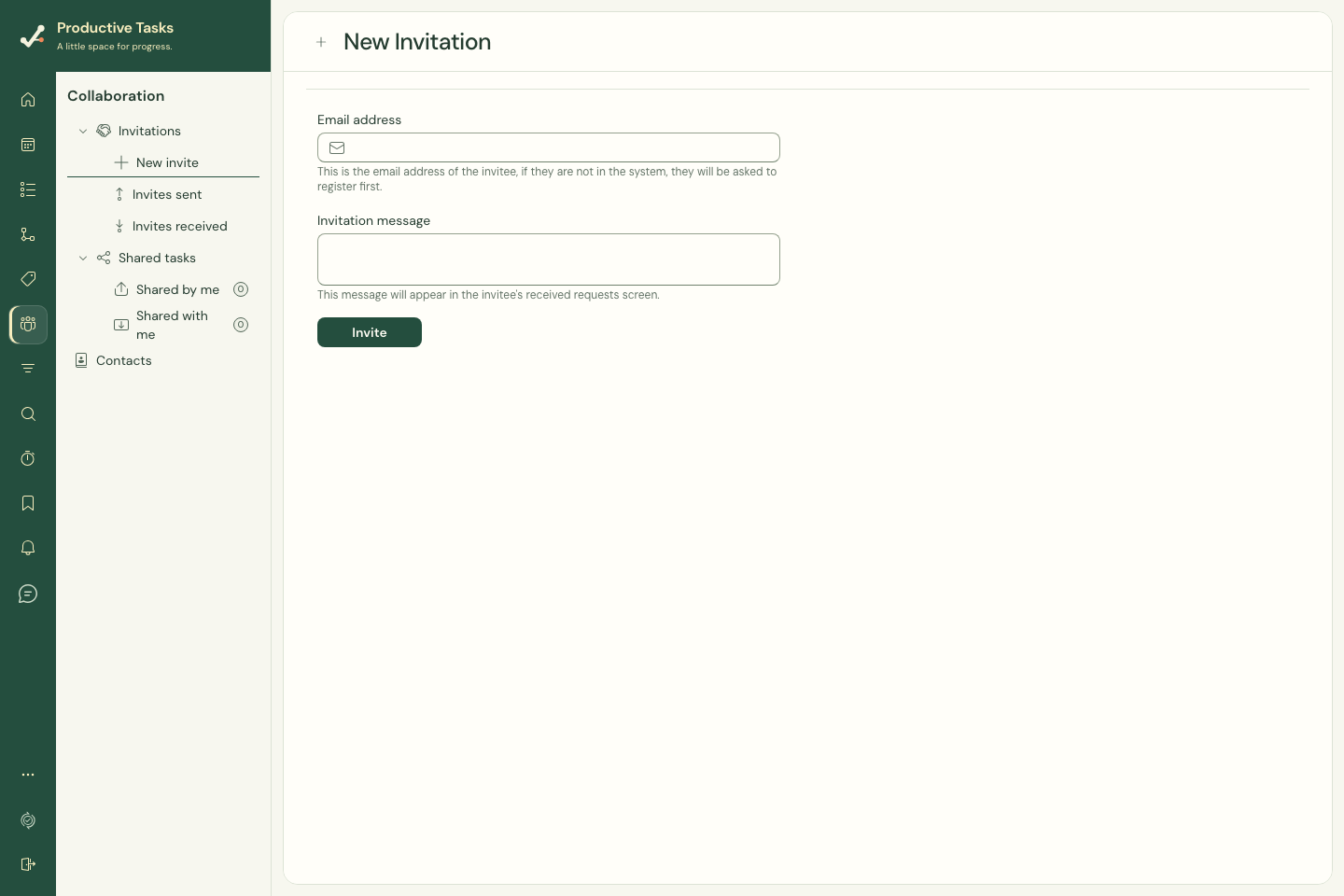
Send an invitation
- Open Collaboration → New invite.
- Enter the person’s Email address. Use the address they use, or will use, for Productive Tasks.
- Add an optional Invitation message explaining what you want to work on together.
- Choose Invite and wait for the success message.
- Open Invites sent to check the invitation’s state.
Respond to an invitation
Open Invites received and review the sender. On the web, choose Accept to connect or Reject to decline. Wait for the response to finish before trying again.
If you are new to Productive Tasks, create your account first. Accepting an invitation establishes the collaboration contact; review the specific tasks, categories or folders shared with you separately.
Find collaborators
Contacts brings together people you collaborate with. Use Shared by me and Shared with me to inspect the actual work and access associated with collaboration.
If sending fails
Check the email address and the message shown by the form. An invitation that is already pending or a person who is already a contact may not need a new invitation. Check Invites sent and Contacts before retrying.
The in-app invitation state is the place to check the request. A successful request does not by itself prove that an email reached the other person’s inbox.
On mobile
Open More → Collaboration for invitations, contacts, and shared work. Changing access or accepting an invitation requires a live authenticated connection.
Remove a contact
In Contacts, use the removal control for the person and read the confirmation. It removes the contact relationship and direct task shares between you.
Category, folder and Task Map access must be managed separately in their sharing settings. Removing a contact does not replace a review of those wider shares.