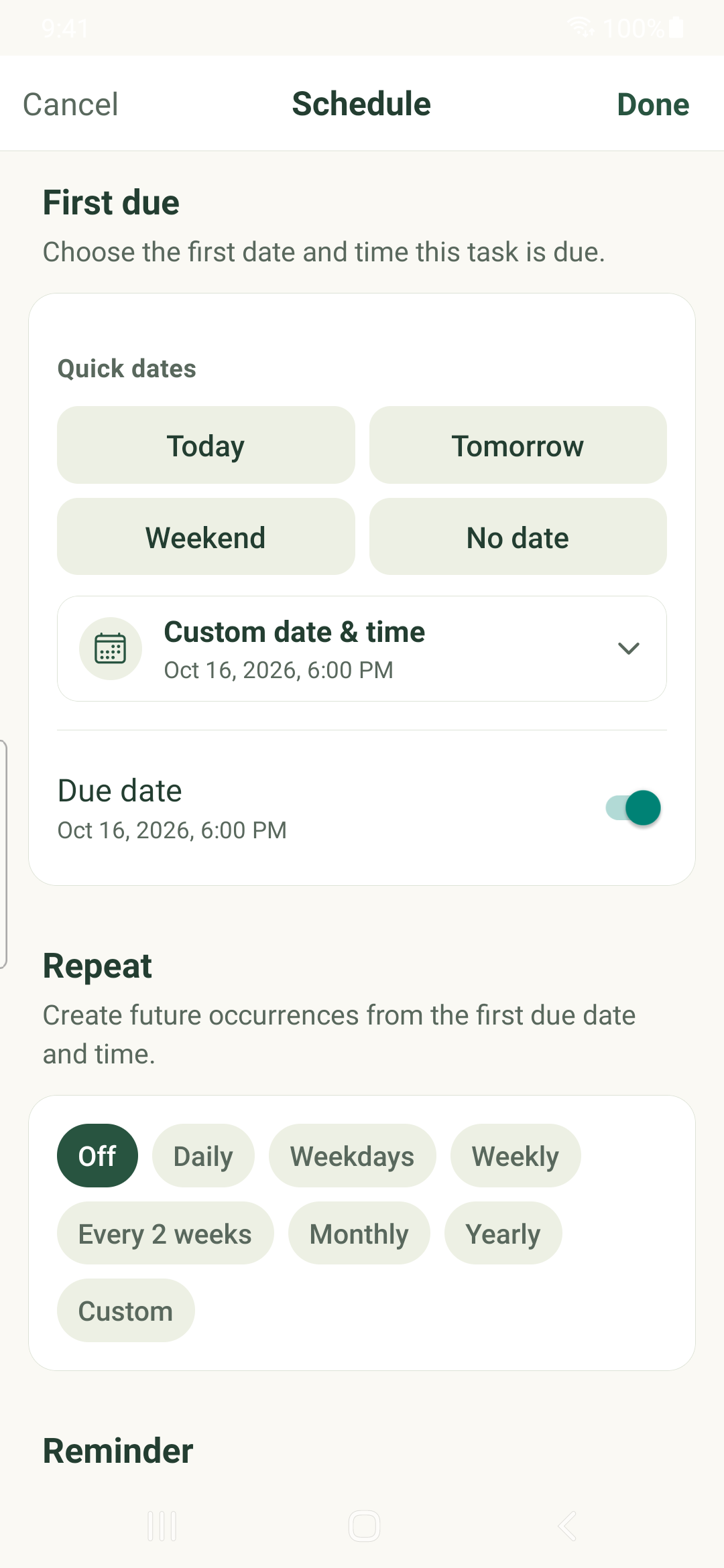
Choose a first due date, set a repeating pattern and review occurrence-specific changes on iPhone or Android.
Choose the first due date
- Open a task and tap Schedule in Details.
- Under First due, choose Today, Tomorrow or Weekend, or expand Custom date & time.
- Choose the date and time using your phone’s native picker.
- Tap Done to apply the schedule. Cancel discards the schedule draft.
Make the task repeat
- In Schedule, choose a Repeat preset or Custom.
- For Custom, choose the interval and frequency. Weekly rules offer weekdays; monthly rules offer days of the month.
- Choose whether the rule never ends, ends on a date or ends after a count of occurrences.
- Review the first due time and any Additional times, then tap Done.
Understand the pattern
A repeating task needs a first due date and time. No date is unavailable while recurrence is active. Months without a selected day are skipped.
The first due time is always included. Additional times create more times within the repeating pattern; review them to avoid unintended duplicate reminders.
Recurring series and generated occurrences are separate records. Newly edited series may need server synchronization before future occurrences appear. Check sync status before creating the same series again.
Edit the right scope
When you open a recurring occurrence, inspect the occurrence and series controls before editing. A change to one occurrence and a change to the series have different effects. Read the scope confirmation for structural, date and deletion actions.
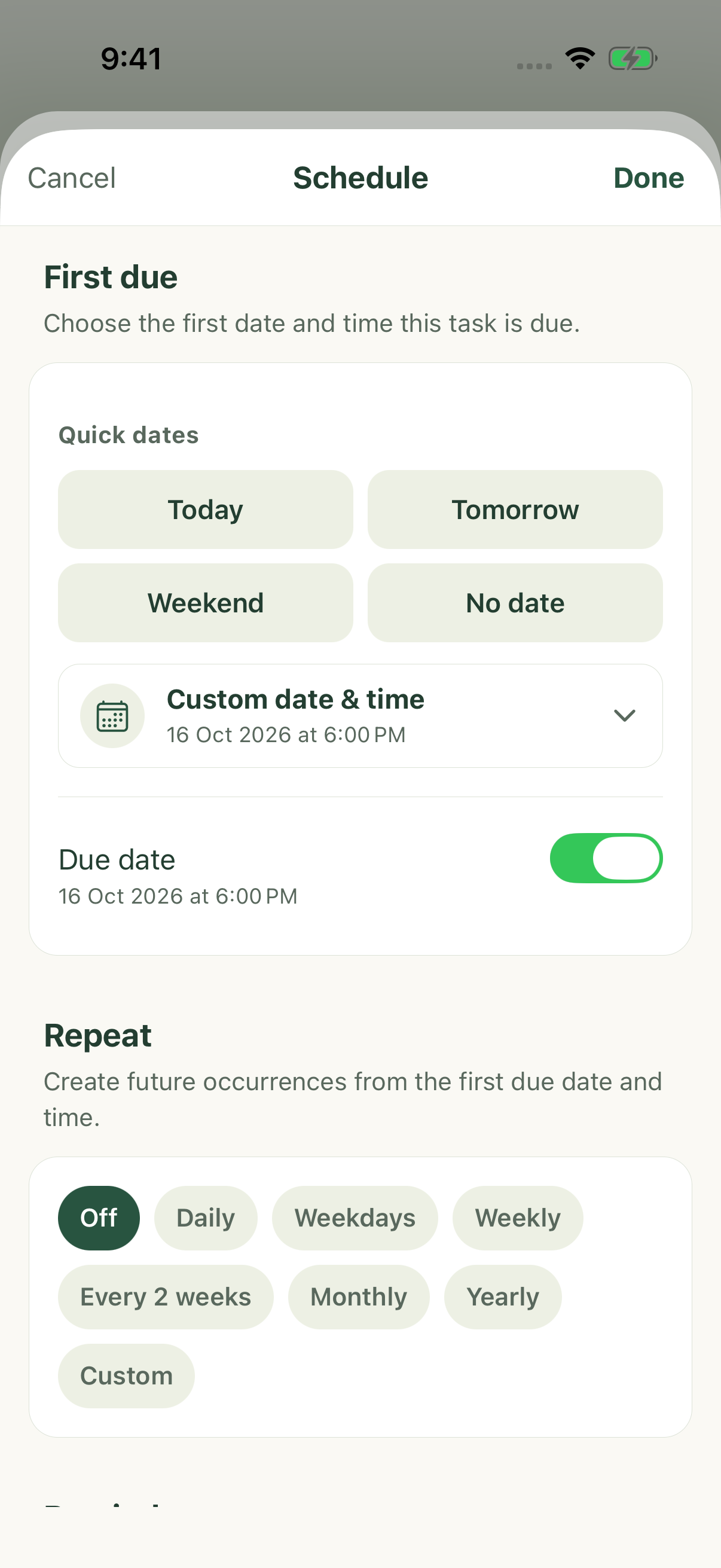
iPhone uses compact date/time controls; Android opens system dialogs. Confirm the Android picker selection, then use Done in Schedule to apply the whole draft.
iPhone example
Android example