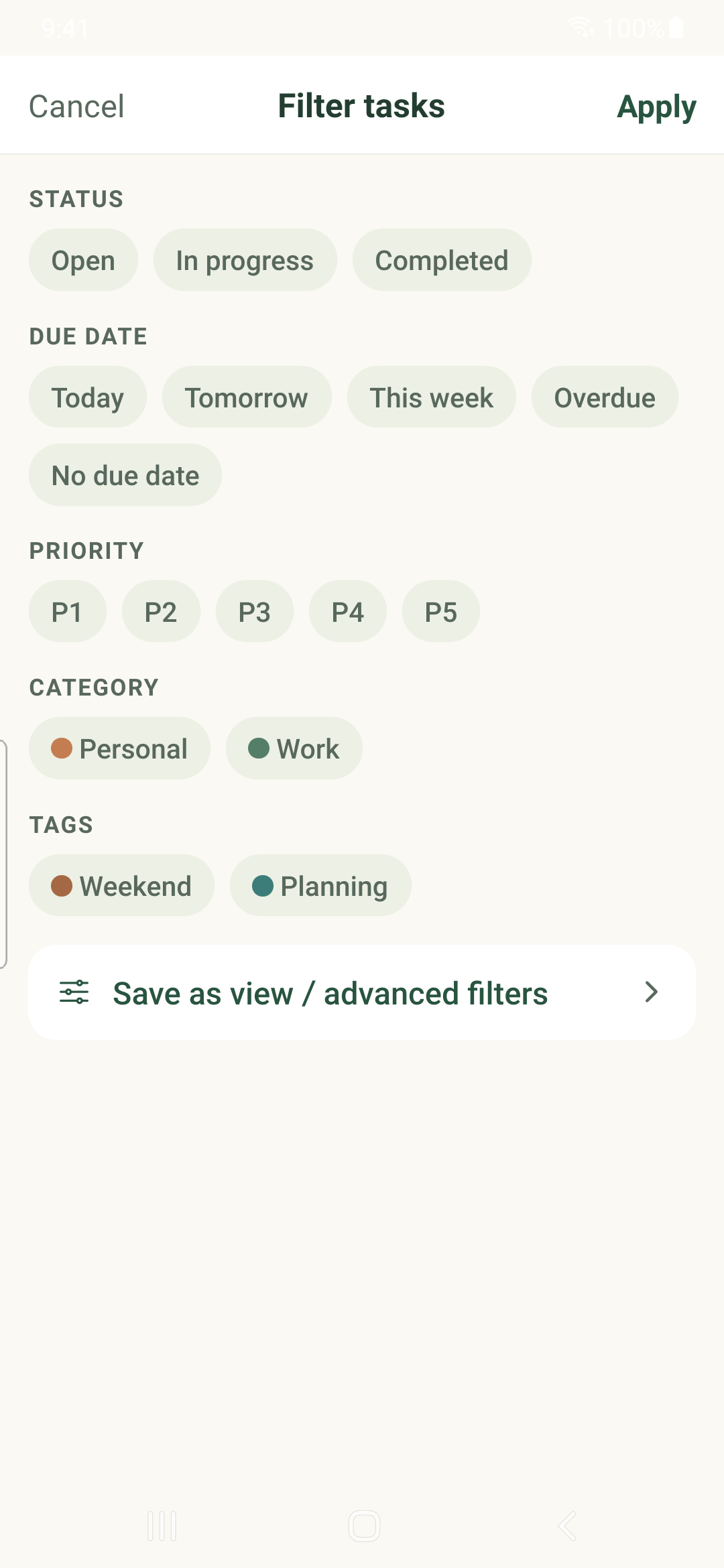
Combine task views, title search, filters and sorting to bring the right work into view.
Choose a view
- Tap the view title at the top of Tasks, such as All tasks.
- Choose a built-in date or status view, a category, a tag or a saved view.
- Tap the search icon to enter a task search. Close search to clear its text.
Refine the list
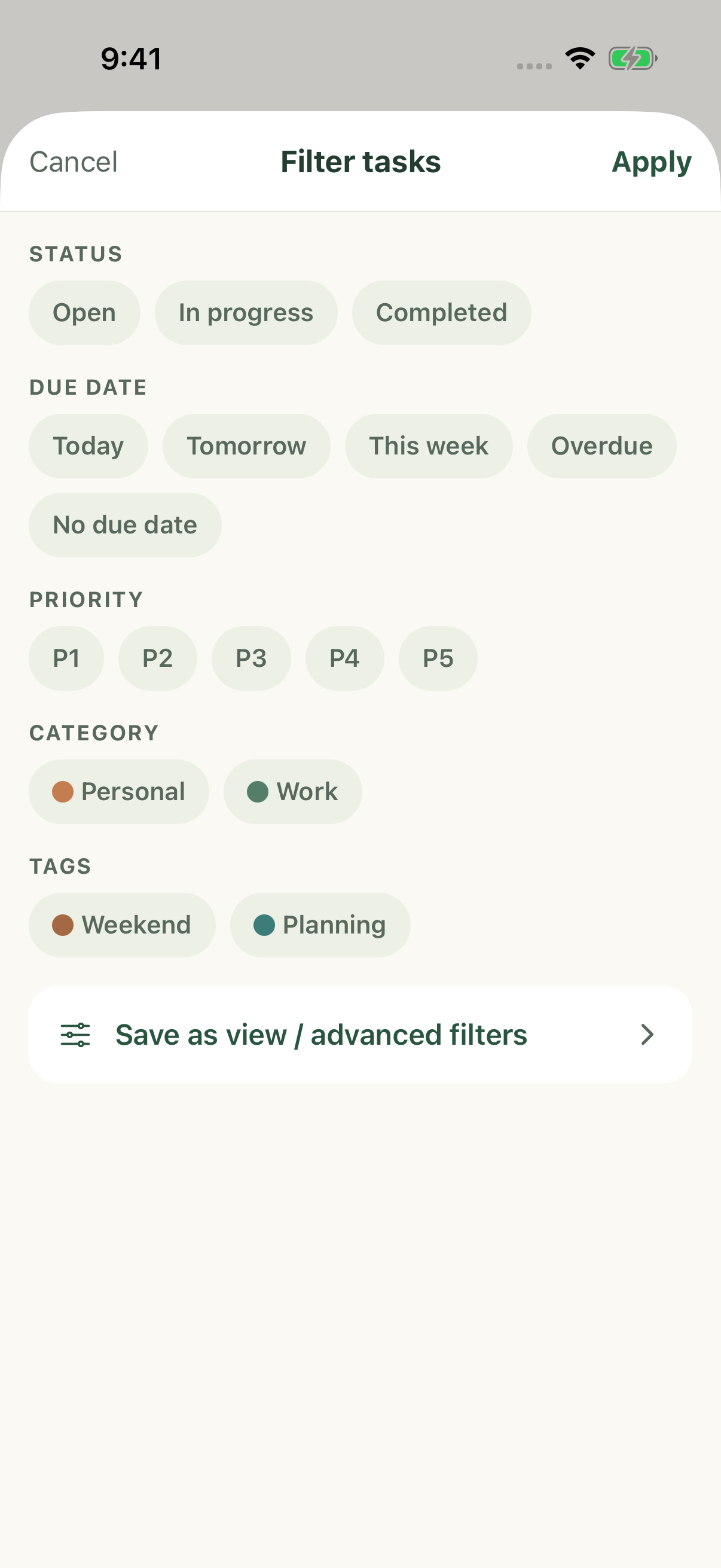
- Tap Filter tasks beside search.
- Choose status, date, priority, category or tag conditions, then apply the quick filter.
- Use Clear filters when you want to remove the active conditions. Search and the selected view can still narrow the list.
- Tap the sort summary, choose a sort field and direction, then Apply.
Keep a useful filter
Choose Save as view from the quick filter to open advanced filters. Set whether rules match All or Any, then give the reusable view a name, color and optional folder. More → Saved views opens the task-view picker.
Saved filters synchronize with your account. View selection and collapsed rows are local navigation preferences. A saved view is a set of conditions, not a second copy of its tasks.
If the result is empty
- Start from All tasks, clear filters and close search.
- Check completed or hidden work and the selected date range.
- Allow pending changes to synchronize before comparing another device.
iPhone example
Android example