

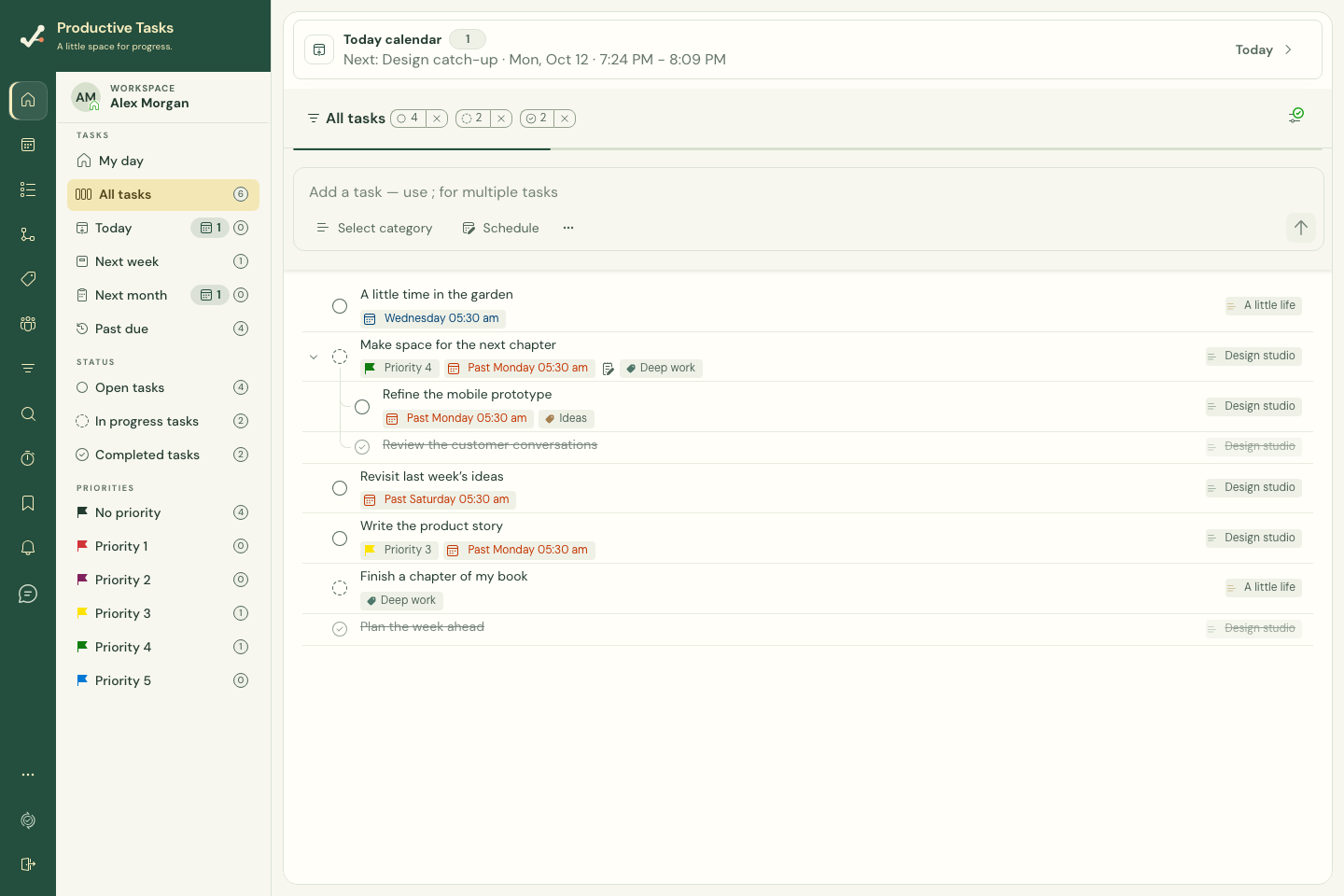
Set a task’s status
- Open the task menu or task details.
- Choose Not started, In progress, or Completed.
- Return to the matching status view when you want to review work in that state.
Understand task trees in status views
Status views select task trees using the root task’s state. A child with a different state can still appear beneath its parent. This preserves the context of the whole tree.
A completed child does not automatically mean every task in the project is finished. Review the parent and remaining children before considering the larger outcome complete.
Set or clear a priority
Priorities are labeled Priority 1 through Priority 5, with Priority 1 the highest. Choose No priority to clear the value.
Use the priority control in the task menu or editor. Priority helps distinguish urgency or importance without changing a task’s category or parent. Choose the no-priority option to clear it.
Priority views and sorting help you find these tasks again. Display preferences can also move overdue or in-progress work ahead of ordinary sorting.
Complete or delete?
Complete a task when the work is finished and you want to keep its record. Use Delete in the task menu or task details only when you want to remove the task, then review the confirmation.
For a recurring series, the delete confirmation states that generated occurrences and completed history are removed too. Use End series when the aim is to stop future repetition.
The short-lived Undo for supported moves is not a deletion-recovery feature. Export information you need before deleting it.