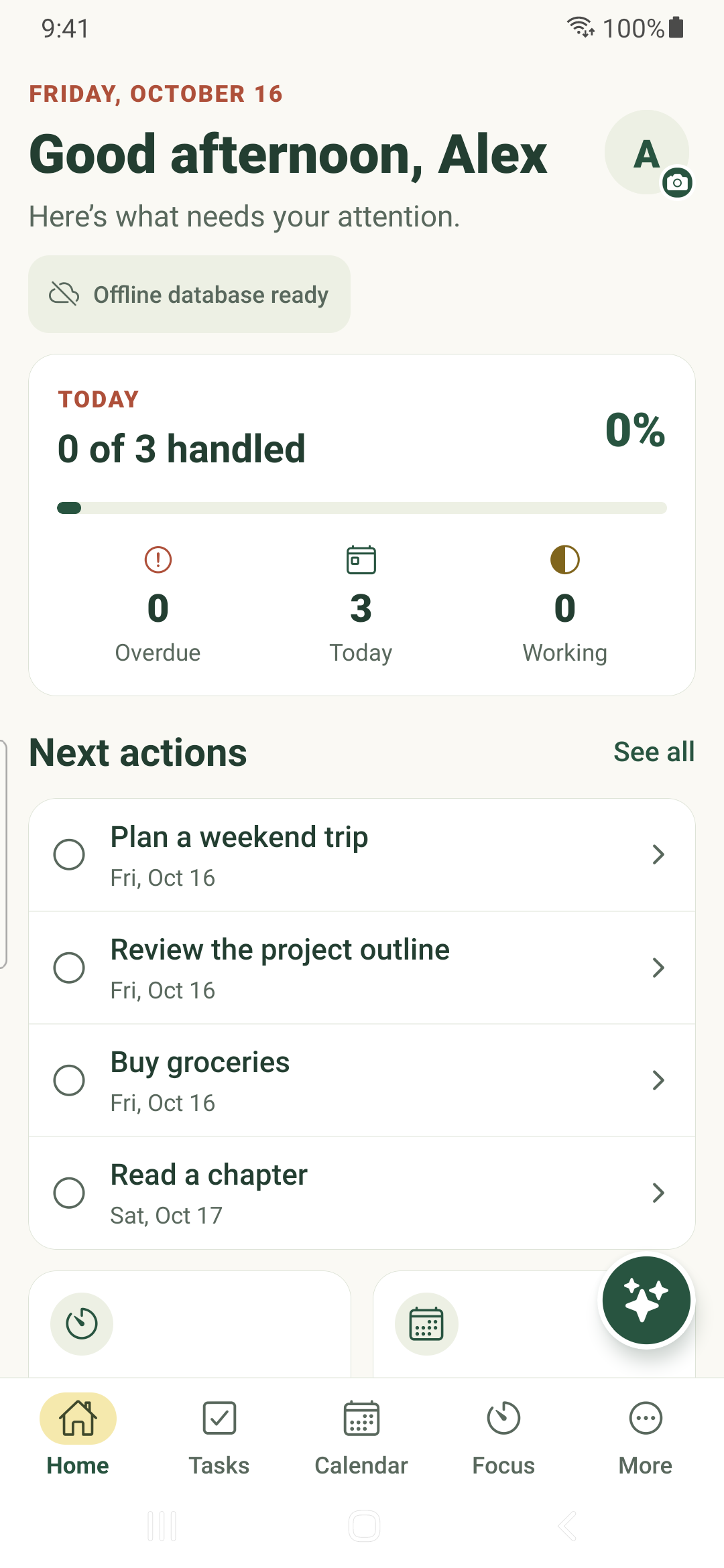
Use Home to see today’s work, open a task and move into your next focus session.
Start with Home
- Tap Home in the bottom navigation.
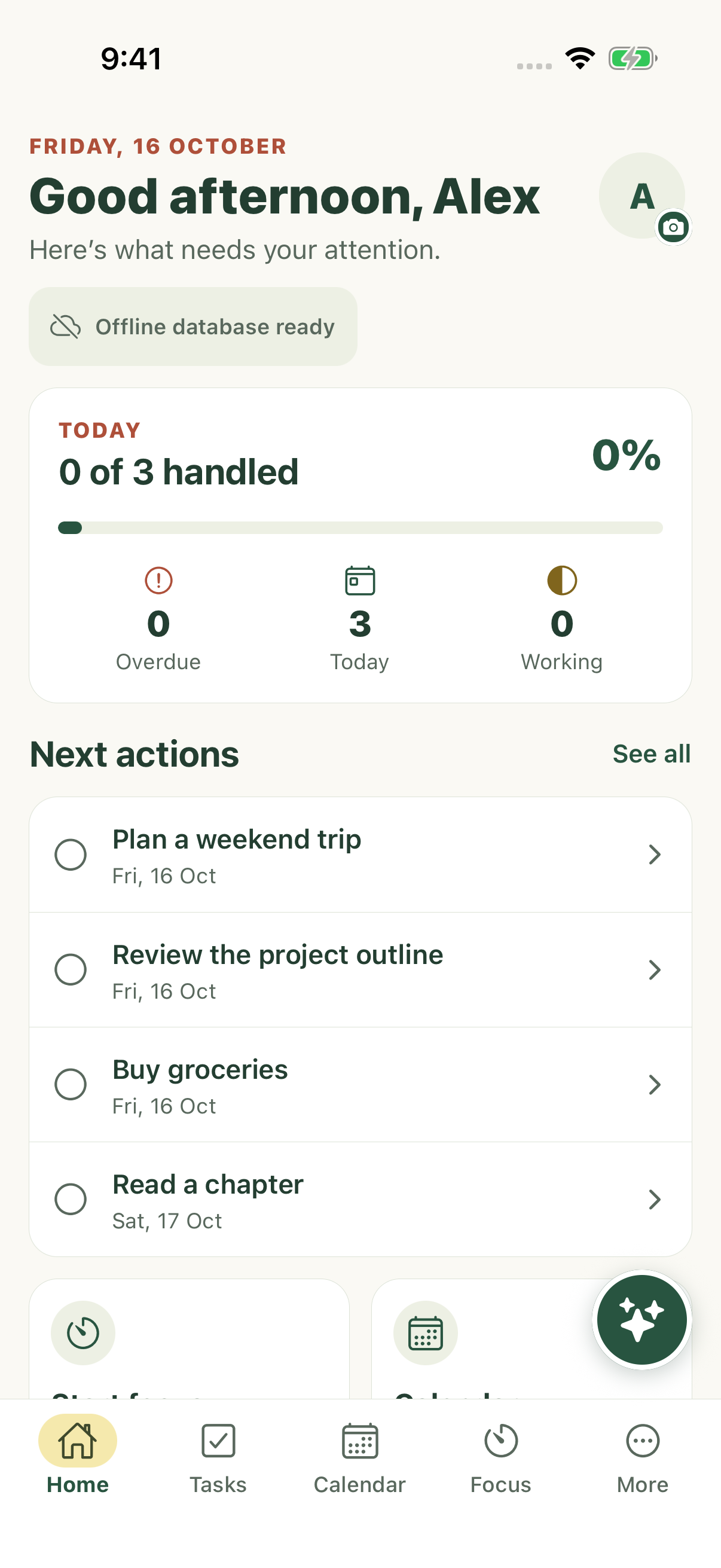
- Review Today, Overdue and Working. Tap a count to open that task view.
- Tap a task in Next actions to open its editor. Use See all to continue in Tasks.
- Use the Focus or Calendar shortcuts when you want to work on a task or check the day.
Make the overview useful
Home uses your tasks and settings. A task’s date and status affect where it appears. Tasks without dates remain available in Tasks even when they are absent from today’s summary.
Statistics dashboards you pin from More → Statistics appear lower on Home. Scroll to reach them; tap a summary to open the full dashboard.
Getting-started guidance
New accounts can follow the first-task, first-subtask and first-completion prompts. Guidance updates after changes synchronize.
Open More → Help & feedback to revisit guidance and preview starter setups. Choose Use this setup only when you want those example tasks added. Untouched examples do not count toward statistics. Removing untouched setups preserves useful work; synchronize your other devices first.
Check saving separately
The sync indicator describes this device’s data connection. Offline database ready means local data is usable; it does not mean your newest changes have reached another device. Tap the indicator to review sync status.
iPhone example
Android example