Give a collaborator access to the right scope of work and review it later.
Web · iOS · Android2 min readUpdated
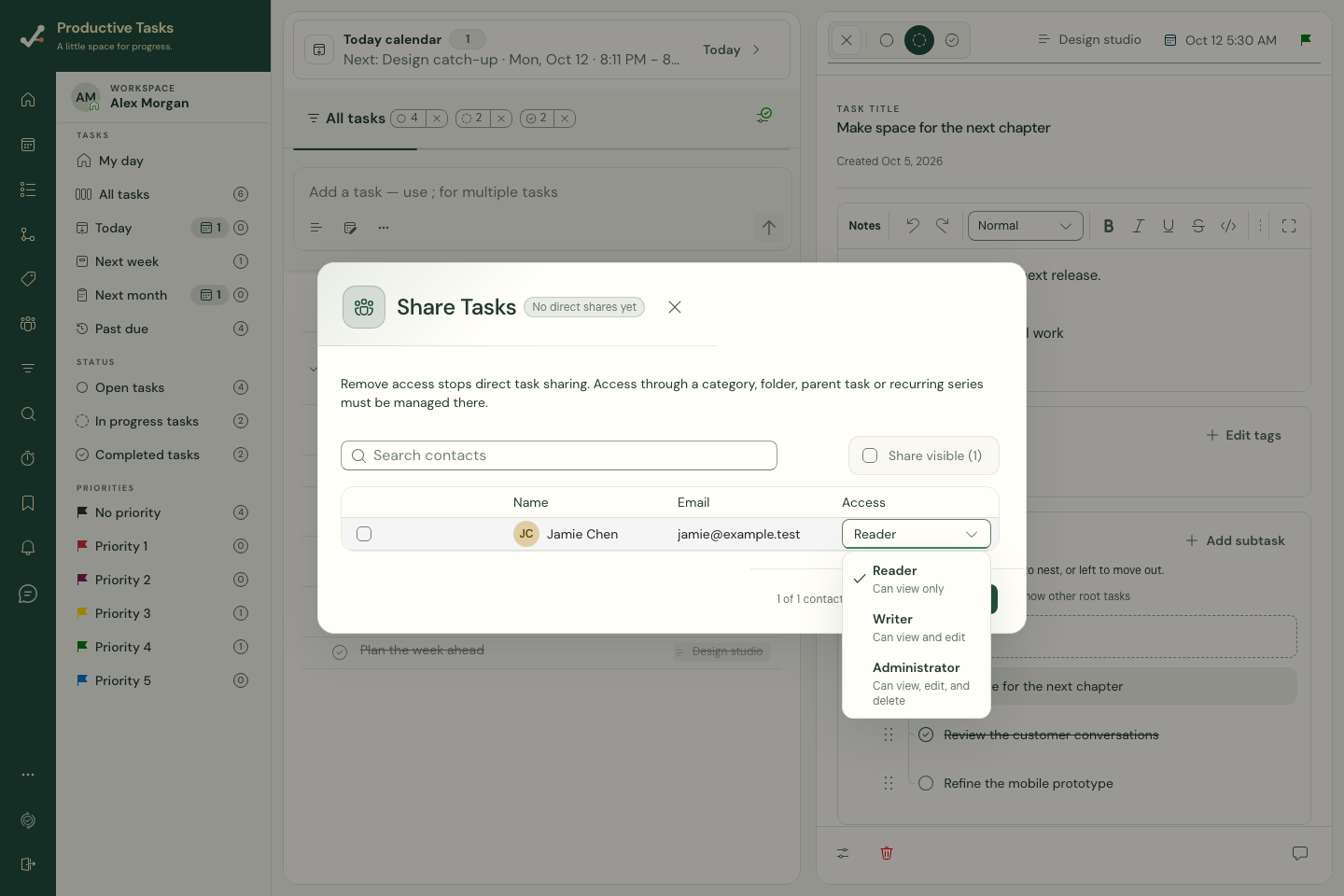
Choose an access level before selecting a new collaborator. Web app with fictional contacts.
Choose the scope before sharing
Share a task for a focused piece of work. Share a category or folder when the collaboration intentionally covers a wider area. Review the selected resource and recipients before applying the change.
Share an item on the web
Open the task’s menu and choose Share, or use the category or folder sharing control. Check the selected resource and task count before changing access.
Find the person in your contacts. If they are missing, complete an invitation first.
Choose the access level beside their name, then select their sharing checkbox. A new selection normally starts with Reader unless you choose another role.
Wait for the update to finish and check the selected state. Use Done to close the panel.
Review existing shares
Shared by me shows work you have shared; Shared with me shows work others have shared with you. Open a shared item from its entry to reach the associated work.
The task creator label provides attribution. Seeing “Created by” is not itself a grant of editing permission.
Remove direct access
Reopen the same sharing panel. Clear the selected person’s checkbox; task sharing also offers Remove access. Wait for the update to finish. Removing a share does not delete the task, category or folder.
Access can also come from a category, folder, parent task or recurring series. Manage inherited access at that source if removing a direct task share does not remove all access.
Share several tasks carefully
The sharing panel can represent a selection of tasks. A partially selected checkbox means the person has direct access to some of them. Selecting it completes the missing shares; the existing task roles are retained.
Mixed access means the roles differ across the selected tasks. Choosing a role applies that role across the selection, so check the selected tasks before making this change.