

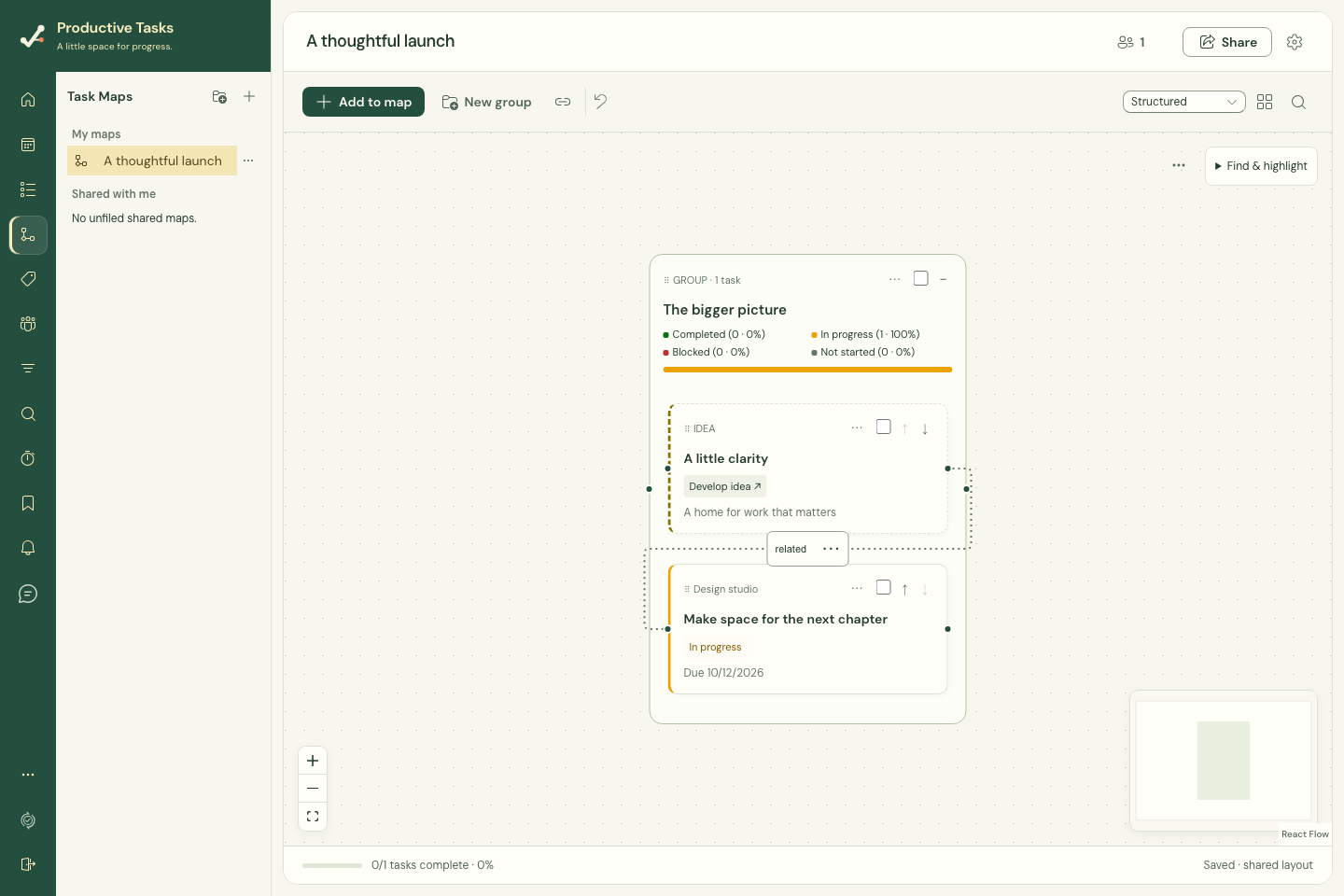
Work with several cards
Task status changes update the underlying tasks everywhere. Map targets, blockers and card placement organize this map. Selecting a group alone does not select its tasks for deletion.
- Use Select for bulk actions on the cards or groups you want to change.
- Check the panel’s count of selected cards and groups.
- Choose the relevant action: a completion target, task status, manual blocker, destination group, or parent for selected groups.
- Review the result and use Clear selection when finished.
Remove the right thing
Remove from map removes the representation from this map while retaining the underlying task or linked map. Delete task is a different action and needs the appropriate permission.
Undo map change can reverse supported recent map edits. Read a deletion confirmation carefully instead of assuming every action is reversible.
Give someone map access
Viewer can read the map; Editor can change the map. The owner manages membership and can delete the map.
Map access does not grant access to underlying tasks or linked maps. People without the corresponding access see restricted placeholders.
- As the map owner, open Share.
- Choose a person from Contact and select a Map role: Viewer or Editor.
- Choose Grant map access and check the members list.
- To change an existing member, use their role selector. Remove revokes their map membership.
Handle pending changes
If map creation or task creation is pending, let the app synchronize before relying on the result on another device. Avoid repeating a creation action just because its confirmation is delayed.
Delete a map without deleting its tasks
The owner can choose Delete map from Map settings. The map library also offers bulk map deletion with a confirmation. Deleting a map removes its layout; underlying tasks and referenced maps remain.
Map deletion cannot be undone. Use Remove from map for a card you no longer want in an otherwise useful plan.