

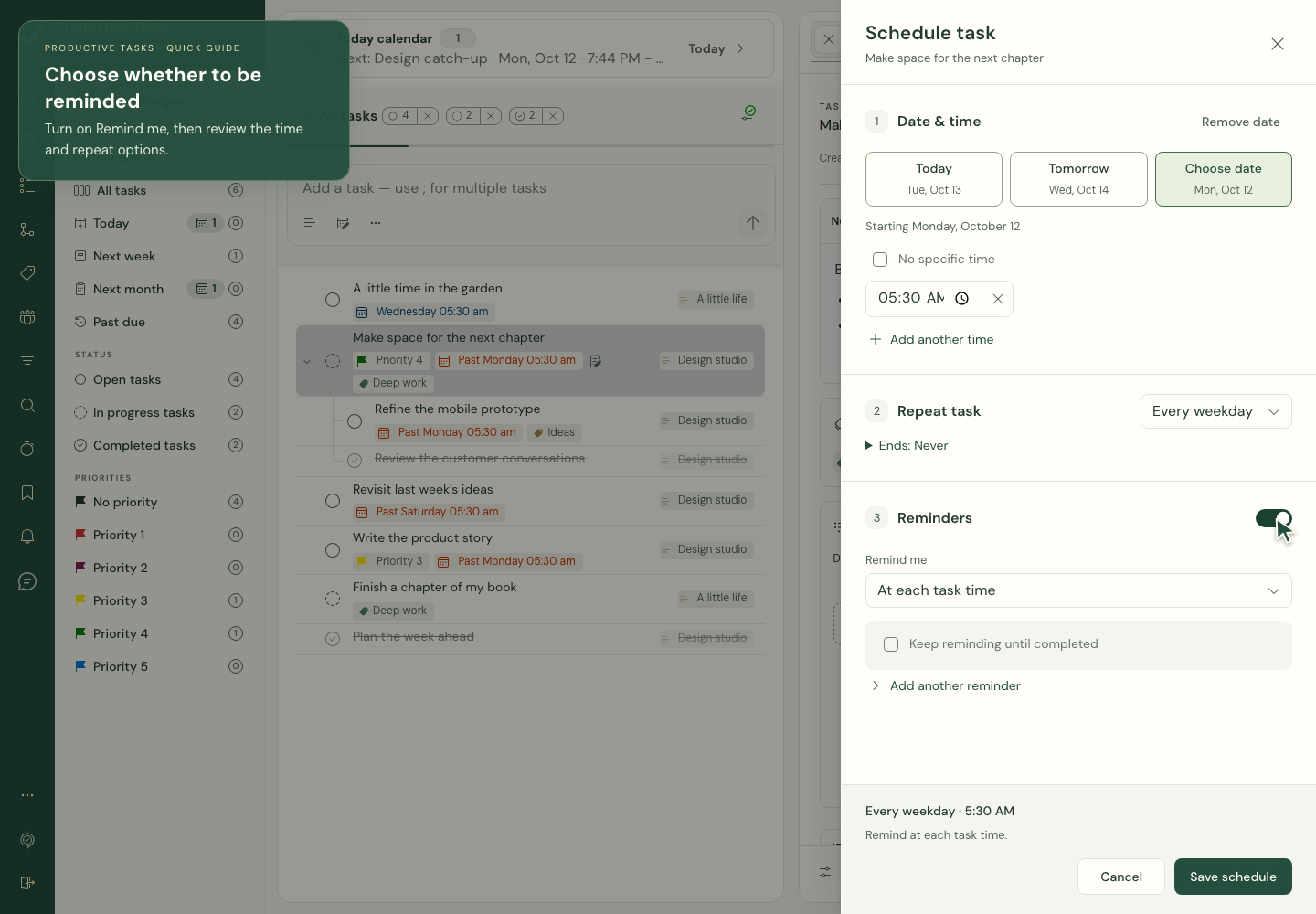
Add a reminder to one task
- Open the task’s Schedule control and set its date.
- Turn on Remind me in the Reminders section.
- For a timed task, choose At each task time or Before each task time and set Minutes before. For a date-only task, choose a Reminder time.
- If Remind whom? is shown, review the recipient.
- Read the summary and choose Save schedule.
Repeat a reminder until the work is handled
Select Keep reminding until completed and set Remind every in minutes. More repeat reminder options lets you choose the stopping condition: completion, the next due time when relevant, end of day, or a reminder limit.
This repeats the alert for the current task or occurrence. Repeat task creates the continuing work itself; the two controls serve different purposes.
Add a separate alert
Choose Add another reminder for an additional alert with its own date and time. Check the additional-reminder list before saving.
Turning off Remind me does not remove additional alerts that remain in that list. Remove unwanted additional reminders explicitly.
Choose reminder preferences
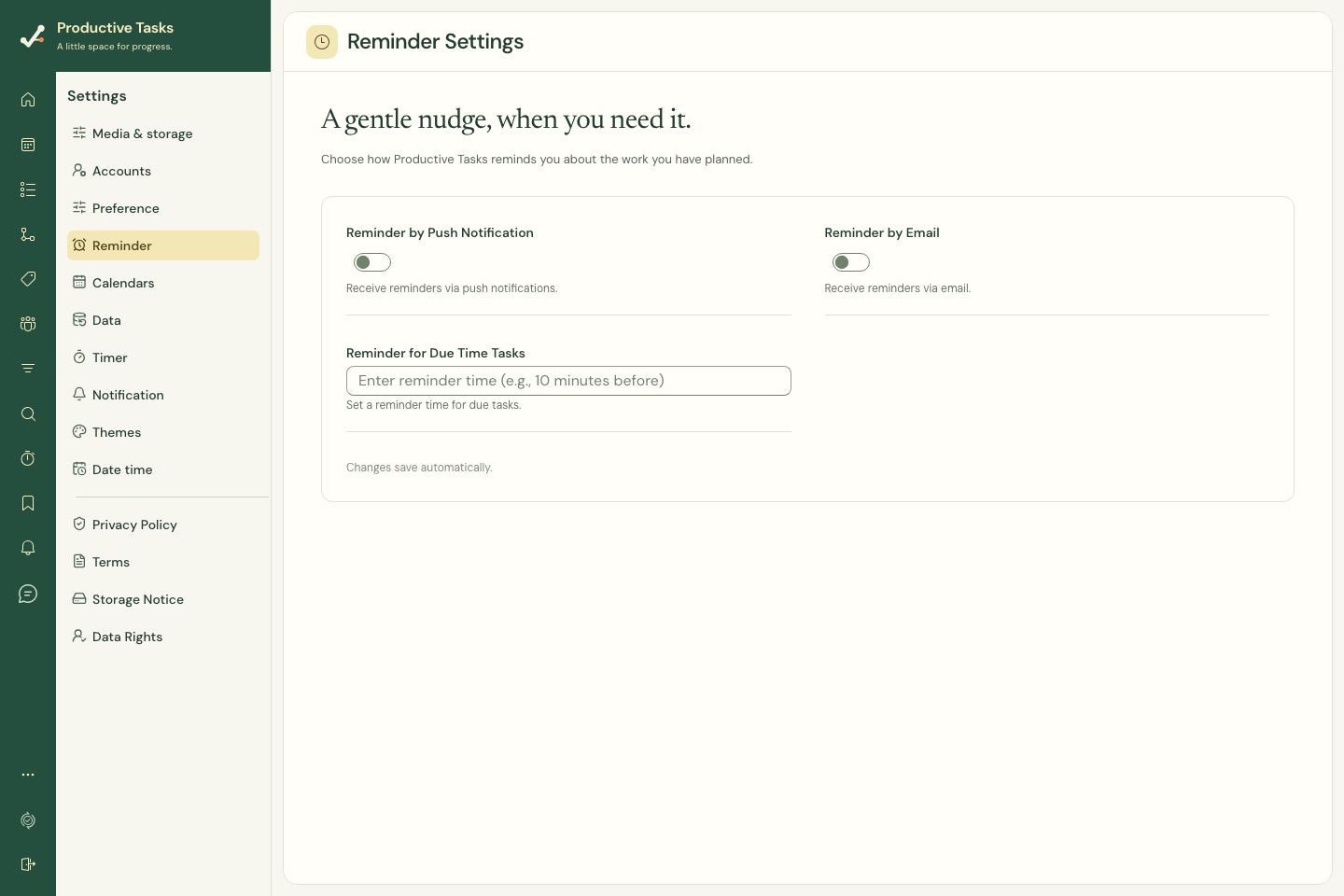
- Open Settings → Reminder.
- Review the push and email reminder options exposed for your account.
- Set the lead time for due-time tasks.
- Confirm the task has the intended due date and time.
Allow notifications on the device
Notification preferences and operating-system permissions are separate. Enable the app’s notification setting, then allow notifications in your browser or device when prompted.
A task’s date, the selected time zone, delivery settings, and device state all affect a useful reminder. A setting being enabled is not proof that a notification has arrived.
If a reminder does not arrive
- Check the task time and account time zone.
- Check notification permissions for this browser or installed app.
- Check system Focus / Do Not Disturb and notification presentation settings.
- Open the app with a connection so pending task changes can sync.
- Use the notification history to distinguish a received message from a missing delivery.
Native mobile reminders
Mobile builds can combine local scheduling and server delivery. OS background restrictions and permissions differ between iOS and Android. Test an actual reminder on your device before depending on it for an important deadline.