

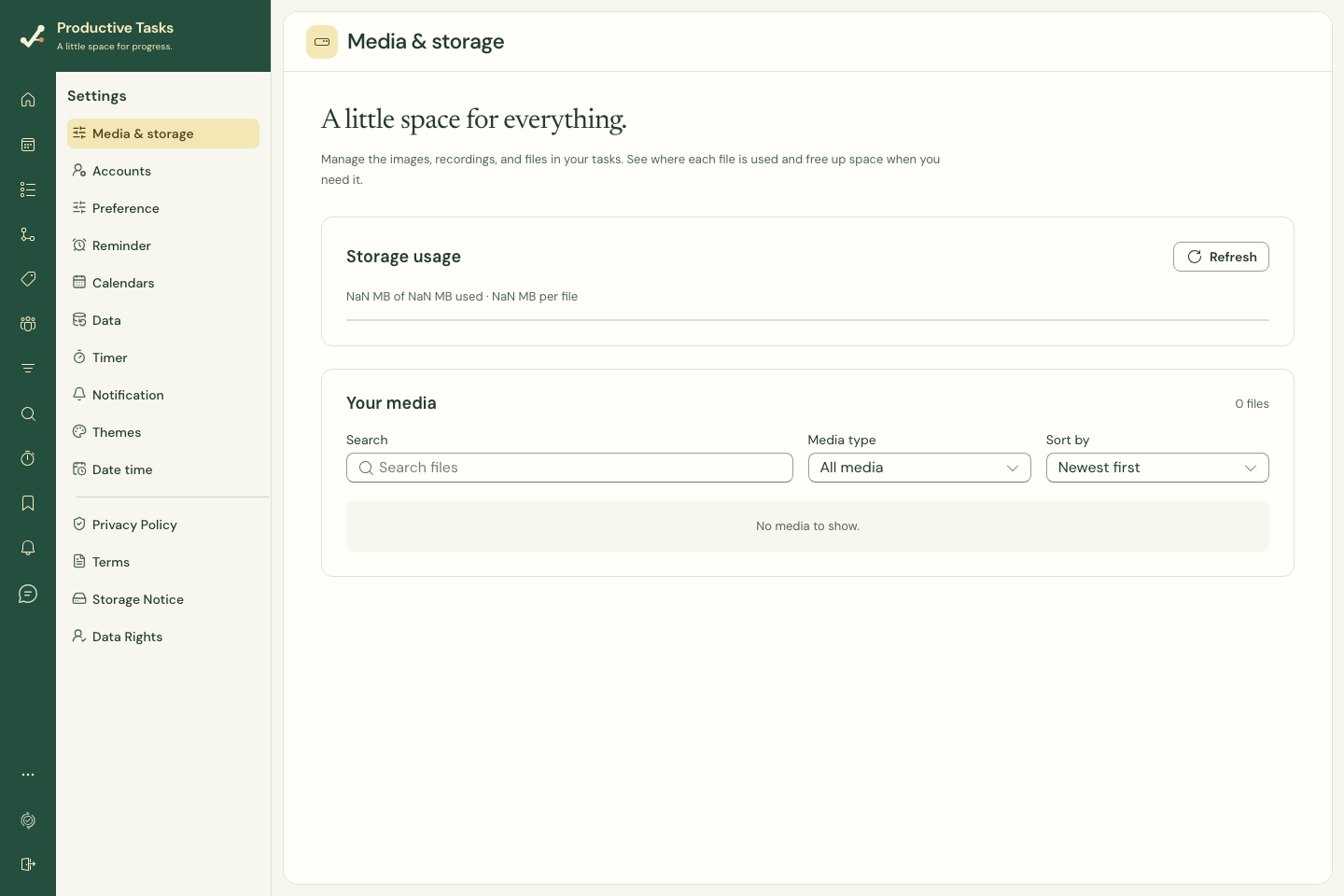
Find your media
- Open Settings → Media & storage on the web.
- Search by filename, choose Images, Audio or Files, and sort by Newest first or Largest first.
- Choose Preview to inspect a file or Open task to see its task.
- For a failed upload, use Retry upload and check its status.
Understand local availability
A cached file lives on this device; an uploaded attachment belongs to the task’s shared data. A file that is waiting locally has not yet finished uploading.
The web library’s Delete everywhere action removes the shared media. It is not a device-cache cleanup button. Check Used in tasks before removing anything you still need.
Review where a file is used
- Choose Used in tasks to inspect the references to a media item.
- Open an associated task when you want to understand its context.
- Choose Delete everywhere only when you intend to remove the file from all listed tasks and their notes.
- Review the confirmation before deleting; this action cannot be undone.
Protect unfinished uploads
Check pending uploads and sync state before clearing local storage, signing out, or removing the app. Local-only work cannot be recovered from another device until it has synchronized.
On mobile
The native settings provide a media-management destination when available in the installed build. File viewers and download behavior can differ by operating system.